The notch and the Mac
Clipboard History on Mac: The Built-In Options and the Best Clipboard Managers
How to see clipboard history on a Mac with Spotlight in macOS Tahoe, the other built-in clipboard tools, and when a clipboard manager app is worth adding.
On this page
Yes, a Mac has clipboard history now: in macOS Tahoe 26 and later, press Command-Space to open Spotlight, then Command-4 to search everything you've copied recently. On earlier versions of macOS the clipboard holds only the last thing you copied, so getting an older item back needs a clipboard manager app. If you want your last few copies visible at a glance rather than in a search box, a small clipboard manager on the Mac, such as the clipboard tab in Eddie's notch, keeps them one hover away.
The macOS steps below come from Apple's Spotlight clipboard guide and related Apple Support pages, and each third-party app is described from its own site. All were checked on October 3, 2026.
Does a Mac have clipboard history?
It depends on your macOS version:
| macOS | Clipboard history | How to open it |
|---|---|---|
| macOS Tahoe 26 or later | Yes, in Spotlight | Command-Space, then Command-4 |
| macOS Sequoia 15 or earlier | No, one item at a time | Use a clipboard manager app |
Apple's What's new in macOS Tahoe 26 page lists clipboard history as part of Spotlight. Apple's guide doesn't say how long Spotlight keeps items, so don't treat it as a permanent archive.
How to see clipboard history in Spotlight
- Press Command-Space to open Spotlight.
- Press Command-4, or click the Clipboard button to the right of the search field.
- The first time, Spotlight may ask whether to allow results from the clipboard. Allow it.
- Type to search what you've copied.
- To reuse an item, click the copy button beside it, or select it and press Command-C. Then paste with Command-V wherever you want it.
To erase the history, click the More button to the right of the search field and choose Clear History.
Apple's guide adds a warning worth taking seriously: sensitive information may appear on the clipboard. If you'd rather Spotlight didn't show clipboard items at all, go to System Settings > Spotlight and turn the clipboard category off; Apple's result categories page calls it "Results from Clipboard" in the current guide and "Clipboard Search" in the macOS 26 version.
The other built-in clipboard tools
macOS has a few more clipboard features that are easy to miss, all from Apple's keyboard shortcuts page and Universal Clipboard guide:
| Tool | What it does | How |
|---|---|---|
| Universal Clipboard | Copy on your iPhone or iPad, paste on your Mac, or the reverse | Same Apple Account, Wi-Fi, Bluetooth and Handoff on, devices within about 30 feet |
| Paste and Match Style | Pastes text in the style of the surrounding document | Option-Shift-Command-V |
| A second, per-app clipboard | Cuts to a clipboard only that app can use, separate from the main one | Control-K to cut, Control-Y to paste |
| Move files in the Finder | Moves copied files instead of duplicating them | Command-C on the files, then Option-Command-V |
| Terminal | Pipes text into and out of the clipboard | pbcopy and pbpaste |
Universal Clipboard is best for small bits of text and images, as Apple notes; for several files, Apple points you to syncing or AirDrop instead.
pbcopy and pbpaste for developers
If you live in a terminal, pbcopy and pbpaste are the fastest clipboard tools on the Mac. They ship with macOS and are documented in man pbcopy.
# Copy the current commit hash
git rev-parse HEAD | pbcopy

# Copy a whole file
pbcopy < .env.example

# Save whatever is on the clipboard to a file
pbpaste > snippet.txt

# Pretty-print JSON you copied from a browser
pbpaste | python3 -m json.tool

# Replace rich text on the clipboard with plain text
pbpaste | pbcopy
They work on the Mac you're sitting at. Inside an SSH session on another machine, they won't reach your local clipboard.
When the built-in history isn't enough
Spotlight's history is good for finding something you copied a while ago. Developers usually need something a little different: the error message, commit hash, URL and color value they copied in the last few minutes, while switching between an editor, a terminal and a browser. Opening a search panel and typing is slower than just looking.
That's where a small, always-visible clipboard helps. Eddie's notch has a clipboard tab that keeps your last five copies with real previews: images, links and colors are shown as what they are, not as file names or hex strings. Hover the notch or press ⌃⌥V from any app to open it, then click a clip or press ⌘1 to ⌘5 to copy it again. Copies from password managers are skipped (more on that below), and nothing leaves your Mac.
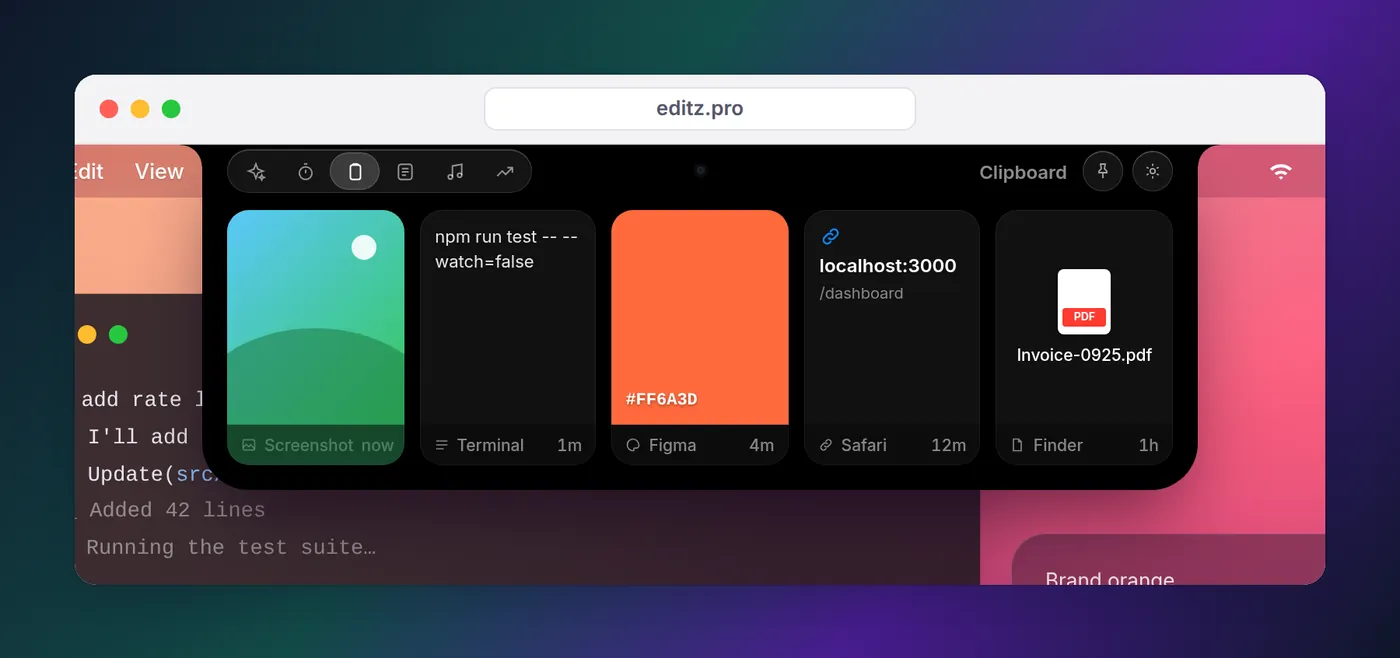
The limits are deliberate. It keeps five items, with no search, pins, snippets or iPhone sync. Five is how many you actually reach back for, and five fit in one glance with a proper preview each. It's also part of a larger app: the same notch shows your coding agents' status, a note, Now Playing and a pomodoro timer, which our Mac notch apps for developers roundup covers. On a Mac it needs macOS 14 or later; Eddie for Windows keeps the same five clips, recalled with Ctrl+1 to Ctrl+5.
What a clipboard manager actually keeps
A copy on a Mac is rarely just text. Copying from a web page carries formatting, copying in the Finder carries files, and design tools put colors and images on the clipboard. A clipboard manager decides which of those it records and how it shows them, and that matters more than the length of the history:
- Text and rich text. Every manager keeps text. If you paste code, you usually want it back as plain text, which is what Paste and Match Style or
pbpaste | pbcopygives you. - Images. Screenshots copied with Control held down, or images copied from a browser. A thumbnail beats a line that says "Image".
- Links. Showing the page or domain helps you pick the right one of three similar URLs.
- Colors. A swatch is easier to recognize than
#FF6A3D. - Files. Alfred records file links, for example, while Raycast lists text, images, colors and links.
When you compare apps, look at how a clip is shown as well as how many are kept. Recognizing the right item at a glance is most of the time saved.
Clipboard managers for Mac, compared
| Tool | Best for | History | Passwords | Price model (from its site) |
|---|---|---|---|---|
| Eddie | The last five copies at a glance, in the notch | Last 5, previewed | Skips concealed copies, Keychain Access and Apple Passwords | One-time purchase |
| Spotlight (built in) | Finding something you copied earlier | Searchable; retention not stated | Apple warns sensitive items may appear | Free with macOS Tahoe 26 |
| Maccy | A fast, keyboard-only search of your whole history | Searchable | Removes a password when your password manager does | Free, open source (MIT) |
| Raycast | Clipboard history inside a launcher you already use | Up to 3 months, pinnable | Ignores password manager copies by default | Not stated on the feature page |
| Alfred | Clipboard history in Alfred, with merging | 24 hours to 3 months | Ignores concealed data and some password apps | Part of the Powerpack |
| Paste | History synced across Mac, iPhone and iPad | No limit, pinboards | Rules to ignore passwords and apps | 7-day free trial |
| NotchPad | Searchable clipboard and snippets in the notch | 10 items free, unlimited on Pro | Encrypts recognized sensitive clipboard text | Free tier, Pro one-time |
Each of these does a narrower job well. Pick one only if that job is yours:
- Choose Maccy if you want a free, open-source history you search entirely from the keyboard. Its site says everything is stored on your computer, and it needs macOS Sonoma 14 or later.
- Choose Raycast if you already use it as your launcher. Its Clipboard History extension handles text, images, colors and links, encrypts history on disk, keeps up to three months, and lets you pin entries.
- Choose Alfred if you already own the Powerpack. Its clipboard feature is off by default for privacy, lets you choose 24 hours, 7 days, 1 month or 3 months, and can merge clips with Command-C-C.
- Choose Paste if you need your clipboard on your iPhone and iPad too. Its site describes unlimited history, pinboards and sync through your private iCloud.
- Choose NotchPad if you want a long clipboard archive and snippets in the notch alongside notes. Its site lists an Apple silicon Mac and macOS 15 or later.
Keeping passwords out of clipboard history
Any clipboard history is a record of what you copied, and sometimes that's a password or an API key. Most well-behaved password managers flag their copies as concealed or transient, using markers that clipboard apps agree to respect, and the apps above check for them:
- Eddie skips anything marked concealed, which covers 1Password, Bitwarden and Apple Passwords, and also ignores copies made in Keychain Access.
- Alfred ignores Keychain Access, 1Password and data marked concealed by default, and you can add apps to its ignore list.
- Raycast ignores passwords from password managers and other transient data by default.
- Maccy removes a copied password when your password manager removes it from the clipboard.
Spotlight's history gives you a Clear History button rather than a filter, so clear it after copying something sensitive. When you copy a secret from a terminal or a .env file yourself, nothing marks it as concealed, so no clipboard manager knows to skip it. Copy something harmless afterwards, or clear the history, if that matters to you.
Which one should you use?
Start with what's free and already there. On macOS Tahoe 26 or later, Command-Space then Command-4 covers the occasional "what did I copy an hour ago?" On any Mac, pbcopy and pbpaste cover the terminal.
If you're a developer who spends the day between an editor, a terminal and a browser, the thing you'll use most is a short, visible list of recent copies, and that's what the notch's clipboard tab is for. If you also run AI coding agents, the same notch tells you when one finishes or needs your permission; watching AI agents from the MacBook notch explains how, and Dynamic Island for Mac covers what else the notch can do.
FAQ
What is the clipboard on a Mac?
It's where macOS keeps whatever you last copied or cut. Command-C copies the selection to the clipboard and Command-V pastes it, and in the Finder the same keys copy and paste files. Before macOS Tahoe 26 there was no built-in clipboard history.
Does macOS Tahoe have a clipboard manager?
It has a clipboard history in Spotlight. Press Command-Space, then Command-4, to search what you've copied, copy an item again, or clear the history. It's a search panel you open when you need it rather than a full clipboard manager with pins or snippets.
How do I clear clipboard history on a Mac?
In macOS Tahoe 26 or later, open Spotlight with Command-Space, press Command-4 to show the clipboard, click the More button next to the search field and choose Clear History. To keep clipboard items out of Spotlight results, turn the clipboard category off in System Settings > Spotlight.
Is there a free clipboard manager for Mac?
Yes. Spotlight's clipboard history is built into macOS Tahoe 26 and later, and Maccy is free and open source under the MIT license. Raycast includes a Clipboard History extension, and NotchPad's free tier keeps 10 clipboard items.
Is there an open-source clipboard manager for Mac?
Maccy is the best-known one: its source is on GitHub under the MIT license, it stores everything on your Mac, and it needs macOS Sonoma 14 or later.
Do clipboard managers save my passwords?
Good ones don't. Password managers mark what they copy as concealed; Eddie and Alfred skip anything marked that way, and Raycast ignores password manager copies by default. Apple's own guide warns that sensitive information may appear in Spotlight's clipboard history, so clear it if you've copied something private.