
Hooks and permissions
How to Debug Claude Code Hooks: Find Out Why One Won't Fire
How to debug Claude Code hooks: check /hooks, fix the matcher, read the --debug-file log, replay real input by hand, and get exit codes and JSON output right.
On this page
- Find the failing layer first
- Step 1: Is the hook loaded?
- Step 2: Does the event and matcher match?
- Step 3: Read the debug log
- Step 4: Run the hook by hand with real input
- Step 5: Check exit codes and JSON output
- Step 6: Timeouts, async hooks and Stop loops
- Isolate the problem
- Windows-specific traps
- When a tool installed the hook
- FAQ
To debug Claude Code hooks, work through four checks in order: run /hooks to confirm the hook loaded, make sure its event and matcher actually match, run the command by hand with sample JSON on stdin, and start Claude Code with claude --debug-file /tmp/claude.log to see which hooks matched, their exit codes and their output. Almost every broken hook fails at one of those four layers, and each check rules one out.
The flags, log format and error messages below come from the official hooks reference, the hooks guide's troubleshooting section and Debug your configuration, checked on October 3, 2026. Every JSON block is a valid hook config and every shell snippet passes bash -n.
Find the failing layer first
The symptom tells you where to start. Don't rewrite a script that never ran.
| What you see | Failing layer | Start with |
|---|---|---|
/hooks doesn't list your hook | Loading | The settings file: JSON, location, shape |
| Listed, but nothing happens and no error appears | Matching | Event choice, matcher, if field |
A <hook name> hook error notice in the transcript | The command | Run it by hand; read the debug log |
| It runs, but its decision or JSON is ignored | Output | Exit code, stdout contents, field placement |
| Claude keeps going and won't stop | A Stop hook loop | The stop_hook_active check |
Step 1: Is the hook loaded?
Type /hooks in Claude Code. It's a read-only browser of every hook registered for the session, grouped by event and labeled with where it came from: user settings, project settings, local settings, a plugin or the session. Select a hook to see the exact command and its source file. If your hook isn't there, Claude Code didn't load it, and nothing further down this page matters yet.
The common causes, from the debug your configuration guide and the hooks guide:
- Invalid JSON. Settings files are strict JSON. A trailing comma or a
//comment stops the file from loading. Check withjq . ~/.claude/settings.json; it prints the error line if the file is broken. - The wrong file. Hooks go under the
"hooks"key in a settings file such as~/.claude/settings.json.~/.claude.json(no slash) holds app state and is ignored for hooks, and there's no standalone hooks file for user or project config. Only plugins load a separatehooks/hooks.json. - A matcher written as an array.
"matcher": ["Edit", "Write"]is invalid. Claude Code lists it as an invalid setting at startup and inclaude doctor, and if the array is underPreToolUseorPermissionRequest, none of the file's other hooks load either. Use"Edit|Write". - Your organization restricts hooks. If
/hooksshowsOnly hooks from managed settings run here, an admin setallowManagedHooksOnly, and your own hooks don't run. - Hooks are switched off. Look for
"disableAllHooks": truein any settings file. A project'sfalseoverrides your usertrue, since Claude Code applies normal settings precedence.
Edits are normally picked up by a file watcher after a short delay, so you don't need to restart. If /hooks still shows the old version a few seconds after you save, run /hooks again; if it still doesn't update, restart the session. /doctor is also worth running: it checks for invalid settings files among other things.
One more loading rule catches people out. In an interactive session, Claude Code holds back hooks from every settings file, including your own user file, until you accept the workspace trust dialog for that folder, as the workspace trust section explains.
Step 2: Does the event and matcher match?
If /hooks lists the hook but it never runs, the cause is almost always the matcher or the choice of event. Matchers fail silently: a matcher that matches nothing is valid, it just never fires.
| Mistake | Why it fails | Fix |
|---|---|---|
"matcher": "bash" | Matchers are case-sensitive; the tool is Bash | Use the exact tool name: Bash, Edit, Write, Read |
"matcher": "Edit,Write" on an old version | Before v2.1.191 a comma was a literal character | Use Edit|Write, or update Claude Code |
"matcher": "Edit.*" | Regex matchers are unanchored, so this also matches NotebookEdit | Use ^Edit$ or the plain name Edit |
A matcher on Stop or UserPromptSubmit | Those events have no matcher support, so it's ignored | Remove it and filter inside the script |
"if": "Bash(git *)" on a non-tool event | if only works on tool events; elsewhere the hook never runs | Move the check into the script |
"matcher": "mcp__memory" | Only exact-match characters, so it's compared as a whole name and matches no tool | Use mcp__memory__.* for every tool from that server |
The full rules are in the reference's matcher patterns section. Matchers made only of letters, digits, _, -, spaces, | and , are exact names; anything else is a JavaScript regular expression.
Then check you picked the event that fires when you think it does:
PreToolUseruns before a tool call andPostToolUseafter a successful one. A failed tool call firesPostToolUseFailureinstead.Stopfires when Claude finishes responding, but not when you interrupt it, and an API error firesStopFailureinstead.- The
Notificationevent'spermission_prompttype waits about six seconds, and each keystroke restarts the wait.idle_promptcomes about 60 seconds after Claude finishes. If you're typing while you test, they won't fire. Notification hook not working? covers those timing traps in detail. PermissionRequestonly fires when Claude Code is about to show you a permission prompt, so it never fires for a tool you already allowed.
The hooks pillar has the table of all events with what each matcher filters on.
Step 3: Read the debug log
The debug log is where hook problems stop being guesswork. Start Claude Code with a log file you choose and follow it from a second terminal:
claude --debug-file /tmp/claude.log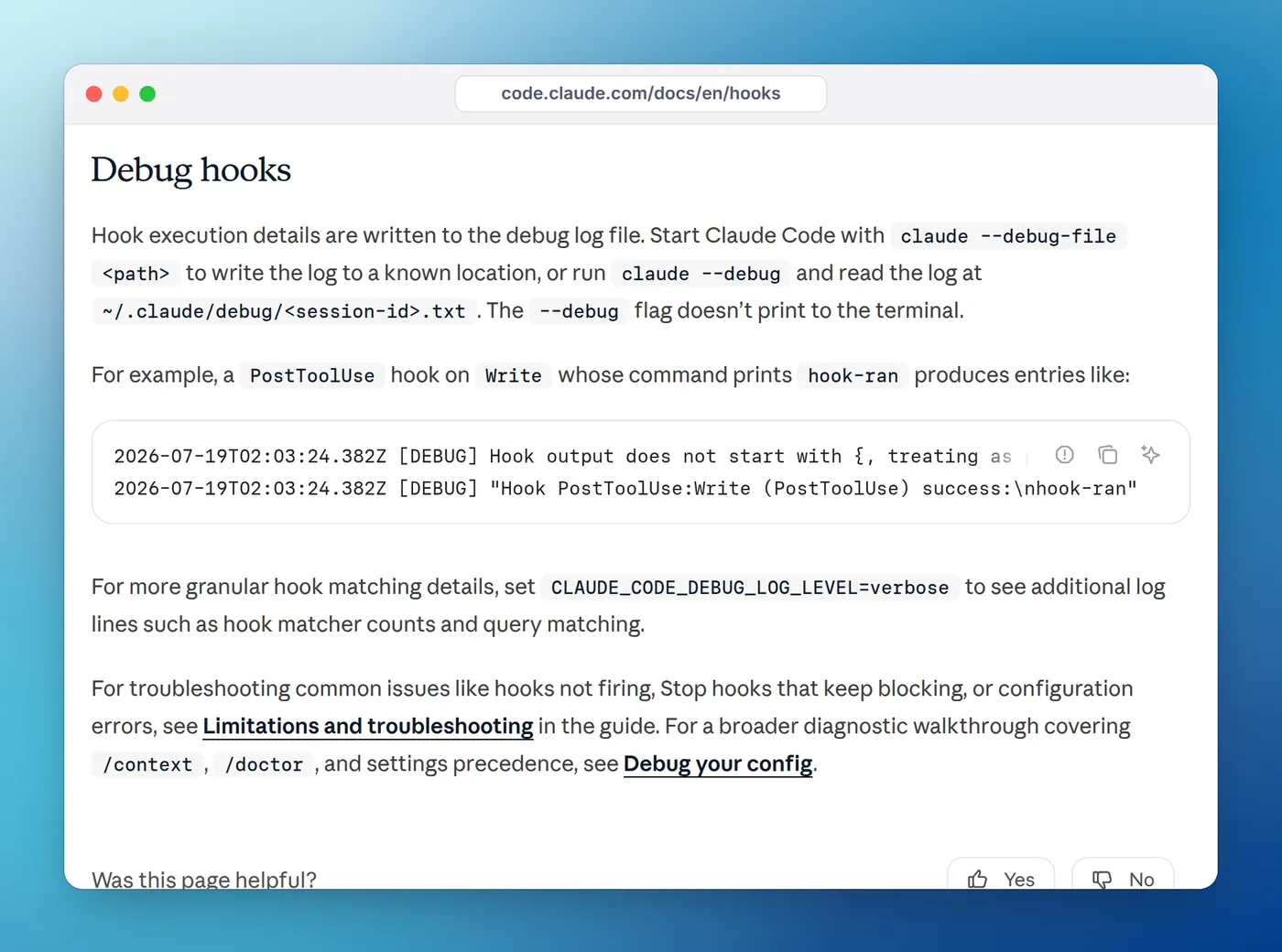
tail -f /tmp/claude.log | grep -i hookclaude --debug without a path writes the same log to ~/.claude/debug/<session-id>.txt; it doesn't print to your terminal. If you're already in a session, type /debug to turn logging on and see where the log is. For more detail on matching, such as how many hooks each matcher selected, set CLAUDE_CODE_DEBUG_LOG_LEVEL=verbose before starting Claude Code.
A PostToolUse hook on Write whose command prints hook-ran produces lines like these, according to the reference:
2026-07-19T02:03:24.382Z [DEBUG] Hook output does not start with {, treating as plain text
2026-07-19T02:03:24.382Z [DEBUG] "Hook PostToolUse:Write (PostToolUse) success:\nhook-ran"
If the event fires but your hook never shows up in the log, go back to Step 2: the matcher didn't select it. If it shows up with a failure, the log has the exit code, the full stderr and the stdout, which the transcript doesn't.
Inside the session, press Ctrl+O to open the transcript view. A successful hook shows nothing there. A blocking hook shows its feedback. A failing hook shows a notice such as PreToolUse hook error with the first line of stderr after Failed with non-blocking status code:.
Step 4: Run the hook by hand with real input
Claude Code sends each hook a JSON object on stdin. The fastest way to debug a script is to give it that JSON yourself and look at the exit code:
echo '{"tool_name":"Bash","tool_input":{"command":"rm -rf build"}}' | ./.claude/hooks/check-bash.sh
echo "exit code: $?"
Hand-written JSON is easy to get wrong, though: a field you guessed, like tool_input.path instead of tool_input.file_path, makes your jq return null and the script quietly does nothing. Capture the real input instead. Add a temporary hook that appends each event to a file:
{
  "hooks": {
    "PreToolUse": [
      {
        "matcher": "Bash",
        "hooks": [
          { "type": "command", "command": "jq -c . >> /tmp/claude-hook-input.jsonl" }
        ]
      }
    ]
  }
}
Trigger the tool once, remove the temporary hook, and replay the captured event into your script:
tail -n 1 /tmp/claude-hook-input.jsonl | ./.claude/hooks/check-bash.sh
echo "exit code: $?"
Now you're debugging with exactly what Claude Code sends, including session_id, cwd, permission_mode and the event's own fields.
If the script works by hand but fails as a hook, look at what's different about how Claude Code runs it:
- The shell. Shell-form hooks run with
sh -con macOS and Linux, Git Bash on Windows, or PowerShell when Git Bash isn't installed. Bash-only syntax in the command string itself can fail undersh; put it in a script with a#!/bin/bashline. - The path. Hooks run in Claude Code's working directory, which changes when Claude moves into another folder. Use
"$CLAUDE_PROJECT_DIR"/.claude/hooks/check-bash.shinstead of a relative path, or exec form with"args": []. - Permissions. A script that isn't executable fails with a notice like
Failed with non-blocking status code: /bin/sh: /path/to/hook.sh: No such file or directoryorPermission denied. Runchmod +xon it. - Missing tools.
jq: command not foundmeansjqisn't installed or isn't on thePATHClaude Code started with. - No terminal. Hooks run without a controlling terminal, so anything that reads from or writes to
/dev/ttyfails. Use theterminalSequenceoutput field for bells and terminal notifications.
Step 5: Check exit codes and JSON output
A hook that runs but "doesn't work" usually returns the wrong signal. The exit code rules are strict:
| Exit code | Meaning | What happens |
|---|---|---|
0 | Success | stdout is parsed as JSON if it starts with { and ends with }; stderr goes only to the debug log |
2 | Blocking error | On events that can block, the action stops and the stderr text goes to Claude as the reason |
Anything else, including 1 | Non-blocking error | The action goes ahead and the transcript shows a hook error notice |
The classic bug is a policy hook that exits 1. That's the normal Unix failure code, but Claude Code treats it as non-blocking, so the tool call runs anyway. Use exit 2 for a block.
When you print JSON instead, three things go wrong:
- Extra text before the JSON. If anything else writes to stdout first, the output no longer starts with
{and Claude Code treats it as plain text. On exit 0 nothing is reported; the debug log just says it treated the output as plain text. The usual culprit is an unconditionalechoin~/.bashrcor~/.zshrc, which Git Bash and some setups load even for hooks. Wrap such lines inif [[ $- == *i* ]]; then ... fiso they only run in interactive shells. - A field at the wrong level.
permissionDecisionbelongs insidehookSpecificOutput, not at the top level. Misplaced fields are ignored without an error in the transcript; start withclaude --debugand search the log forHook JSON output had unrecognized keys. - Broken JSON. Output that starts with
{but doesn't parse is reported as a hook error with a parse message. Build output withjq -ninstead of gluing strings together, so quotes and newlines inside values are escaped.
A minimal, correct example of a JSON decision from a script:
#!/bin/bash
cmd=$(jq -r '.tool_input.command // empty')
case "$cmd" in
  *"git push"*"--force"*)
    jq -n '{hookSpecificOutput: {hookEventName: "PreToolUse", permissionDecision: "deny", permissionDecisionReason: "Force pushes are blocked in this repo."}}'
    ;;
esac
exit 0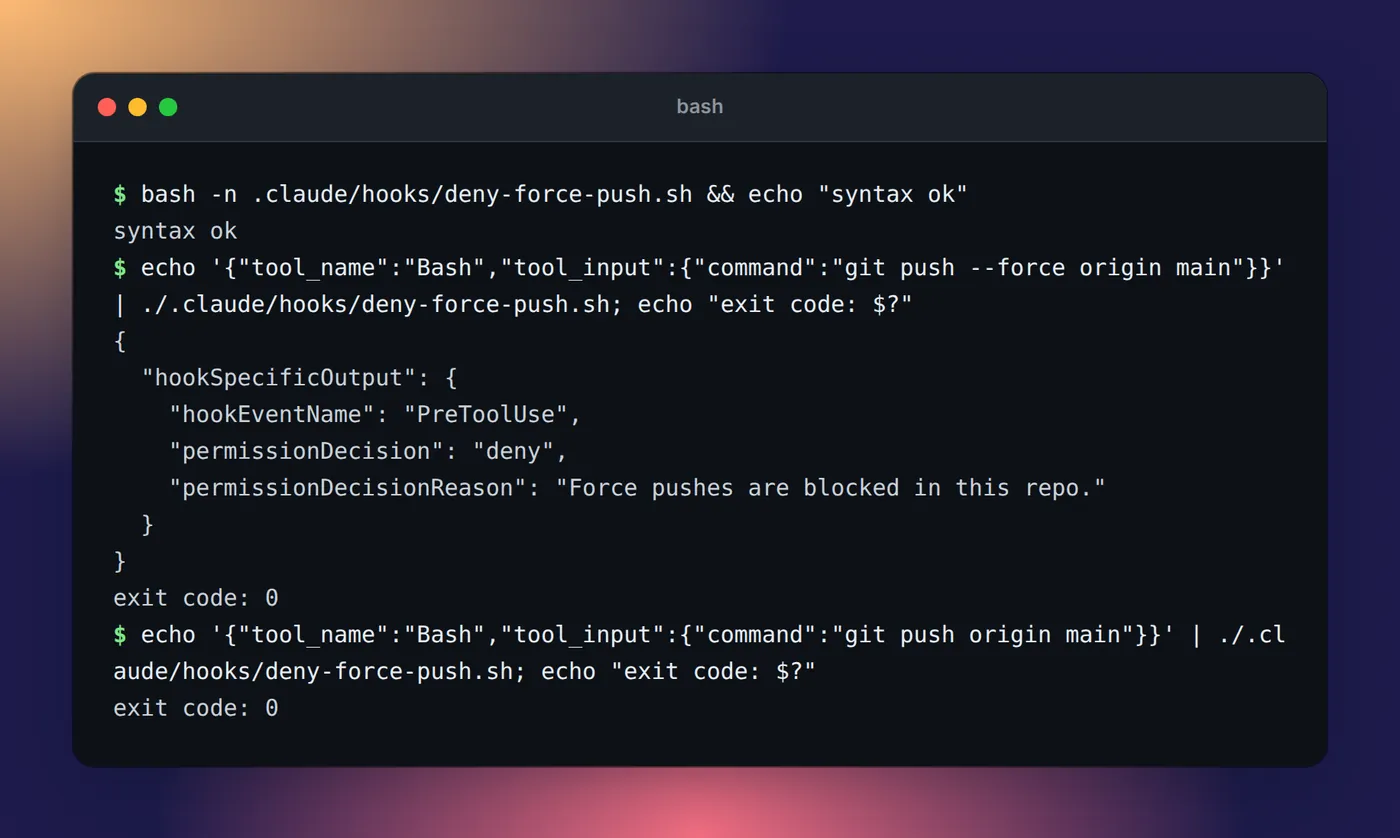
bash -n and fed two sample inputs by hand. The deny comes back as JSON with exit code 0.Also remember which events read plain stdout at all. Only SessionStart, UserPromptSubmit, UserPromptExpansion and PostModelSwitch add plain text to Claude's context. On every other event, a hook that "prints a message for Claude" on exit 0 is talking to the debug log.
Step 6: Timeouts, async hooks and Stop loops
- Timeouts. Command hooks default to 600 seconds, but
UserPromptSubmitdrops that to 30, andSessionEndhooks share a 1.5-second budget. A cleanup script that takes three seconds at session end gets cut off; set a highertimeouton it, which raises the budget up to 60 seconds. - Async hooks can't decide anything. With
"async": true, the hook runs in the background, sodecision,permissionDecisionandcontinuehave no effect, and its output arrives on the next turn. Use async only for side effects like notifications and logging. - Stop hooks that loop. A
Stophook that keeps blocking makes Claude keep working. Check thestop_hook_activefield in the input and exit 0 when it'strue. Claude Code also overrides a Stop hook after eight blocks in a row, and you can change that cap withCLAUDE_CODE_STOP_HOOK_BLOCK_CAP.
Isolate the problem
When you can't tell whether a hook is the cause of odd behavior at all, turn things off:
| Command | What it does |
|---|---|
claude --settings '{"disableAllHooks": true}' | One session with every hook off, except managed ones |
claude --safe-mode | One session without CLAUDE.md, skills, plugins, hooks, MCP servers, custom commands or agents |
CLAUDE_CONFIG_DIR=/tmp/claude-clean claude | A clean configuration directory, started from a folder without a .claude folder |
If the problem goes away with hooks off, bring them back one file at a time. There's no way to disable a single hook while keeping it in the file, so move its entry out temporarily. The debug your configuration guide describes the clean-directory approach in full; you'll be asked to log in again there.
Windows-specific traps
- Git Bash vs PowerShell. Shell-form hooks run in Git Bash when Git for Windows is installed. A PowerShell command needs
"shell": "powershell"on the hook. $CLAUDE_PROJECT_DIRin PowerShell. The bare spelling resolves to$nullin PowerShell. Write${CLAUDE_PROJECT_DIR}or$env:CLAUDE_PROJECT_DIR; the reference says Claude Code logs a warning in the debug log for the bare form..cmdshims in exec form. Withargs,commandmust be a real executable. npm's.cmdand.batshims can't be spawned without a shell, so runnodewith the script path instead.- Backslashes. Every Windows backslash inside a JSON string is written
\\. One bad escape breaks the whole file, which sends you back to Step 1.
When a tool installed the hook
Status bars, sound packs and notch apps register hooks too. /hooks labels each one with its source, so it's the first place to look when a hook appears that you didn't write, or one you expected is missing. Eddie, our notch app for Mac and Windows, adds its hooks to ~/.claude/settings.json (%USERPROFILE%\.claude\settings.json on Windows) with one click after saving a backup, and asks you to restart sessions that were already open; if its status doesn't update for an older session, that restart is the fix.
For more on what each event can do, see Claude Code hooks explained, and for working configs to compare against, 12 useful Claude Code hooks.
FAQ
Why is my Claude Code hook not working?
Run /hooks first. If the hook isn't listed, Claude Code never loaded it: usually invalid JSON, the wrong file (such as ~/.claude.json), or a matcher written as an array. If it's listed but never runs, the matcher is usually wrong; matchers are case-sensitive, so bash doesn't match the Bash tool.
Where are Claude Code hook logs?
In the debug log. Start Claude Code with claude --debug-file /tmp/claude.log to write it to a path you choose, or with claude --debug to write it to ~/.claude/debug/<session-id>.txt. Mid-session, /debug turns logging on and tells you the path. The log records which hooks matched, their exit codes, stdout and stderr.
How do I see a hook's output in Claude Code?
Press Ctrl+O to open the transcript view. A successful hook shows nothing there; a blocking hook shows its feedback, and a failing hook shows a hook error notice. Stdout from a successful hook only goes to the debug log, except on the few events where it becomes context for Claude.
Why doesn't exit code 1 block the action?
Because only exit code 2 blocks. Claude Code treats exit 1, and every code other than 0 and 2, as a non-blocking error: the action goes ahead and the transcript shows a hook error notice. Use exit 2 with a reason on stderr, or exit 0 and print a JSON decision.
How do I test a Claude Code hook without running Claude?
Pipe sample JSON into the script and check the exit code: echo '{"tool_name":"Bash","tool_input":{"command":"ls"}}' | ./my-hook.sh; echo $?. For realistic input, add a temporary hook that saves the real event JSON to a file, then replay that file into your script.