
Claude Code notifications
Claude Code Notification Hook Not Working? 9 Fixes That Cover Almost Every Case
Claude Code notification hook not firing? Nine fixes, from the macOS Script Editor permission and invalid JSON to matcher typos, timing, trust and PATH.
On this page
- Find your fix in 30 seconds
- 1. Run the notification command on its own
- 2. Check that /hooks lists it, and fix the JSON
- 3. Put the hook in a file Claude Code reads
- 4. Spell the matcher exactly
- 5. Wait for the moment the event actually fires
- 6. Check that your permission mode actually prompts
- 7. Make sure hooks are switched on and trusted
- 8. Fix PATH, permissions and shell problems
- 9. Make sure the notification can reach you
- Prove the hook fires with a log file
- If you'd rather not maintain hooks yourself
- FAQ
When a Claude Code notification hook isn't working, the cause is almost always one of three things: the notification command fails silently (on macOS, usually because Script Editor isn't allowed to post notifications), Claude Code never loaded the hook (invalid JSON or the wrong file, which /hooks reveals), or the event fires at a different moment than you expect (permission_prompt waits about six seconds and resets while you type). Run the command on its own in a terminal, then check /hooks, then read the debug log. The nine fixes below cover those and the rarer causes.
Every behavior described here comes from the official hooks guide's troubleshooting section, the hooks reference and the permissions docs, checked on October 3, 2026. If you haven't set up a hook yet, start with how to get notified when Claude Code finishes.
Find your fix in 30 seconds
| Symptom | Most likely cause | Fix |
|---|---|---|
Nothing ever happens, and /hooks doesn't list the hook | Invalid JSON, wrong file, or hooks turned off | 2, 3, 7 |
/hooks lists the hook, but nothing appears | The command itself fails, or you can't see the result | 1, 8, 9 |
| It works sometimes, or arrives late | Notification timing | 5 |
| It never fires for permission prompts | Matcher typo, or your permission mode doesn't prompt | 4, 6 |
| It worked yesterday in another project | Project file location or workspace trust | 3, 7 |
1. Run the notification command on its own
Most "hook not working" reports are really "command not working". Copy the command string out of your settings file and run it in a terminal. If nothing appears there, Claude Code isn't the problem.
This matters more for notifications than for any other hook, because the Notification event ignores the exit code and JSON output. A failing notification command produces no error in the transcript at all.
The usual culprits by OS:
- macOS:
osascript -e 'display notification ...'posts as Script Editor. If Script Editor has no notification permission, the command fails silently and macOS never asks. Runosascript -e 'display notification "test"'once, then turn on Allow Notifications for Script Editor in System Settings > Notifications, as the hooks guide describes. - Linux:
notify-sendneeds a notification daemon, which SSH sessions, headless servers and most containers don't have. If the command isn't found, installlibnotify-binon Debian and Ubuntu. - Windows: the docs' example opens a
MessageBoxdialog, which can appear behind your terminal window. If you run Claude Code inside WSL,powershell.exemust be reachable on yourPATHthrough Windows interop.
2. Check that /hooks lists it, and fix the JSON
Type /hooks in Claude Code. It's a read-only browser of every hook that loaded, labeled with where each came from, as the /hooks menu docs explain. If your hook isn't under Notification (or Stop), Claude Code didn't load it, and the JSON is the first suspect.
Settings files are strict JSON: no comments and no trailing commas. A single stray comma makes the whole file unreadable. Run python3 -m json.tool ~/.claude/settings.json or jq . ~/.claude/settings.json and fix whatever line it reports.
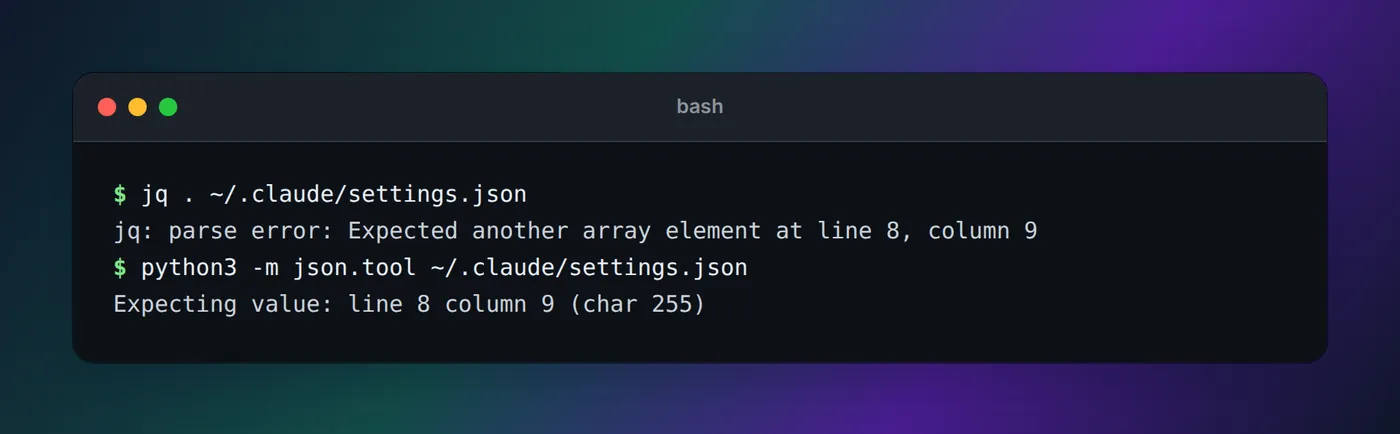
jq and python3 -m json.tool point at line 8.The second most common mistake is structure. Each event name has to sit inside one top-level hooks object, and each matcher group needs its own inner hooks array of handlers. These three shapes look plausible and don't work:
{ "Notification": [ ... ] }                      event outside "hooks": ignored
{ "hooks": { "Notification": [ { "type": "command", ... } ] } }   handler with no matcher group
{ "hooks": { ... }, "hooks": { ... } }           two "hooks" keys: one silently replaces the other
The working shape has three levels: event, matcher group, handler.
{
  "hooks": {
    "Notification": [
      {
        "matcher": "permission_prompt",
        "hooks": [
          { "type": "command", "command": "osascript -e 'display notification \"Claude needs your permission\" with title \"Claude Code\"'" }
        ]
      }
    ]
  }
}
If you already have other hooks, add Notification as another key inside the same hooks object rather than a second hooks block. Adding "$schema": "https://json.schemastore.org/claude-code-settings.json" at the top of the file lets editors like VS Code flag mistakes as you type.
3. Put the hook in a file Claude Code reads
Hooks load from a fixed set of files, listed in the hook location table:
| File | Applies to |
|---|---|
~/.claude/settings.json | Every project (on Windows, %USERPROFILE%\.claude\settings.json) |
.claude/settings.json | One project, shared if you commit it |
.claude/settings.local.json | One project, just for you |
Three traps catch people here:
~/.claude.jsonis a different file. It sits next to the~/.claudefolder and holds Claude Code's own state. It isn't one of the hook locations.- Project settings don't search parent folders. Claude Code reads
.claude/settings.jsonfrom the directory you started it in, with no fallback to parent directories, per the permissions docs. Start Claude Code inmy-app/weband the hooks inmy-app/.claude/settings.jsondon't load. Your user file in~/.claudeapplies everywhere, so put notification hooks there. - A custom config directory moves the user file. If you set
CLAUDE_CONFIG_DIR, your user settings live at$CLAUDE_CONFIG_DIR/settings.json, not in~/.claude.
4. Spell the matcher exactly
The Notification matcher compares against the notification type. Values made only of letters, digits, _, -, spaces, | and commas are treated as exact names, and they're case-sensitive. permission_prompt works; Permission_Prompt, permission-prompt and permissionPrompt never match anything.
The valid types include permission_prompt, idle_prompt, auth_success, elicitation_dialog and elicitation_url_dialog; the matcher table in the hooks guide has the full list. To match several, separate them with |: "permission_prompt|idle_prompt". An empty matcher, "*", or no matcher at all matches every type.
Two related mistakes:
- An
iffield on a Notification handler.iftakes a permission rule and only works on tool events such asPreToolUse. OnNotification, a handler withifnever runs. - A matcher on
Stop.Stopdoesn't support matchers and ignores one if present. That doesn't break anything, but it means you can't filterStopthe way you might expect.
5. Wait for the moment the event actually fires
Notifications are deliberately delayed so they reach you only when you seem to be away. The timings in the hooks guide:
| What you're waiting for | When it fires |
|---|---|
permission_prompt in a terminal | After the prompt has waited about six seconds; each keystroke resets the wait |
permission_prompt in Claude Desktop or the VS Code extension | About six seconds after the request, without the typing check |
idle_prompt | About 60 seconds after Claude finished, if you haven't typed since |
Stop (a different event) | Immediately when Claude finishes responding |
PermissionRequest (a different event) | Immediately when Claude asks for permission |
So if you test by watching the terminal and typing, the permission notification may never come. Switch to another app and keep your hands off the keyboard. And if you expected an alert the moment Claude finished, Notification is the wrong event: use Stop. Notifications when Claude Code is waiting for input explains which event fits which job.
6. Check that your permission mode actually prompts
permission_prompt needs a permission prompt. Several modes don't show one:
| Mode | Prompts you? |
|---|---|
default (labeled Manual) | Yes, on the first use of each tool that needs approval |
plan | Yes |
acceptEdits | Not for file edits and common filesystem commands; still for other shell commands |
auto | No routine prompts; a classifier reviews actions instead |
dontAsk | No; anything that would prompt is denied |
bypassPermissions | No |
The permission modes table has the details. The PermissionRequest hook is stricter still: the reference says it fires only in default and plan. If you rely on prompts for notifications, press Shift+Tab until the status bar shows manual mode and test again. Claude Code's non-interactive mode (claude -p) never shows you a prompt either, so don't expect permission notifications from scripted runs.
7. Make sure hooks are switched on and trusted
Hooks can be turned off in several ways, some of them not obviously:
disableAllHooks. If any settings file sets it totrue, hooks don't run. The value that wins follows settings precedence, so a project's.claude/settings.jsoncan override yours, as the disable hooks section notes.- Managed settings. If
/hooksshows "Only hooks from managed settings run here", your organization has setallowManagedHooksOnly, and hooks in your own files don't run. Only an admin can change that. --bare. Starting Claude Code with--bareskips the auto-discovery of hooks, skills, plugins, MCP servers andCLAUDE.md, so even your user-level hooks don't load, according to the headless docs.- Workspace trust. Interactive sessions hold back hooks from settings files until you accept the workspace trust dialog for the folder. If you dismissed it, restart Claude Code there and accept it. The workspace trust section explains what trusting a folder turns on.
- A missed reload. Claude Code watches settings files and normally picks up edits by itself. If
/hooksdoesn't show a change after a few seconds, restart the session.
8. Fix PATH, permissions and shell problems
Hook commands run in a non-interactive shell: sh -c on macOS and Linux, Git Bash on Windows, or PowerShell when Git Bash isn't installed. That shell may not see what your interactive terminal sees.
- "command not found". A tool installed by Homebrew or in a custom folder may not be on the hook's
PATH. Use the full path (runwhich terminal-notifierto find it), as the hook error section recommends. - A script that never runs. Make it executable with
chmod +x, and quote paths:"\"$HOME/.claude/hooks/notify.sh\""in JSON. - Quoting inside JSON. Inside a JSON string, a double quote is
\"and a backslash is\\. An unescaped quote breaks the whole file, which sends you back to fix 2. - PowerShell commands on Windows. If Git Bash is installed, it runs your hook, and a PowerShell command fails there. Add
"shell": "powershell"to the handler. - Writing to the terminal. Hooks have no controlling terminal, so
printf '\a' > /dev/ttyor any escape sequence written directly fails. Return the sequence in aterminalSequencefield instead, as the reference's terminal notifications section shows.
9. Make sure the notification can reach you
Sometimes the hook runs perfectly and the notification simply has nowhere to go:
- Focus and Do Not Disturb hide banners on macOS, Windows and most Linux desktops. A sound gets through where a banner doesn't; see how to play a sound when Claude Code is done.
- Your terminal needs notification permission for Claude Code's built-in notifications. iTerm2 also needs "Send escape sequence-generated alerts" turned on, as the terminal configuration docs explain.
- Over SSH, hooks run on the server.
osascriptandnotify-sendfire on the remote machine, not your laptop. UseterminalSequence, or a push service on your phone, covered in Claude Code notifications on your phone. - Inside tmux, notifications and terminal sequences don't reach the outer terminal until you add
set -g allow-passthrough onto~/.tmux.conf. - In the VS Code integrated terminal, the built-in desktop notification doesn't appear. A hook works there, or set
preferredNotifChanneltoterminal_bell.
Prove the hook fires with a log file
If you still can't tell whether the problem is the hook or the command, replace the command with one that can't fail: append the hook's JSON input to a file.
{
  "hooks": {
    "Notification": [
      {
        "hooks": [
          { "type": "command", "command": "cat >> /tmp/claude-notifications.log" }
        ]
      }
    ]
  }
}
Run tail -f /tmp/claude-notifications.log in another terminal and trigger a permission prompt. Each notification arrives as a line of JSON with its notification_type and message. If lines appear, the hook works and your original command is at fault. If nothing appears, go back to fixes 2 through 7.
For the full picture, start Claude Code with claude --debug-file /tmp/claude.log and search the log for hook. The debug section of the reference lists what it records: each hook that matched, its exit code, stdout and stderr, and JSON parse errors. If you already started the session without the flag, /debug turns logging on mid-session. Pressing Ctrl+O opens the transcript view, where non-blocking hook errors appear as notices. Our guide to debugging Claude Code hooks goes deeper into the log format.
If you'd rather not maintain hooks yourself
On a Mac or a Windows PC, Eddie writes the notification hooks for you: one click per agent adds them to ~/.claude/settings.json (%USERPROFILE%\.claude\settings.json on Windows, and the Codex, Cursor or Gemini CLI equivalents) after saving a backup, and Disconnect in its settings removes them again. Sessions that were already open need a restart to pick them up, the same as with hooks you write by hand. The result is a live status in the MacBook notch, or at the edge of your Windows desktop, rather than a one-off banner. Cursor's agent doesn't report approvals, pending approvals in the Claude desktop app's Code tab can't be shown, and there's no Linux version; everywhere else, the fixes above are the answer.
For a refresher on how events, matchers and handlers fit together, see Claude Code hooks explained.
FAQ
Why are my Claude Code hooks not firing at all?
Run /hooks first. If your hook isn't listed, Claude Code never loaded it: the settings file has a JSON error, the hook sits in a file Claude Code doesn't read, hooks are turned off with disableAllHooks, or you haven't accepted the workspace trust prompt for the folder. If it is listed, the event isn't happening when you expect, or the command fails silently.
Do I need to restart Claude Code after changing a hook?
Usually not. Claude Code watches its settings files and picks up hook changes on its own. If /hooks still doesn't show your change after a few seconds, the file watcher missed it, and restarting the session forces a reload.
Why does my notification hook show no error when it fails?
Because Notification hooks can't block anything, Claude Code ignores their exit code and JSON output. A broken command fails quietly. Run it in a terminal yourself, or start Claude Code with claude --debug-file /tmp/claude.log and look for the hook's exit code and stderr in the log.
Why does osascript not show a notification from a hook?
osascript posts notifications as Script Editor, and if Script Editor isn't allowed to send notifications, the command fails without an error. Run osascript -e 'display notification "test"' once in Terminal, then allow notifications for Script Editor in System Settings > Notifications.
Why does the hook work in the terminal but behave differently in VS Code?
Hooks run in both, but the timing differs. In a terminal, permission_prompt waits about six seconds and each keystroke resets the wait. The VS Code extension answers permissions through the Agent SDK, where permission_prompt fires about six seconds after the request without the typing check. Claude Code's built-in desktop notification also doesn't reach the VS Code integrated terminal.