
Hooks and permissions
Claude Code Hooks Explained: Every Event, With Examples
What Claude Code hooks are, where they go in settings.json, every hook event with its matcher and whether it can block, and six examples you can copy.
On this page
Claude Code hooks are commands that Claude Code runs automatically at fixed points in a session: when you submit a prompt, before and after each tool call, when Claude needs permission, when it finishes, and about 30 other moments. You define them in the hooks object of a settings file such as ~/.claude/settings.json. Each hook receives JSON about the event and can block an action, approve it, or feed context back to Claude through its exit code and output.
This guide covers how a hook is built, where it lives, every hook event and what it can do, and six working examples. Everything here was checked against the official hooks reference on October 2, 2026. Hooks change between releases, so the reference is the place to confirm anything version-specific.
How a Claude Code hook is built
A hook configuration has three levels:
- The event, such as
PreToolUseorStop: the moment the hook runs. - A matcher group, which filters when it runs, for example only for the
Bashtool. - One or more handlers: the command, HTTP endpoint, MCP tool, prompt or agent that runs.
Here's a complete example from the docs. It runs Prettier on every file Claude writes or edits:
{
  "hooks": {
    "PostToolUse": [
      {
        "matcher": "Edit|Write",
        "hooks": [
          {
            "type": "command",
            "command": "jq -r '.tool_input.file_path' | xargs npx prettier --write"
          }
        ]
      }
    ]
  }
}
PostToolUse is the event, "matcher": "Edit|Write" limits it to the two file-editing tools, and the handler is a shell command. Claude Code sends the event as JSON on the command's standard input, which is why jq can pull out .tool_input.file_path. Several events go side by side as keys of the same hooks object. Settings files are strict JSON, so a trailing comma or a // comment breaks the whole file.
Where hooks live
| Location | Scope |
|---|---|
~/.claude/settings.json | All your projects, on this machine only |
.claude/settings.json | One project, shareable by committing it |
.claude/settings.local.json | One project, just for you |
| Managed policy settings | Your whole organization, set by an admin |
A plugin's hooks/hooks.json | While the plugin is enabled |
| Skill or subagent frontmatter | While that skill or subagent is active |
Hooks from different files add up rather than override each other. If the same handler appears in two settings files, it runs once. Claude Code watches these files and normally picks up edits without a restart; if /hooks doesn't show a change, restart the session. The settings docs explain the precedence of each file.
One safety rule applies everywhere: in an interactive session, Claude Code doesn't run any settings-file hooks, including your own, until you accept the workspace trust dialog for that folder.
Every hook event
This is the full list of events in the reference, with what the matcher filters on and whether a hook can block the action. "Yes" in the last column means exit code 2 stops or changes what happens next.
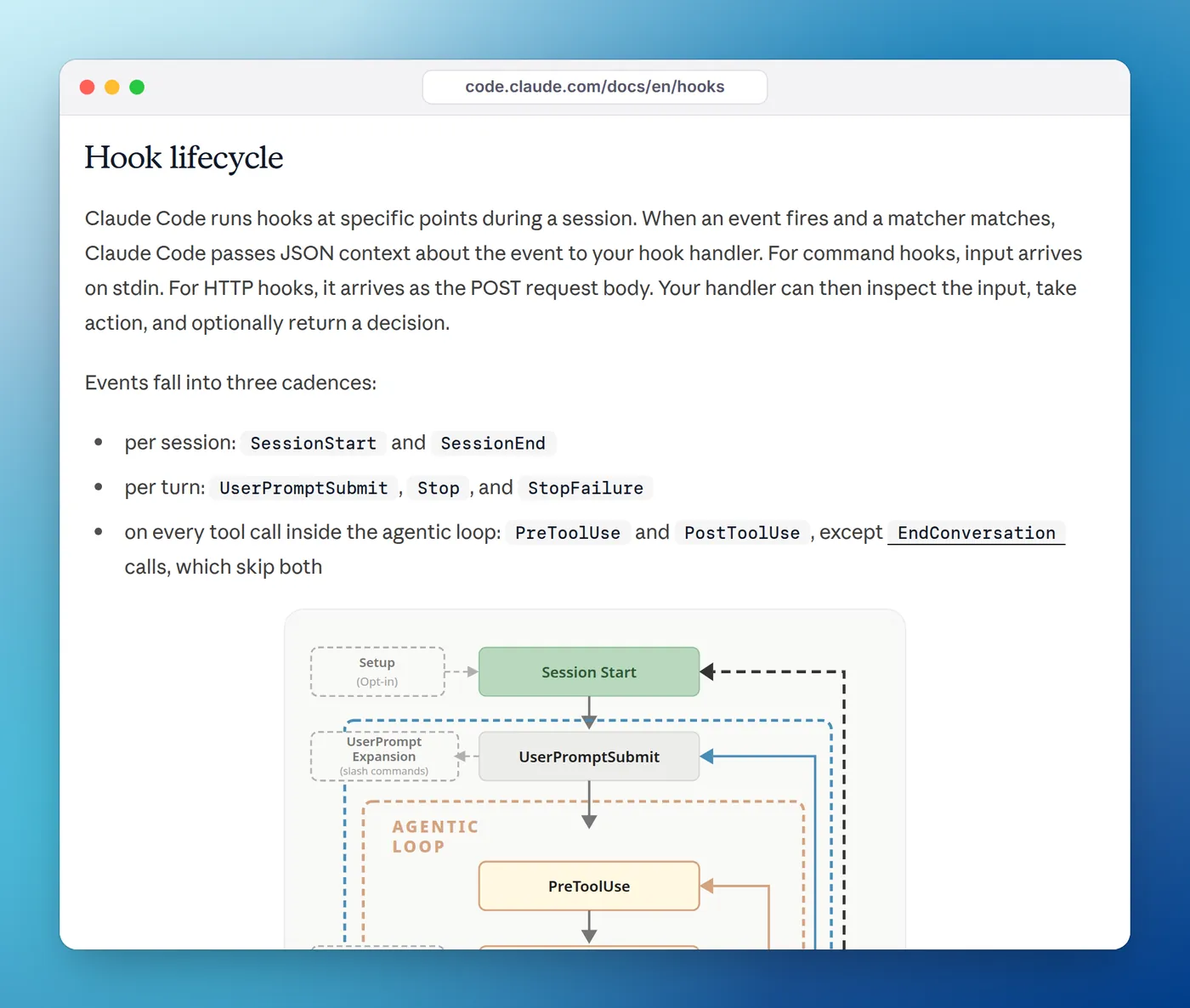
| Event | Fires when | Matcher filters on | Can block |
|---|---|---|---|
SessionStart | A session starts or resumes | startup, resume, clear, compact, fork | No |
Setup | You start with --init-only, or --init or --maintenance with -p | init, maintenance | No |
InstructionsLoaded | A CLAUDE.md or .claude/rules file is loaded | Load reason | No |
UserPromptSubmit | You submit a prompt, before Claude sees it | No matcher | Yes |
UserPromptExpansion | A command you typed expands into a prompt | Command name | Yes |
MessageDisplay | Claude's reply text is shown on screen | No matcher | No |
PreToolUse | Before a tool call runs | Tool name | Yes |
PermissionRequest | A tool call needs your permission | Tool name | Answers via JSON |
PermissionDenied | Auto mode denies a tool call | Tool name | No |
PostToolUse | After a tool call succeeds | Tool name | No, but Claude sees stderr |
PostToolUseFailure | After a tool call fails | Tool name | No, but Claude sees stderr |
PostToolBatch | After a batch of parallel tool calls | No matcher | Yes |
Notification | Claude Code sends a notification | Notification type | No |
SubagentStart | A subagent is spawned | Agent type | No |
SubagentStop | A subagent finishes | Agent type | Yes |
TaskCreated | A task is created | No matcher | Yes |
TaskCompleted | A task is marked complete | No matcher | Yes |
Stop | Claude finishes responding | No matcher | Yes, it keeps Claude working |
StopFailure | A turn ends with an API error | Error type | No |
TeammateIdle | An agent team teammate is about to go idle | No matcher | Yes |
ConfigChange | A settings file changes mid-session | Config source | Yes |
CwdChanged | The working directory changes | No matcher | No |
DirectoryAdded | A directory is added with /add-dir | How it was added | No |
FileChanged | A watched file changes on disk | File names | No |
WorktreeCreate | A worktree is being created | No matcher | Yes |
WorktreeRemove | A worktree is being removed | No matcher | Yes |
PreCompact | Before context compaction | manual, auto | Yes |
PostCompact | After compaction | manual, auto | No |
PreModelSwitch | Before a model switch you requested | Target model | Yes |
PostModelSwitch | After the model changes | Target model | No |
Elicitation | An MCP server asks you for input | MCP server name | Yes |
ElicitationResult | You answer an MCP server's request | MCP server name | Yes |
SessionEnd | The session ends | Exit reason | No |
The Notification event has its own list of types to match on: permission_prompt, idle_prompt, auth_success, elicitation_dialog, elicitation_url_dialog, elicitation_complete, elicitation_response, agent_needs_input, agent_completed and three quota_auto_resume_* types. The two most people want are permission_prompt, which fires after a permission prompt has waited about six seconds, and idle_prompt, which fires about 60 seconds after Claude finishes if you haven't typed. Our notification guide shows how to turn them into desktop alerts.
Matchers and the if field
A matcher is read three ways, depending on its characters:
"*",""or no matcher at all matches everything.- Letters, digits,
_,-, spaces,|and,only: an exact name or a list of exact names, soEdit|Writematches exactly those two tools. - Anything else is a JavaScript regular expression, so
mcp__memory__.*matches every tool from thememoryMCP server.
Matchers are case-sensitive. A matcher on an event without matcher support, such as Stop, is silently ignored.
On tool events you can filter further with the if field on a single handler. It takes one permission rule, so "if": "Bash(git *)" runs the hook only when the Bash command includes a git subcommand. On any other event, a handler with if set never runs.
The five handler types
| Type | Required field | Default timeout | What it does |
|---|---|---|---|
command | command | 600 s | Runs a shell command (sh -c on macOS and Linux, Git Bash or PowerShell on Windows) with the event JSON on stdin |
http | url | 600 s | POSTs the event JSON to a URL |
mcp_tool | server, tool | 600 s | Calls a tool on a configured MCP server |
prompt | prompt | 30 s | Asks a Claude model for a yes-or-no style decision |
agent | prompt | 60 s | Spawns a subagent that can read files before deciding (experimental) |
Some events use shorter defaults: 30 seconds for UserPromptSubmit, and SessionEnd hooks share a 1.5-second budget unless you raise it. Not every event accepts every type. prompt and agent handlers only work on events like PreToolUse, PostToolUse, Stop and UserPromptSubmit, and SessionStart accepts only command and mcp_tool.
Command handlers also accept async: true, which runs the command in the background so Claude doesn't wait for it, and shell: "powershell" on Windows. All matching handlers for an event run in parallel.
What a hook receives and how it answers
Every hook gets a JSON object with common fields, including session_id, transcript_path, cwd, permission_mode and hook_event_name, plus fields for its event. A PreToolUse hook for Bash, for example, gets tool_name and tool_input.command. A Stop hook gets last_assistant_message, the text of Claude's final reply.
A command hook answers with its exit code:
- Exit 0 means success. If stdout starts with
{and ends with}, Claude Code reads it as JSON output. ForSessionStart,UserPromptSubmit,UserPromptExpansionandPostModelSwitch, plain text on stdout is added to Claude's context. - Exit 2 is a blocking error. On events that can block, the action stops and your stderr text goes to Claude as the reason.
- Any other code is a non-blocking error. The action continues and the transcript shows a hook error notice.
For finer control, exit 0 and print JSON. Fields every event understands include continue: false with a stopReason to stop Claude entirely, systemMessage to show you a warning, and terminalSequence to send a desktop notification or bell through your terminal. Decisions go in event-specific fields. A PreToolUse hook returns hookSpecificOutput.permissionDecision of allow, deny, ask or defer. A PermissionRequest hook answers the prompt like this:
{
  "hookSpecificOutput": {
    "hookEventName": "PermissionRequest",
    "decision": { "behavior": "allow" }
  }
}
A hook's allow never overrides a deny rule in your permission settings. For fixed rules, permissions.allow and permissions.deny are simpler and more reliable than a hook. Hooks earn their keep when the decision needs logic.
Six Claude Code hook examples
Each config below is complete and valid JSON. Merge its hooks object into your settings file. The scripts use jq to read the event JSON; install it with brew install jq or your package manager.
1. Get a notification when Claude finishes
{
  "hooks": {
    "Stop": [
      {
        "hooks": [
          {
            "type": "command",
            "command": "osascript -e 'display notification \"Claude finished\" with title \"Claude Code\" sound name \"Glass\"'"
          }
        ]
      }
    ]
  }
}
That's the macOS version. For Linux, Windows and permission-prompt alerts, see how to get notified when Claude Code finishes.
2. Block edits to protected files
Save this as .claude/hooks/protect-files.sh in your project and run chmod +x on it:
#!/bin/bash
# Blocks edits to files you never want Claude to touch.
file=$(jq -r '.tool_input.file_path // empty')
case "$file" in
  *.env|*.env.*|*/.git/*|*package-lock.json)
    echo "Blocked: $file is protected. Ask before changing it." >&2
    exit 2
    ;;
esac
exit 0{
"hooks": {
"PreToolUse": [
{
"matcher": "Edit|Write",
"hooks": [
{ "type": "command", "command": "\"$CLAUDE_PROJECT_DIR\"/.claude/hooks/protect-files.sh" }
]
}
]
}
}Exit code 2 cancels the edit and Claude reads the Blocked: message, so it can change course. $CLAUDE_PROJECT_DIR points at the project root, so the path works whatever directory Claude has moved into. Claude can still change files through Bash, so treat this as a guard rail, not a security boundary.
3. Format files after every edit
The Prettier hook at the top of this page is the standard pattern. Swap the command for your formatter, such as gofmt -w, ruff format or rustfmt.
4. Give Claude context when a session starts
{
  "hooks": {
    "SessionStart": [
      {
        "matcher": "startup",
        "hooks": [
          { "type": "command", "command": "git status --short 2>/dev/null | head -n 20" }
        ]
      }
    ]
  }
}
For SessionStart, plain text on stdout becomes context for Claude, so each new session starts knowing which files you've changed. For static information that never changes, CLAUDE.md is the better home.
5. Keep a log of every prompt
{
  "hooks": {
    "UserPromptSubmit": [
      {
        "hooks": [
          {
            "type": "command",
            "command": "jq -c '{time: (now | todate), session: .session_id, prompt: .prompt}' >> \"$HOME/.claude/prompt-log.jsonl\""
          }
        ]
      }
    ]
  }
}
The output goes to a file, so nothing is added to Claude's context and the prompt goes through unchanged.
6. Don't let Claude finish while tests fail
#!/bin/bash
# Keeps Claude working while the test suite fails.
input=$(cat)
if [ "$(printf '%s' "$input" | jq -r '.stop_hook_active')" = "true" ]; then
  exit 0
fi
if ! npm test --silent >/dev/null 2>&1; then
  echo "The test suite is failing. Fix the failures before you finish." >&2
  exit 2
fi
exit 0{
"hooks": {
"Stop": [
{
"hooks": [
{ "type": "command", "command": "\"$CLAUDE_PROJECT_DIR\"/.claude/hooks/tests-before-stop.sh" }
]
}
]
}
}The stop_hook_active check matters. It's true when Claude is already continuing because of a Stop hook, and exiting 0 then stops an endless loop. Claude Code also overrides a Stop hook after it blocks eight times in a row.
There are a dozen more in 12 useful Claude Code hooks.
Debugging hooks
- Run
/hooksto confirm your hook loaded. It lists every hook with its source file. - Run the command by hand with sample input, for example
echo '{"tool_input":{"file_path":".env"}}' | ./protect-files.sh; echo $?. - Start Claude Code with
claude --debug-file /tmp/claude.log. The log shows which hooks matched, their exit codes and their output. - If JSON output seems ignored, check your shell profile. An unconditional
echoin~/.bashrcor~/.zshrccan end up in front of your JSON, and then Claude Code treats the whole output as plain text.
How to debug Claude Code hooks goes through each failure mode.
Hooks run with your permissions
Command hooks run shell commands with your full user permissions, so they can read, change or delete anything your account can. Read any hook before you add it, quote shell variables, and be careful with hooks in repositories you didn't write. Interactive sessions wait for the workspace trust dialog, but sessions started with -p or the Agent SDK treat the folder as trusted and run its committed hooks straight away. To run one session without any hooks, use claude --settings '{"disableAllHooks": true}'.
Where hooks show up in everyday tools
Many tools for working with agents are built on hooks. Status bars, sound packs and notch apps all register a few hooks and listen for Stop, Notification and PermissionRequest. Eddie, our notch app for Mac and Windows, is one: with one click it adds hooks to ~/.claude/settings.json (%USERPROFILE%\.claude\settings.json on Windows), after saving a backup, and shows every session's state in the MacBook notch or at the edge of your Windows desktop. Whatever you install, /hooks shows exactly what it added, which is a good habit before trusting any tool with your settings file.
More on hooks and permissions
- 12 useful Claude Code hooks, all copy-paste.
- How to debug Claude Code hooks when one won't fire.
- Claude Code hooks vs skills: which one to reach for.
- Claude Code permission modes explained, and when skipping permissions is safe.
FAQ
What are hooks in Claude Code?
Hooks are commands, HTTP endpoints, MCP tools, prompts or agents that Claude Code runs automatically at set points in a session, such as before a tool call, after a file edit or when Claude finishes. They receive JSON about the event and can block, allow or add context through exit codes and JSON output.
Where do I put Claude Code hooks?
In the hooks object of a settings file: ~/.claude/settings.json for all your projects, .claude/settings.json for one project you share with your team, or .claude/settings.local.json for one project, just for you. Plugins, skills and subagents can also define hooks.
How do I see which hooks are active?
Type /hooks in Claude Code. It opens a read-only list of every configured hook, labeled with where it came from, and shows the full command each one runs.
What's the difference between PreToolUse and PermissionRequest?
PreToolUse runs before every tool call, whether or not it needs permission, and can allow, deny or rewrite it. PermissionRequest runs only when Claude Code is about to show you a permission prompt, and can answer that prompt for you.
Can a hook stop Claude from finishing?
Yes. A Stop hook that exits with code 2, or returns decision: "block" with a reason, makes Claude keep working. Check the stop_hook_active input field so you don't loop forever; Claude Code also overrides a Stop hook after eight blocks in a row.
How do I turn off all Claude Code hooks?
Set "disableAllHooks": true in a settings file, or start one session with claude --settings '{"disableAllHooks": true}'. You can't disable a single hook while keeping it configured, and hooks from managed settings can only be turned off by managed settings.