
Running agents day to day
How to Run Claude Code in the Background
Run Claude Code in the background: Ctrl+B for long commands, /bg and claude --bg for whole sessions, claude -p for scripts, and how to check and stop tasks.
On this page
To run Claude Code in the background, pick the level you need. Press Ctrl+B to push a long-running shell command or subagent to the background while you keep talking to Claude (press it twice inside tmux). Run /bg to send the whole session to the background, or start one there with claude --bg "your task", and manage it with claude agents. For scripts and scheduled jobs, use claude -p.
Everything below was checked on October 3, 2026 against the official docs on background Bash commands, agent view and running Claude Code programmatically. Agent view is a research preview, so its commands may still change.
Your options at a glance
| You want to | Use | Keeps running after you close the terminal? |
|---|---|---|
| Keep chatting while a build, test run or dev server runs | Ctrl+B, or ask Claude to run it in the background | No, cleaned up when Claude Code exits |
| Let a side task run while you keep working | A background subagent | No, part of the current session |
| Free your terminal but keep the conversation going | /bg (or Left arrow on an empty prompt) | Yes |
| Start a task straight in the background | claude --bg "task" | Yes |
| Run a one-shot task from a script or cron | claude -p "task" | Only if you detach it, for example with nohup |
| Keep working while your laptop is off | claude --cloud "task" | Yes, it runs in Anthropic's cloud |
Background a long command with Ctrl+B
When Claude runs a shell command that takes a while, such as npm run dev, a test suite or a Docker build, press Ctrl+B to move it to the background. Claude gets a task ID straight away and can answer your next prompt while the command keeps running. If you use tmux, press Ctrl+B twice, because tmux uses it as its prefix key. You can also just ask: "start the dev server in the background".
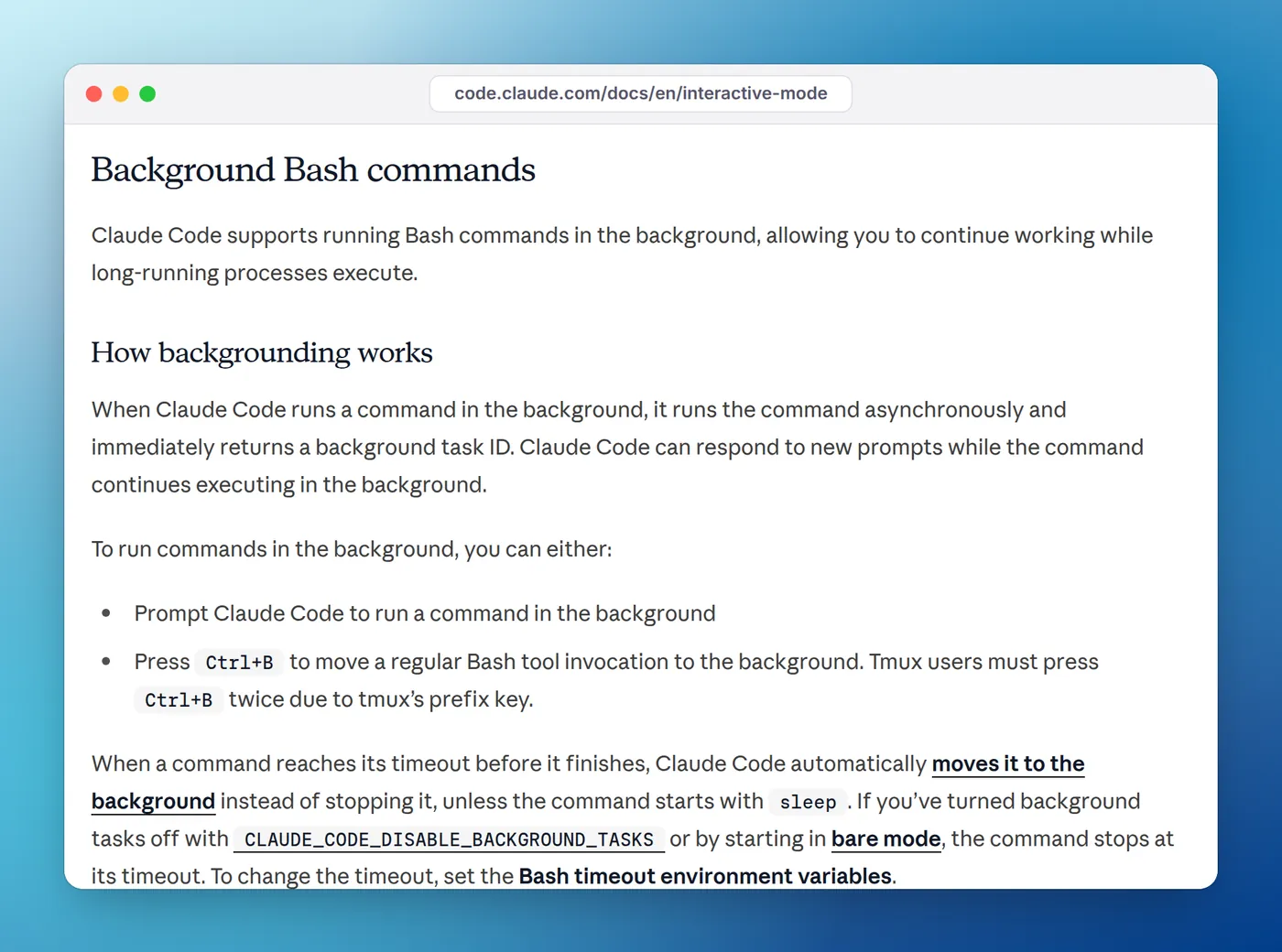
Under the hood, Claude sets run_in_background: true on the Bash tool call. What happens next, per the docs:
- The output goes to a file, and Claude reads it with the Read tool when it needs to, for example to check a server log after you report a bug.
- Each task has an ID. Run
/tasks(alias/bashes) to list background work, see its output and stop it. - A command that hits its timeout (two minutes by default) isn't killed: Claude Code moves it to the background with a note that it "did not complete within its 120s timeout", unless the command starts with
sleep. - Background tasks are cleaned up when Claude Code exits. On macOS and Linux, processes that detached from the task's shell stop too.
- A task is killed if its output passes 5 GB.
In a local session you work in from a terminal, the desktop app or VS Code, background commands have no time limit. In an unattended run, such as -p, the Agent SDK or a cloud session, they get 30 minutes by default and at most 2 hours, which you can raise with BASH_DEFAULT_TIMEOUT_MS and BASH_MAX_TIMEOUT_MS, as the tools reference explains.
You can also type a command yourself with the ! prefix, such as ! npm test, and press Ctrl+B on it in the same way.
Control background commands with permission rules
Because run_in_background is a parameter of the Bash tool, a permission rule can match it. This makes Claude ask before starting anything in the background:
{
  "permissions": {
    "ask": [
      "Bash(run_in_background:true)"
    ]
  }
}
To turn background tasks off entirely, set the environment variable CLAUDE_CODE_DISABLE_BACKGROUND_TASKS=1 before starting Claude Code. Commands then stop at their timeout instead of moving to the background.
Background subagents
Subagents are side tasks Claude hands to a worker with its own context. In an interactive session, fork mode is on by default and subagents run in the background, so you can keep talking to Claude while they work. When one needs permission for a tool call, the prompt appears in your main session and names the subagent asking. Press Esc to deny that one call without stopping the subagent.
Ctrl+B backgrounds a subagent that's running in the foreground, and Ctrl+X Ctrl+K stops every running background subagent in the session (press it twice within 3 seconds to confirm). A finished subagent stays in /tasks for about 30 seconds, where Enter opens its transcript. The subagents docs cover the details.
Send a whole session to the background
A normal claude session belongs to its terminal and ends when you close it. To keep it going without the terminal, run /bg (short for /background), optionally with one more instruction:
/bg run the full test suite and fix any failuresOr press the Left arrow on an empty prompt, which backgrounds the session and opens agent view in one step. Running shell commands, background subagents and /loop tasks move with the session. If you try to exit while background work is still running, Claude Code offers Move to background and exit instead of quitting.
To start a session in the background from your shell, pass the prompt with --bg:
claude --bg --name "flaky-test-fix" "investigate the flaky SettingsChangeDetector test"--bg can't be combined with -p. Claude Code prints the session's short ID and the commands for managing it, and a supervisor process keeps the session running after you close your shell.
Manage background sessions
claude agents opens agent view: one screen listing every background session as working, needs input, idle, completed, failed or stopped. Select a row and press Space to peek and reply, or Enter to attach to the full conversation; Left arrow on an empty prompt detaches again. From the shell:
| Command | What it does |
|---|---|
claude agents | Open agent view |
claude agents --json | Print sessions as JSON, for scripts |
claude attach <id> | Attach to a session in this terminal |
claude logs <id> | Print a session's recent output |
claude stop <id> | Stop a session |
claude rm <id> | Remove a session, and the worktree Claude made for it when that's safe |
A few behaviors are worth knowing before you dispatch real work:
- Edits go to a worktree. A session started with
claude --bgor from agent view moves into its own git worktree under.claude/worktrees/before editing, so parallel sessions don't collide. A session you backgrounded with/bgkeeps editing where it was. Commit work before you delete a session that edited in its own worktree. - Permissions don't go away. A background session that hits a permission prompt waits as "Needs input" until you answer.
/bgkeeps the session's current permission mode; aclaude --bgsession starts the way a new session in that directory would.claude --bg --permission-mode bypassPermissionsis refused until you've accepted the bypass warning once interactively. Permission modes explained covers which mode suits unattended work. - Idle sessions sleep. A session that finished or is waiting for your next message, and hasn't been attached for about an hour, has its process stopped to free resources. The conversation stays on disk and resumes when you reply or attach.
- Shutdown stops them. Sessions survive sleep, but not shutting the machine down.
- Usage adds up. Each session uses your plan's usage like an interactive one.
Run Claude Code from scripts with claude -p
For a one-shot task from a script, cron job or CI, use print mode. Claude Code runs the task, prints the result and exits with code 0 on success:
claude -p "Update the dependency pins and run the tests" --permission-mode auto --permission-prompts noneNobody is there to answer a prompt, so choose the permission mode on purpose. Here auto mode reviews each action, and --permission-prompts none (Claude Code v2.1.259 or later) denies anything that would still need a person. For a tight allowlist, --permission-mode dontAsk with --allowedTools is the stricter choice.
To keep it running after you close the terminal, detach it the usual Unix way:
nohup claude -p "Write the migration report to docs/migration.md" --permission-mode auto --permission-prompts none > claude-run.log 2>&1 &Two limits apply to -p runs. Background shell commands Claude started are stopped about five seconds after the final result. And if Claude starts a background subagent, the run waits for it, for at most 10 minutes of continuous idle waiting by default.
Running claude inside tmux or screen and detaching is another way to keep an interactive session alive without agent view. It works like any other program in tmux; just remember Ctrl+B needs a double press there.
Keep working while your laptop is off
Everything above runs on your machine. claude --cloud "task" starts a cloud session for the current repository instead, which keeps going with your laptop closed; claude --teleport pulls a cloud session back into your terminal. Remote Control is different: it lets you follow and reply to a local session from your phone or a browser, but the session still runs on your computer, so it has to stay on.
Know when background work needs you
The catch with background work is noticing when it stops. While agent view is open, Claude Code sends a notification through your terminal when a background session needs input, finishes or fails, and fires the Notification hook with the agent_needs_input or agent_completed type. Those events fire while agent view is open, so keep it running in a spare terminal tab and let a hook turn them into desktop alerts. Adding permission_prompt covers the session you're working in too:
{
  "hooks": {
    "Notification": [
      {
        "matcher": "agent_needs_input|agent_completed|permission_prompt",
        "hooks": [
          {
            "type": "command",
            "command": "osascript -e 'display notification \"A Claude Code session needs you or finished\" with title \"Claude Code\"'"
          }
        ]
      }
    ]
  }
}
That's the macOS version, checked against the docs rather than run; on Linux, swap the command for notify-send 'Claude Code' 'A session needs you or finished'. How to get notified when Claude Code finishes has versions for every OS.
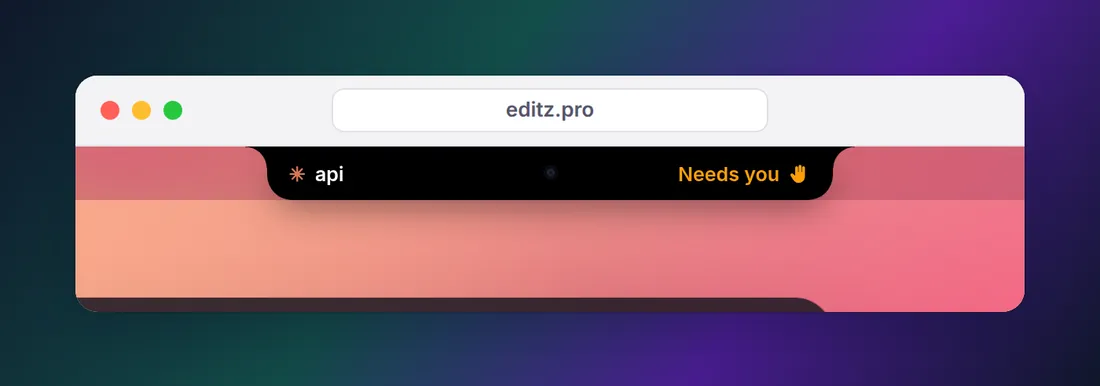
When you have several sessions going, Eddie, our notch app for Mac and Windows, shows each Claude Code session as working, needs you or done, in the MacBook notch or at the edge of your Windows desktop, and taps you when one needs permission. On a Mac it also lists each agent's processes with their ports and flags dev servers left running after their terminal closed.
Background work can also look stuck when it's simply waiting. Claude Code stuck? explains each state, and running multiple sessions in parallel covers worktrees and keeping track of many agents at once. If a session left a dev server holding a port, find and kill leftover dev servers shows how to clean up.
FAQ
Can Claude Code run in the background?
Yes, in three ways. Ctrl+B moves a long-running shell command or subagent to the background inside your session. /bg or claude --bg "task" runs a whole session in the background, managed with claude agents. And claude -p runs a one-shot task you can start from a script or with nohup.
What does run_in_background true mean in Claude Code?
It's a parameter Claude sets on a Bash tool call to start the command as a background task, for example a dev server or a watch build. The command keeps running, its output goes to a file Claude can read later, and Claude carries on with your conversation.
How do I see background tasks in Claude Code?
Run /tasks (also available as /bashes). It lists the background shell commands and subagents in the current session and lets you check on, attach to or stop each one. For background sessions, run claude agents or claude agents --json from your shell.
How do I stop a Claude Code background task?
Open /tasks, select the task and stop it. Ctrl+X Ctrl+K stops all running background subagents (press it twice within 3 seconds). For a background session, run claude stop <id> from your shell, or select its row in claude agents and press Ctrl+X.
Does a Claude Code background session keep running if I close the terminal?
A session sent to the background with /bg or started with claude --bg does: a supervisor process hosts it, so you can close agent view and your shell. A plain claude session ends with its terminal. Background sessions survive sleep but stop when the machine shuts down.
Do background sessions use more of my usage limit?
Each one uses your plan's usage like an interactive session, so ten sessions in parallel use quota roughly ten times as fast as one. Background shell commands don't call the model, so they cost nothing on their own.