
Claude Code notifications
How to Get Notified When Claude Code Finishes (Mac, Linux, Windows)
Get a desktop notification or a sound when Claude Code finishes or needs permission. Copy-paste Stop and Notification hooks for macOS, Linux and Windows.
On this page
- The short answer for each OS
- Which event should you use?
- The zero-config option: Claude Code's built-in notification
- macOS: a notification and a sound
- Linux: notify-send and a sound
- Windows: a toast or a sound with PowerShell
- Over SSH, tmux and in any terminal: terminalSequence
- Test your hook
- When one notification isn't enough
- What about Codex, Cursor and Gemini CLI?
- More on Claude Code notifications
- FAQ
To get notified when Claude Code finishes, add a Stop hook to ~/.claude/settings.json that runs your system's notification command: osascript on macOS, notify-send on Linux, or PowerShell on Windows. Add a Notification hook with the permission_prompt matcher as well, so you also hear about it when Claude is stuck waiting for your approval. The copy-paste configs for each OS are below, along with exactly when each event fires.
Every event name, matcher and field on this page comes from the official hooks reference and hooks guide, checked on October 2, 2026. Each JSON block is valid JSON in the format Claude Code reads.
The short answer for each OS
If you only want one thing to paste, take the row for your system. "Finished" is the Stop event and "needs you" is the Notification event with the permission_prompt matcher.
| OS | Finished (Stop) | Needs your permission (Notification) |
|---|---|---|
| macOS | osascript -e 'display notification ...' or afplay for a sound | the same command with different text |
| Linux | notify-send 'Claude Code' 'Finished' | notify-send -u critical ... |
| Windows | PowerShell with the BurntToast module, or Media.SoundPlayer for a sound | the same, with "shell": "powershell" |
| Any OS, over SSH | return a terminalSequence so your terminal shows it | the same |
Hooks go in one of these files. Use the first one unless you want the hook for a single project.
| File | Applies to |
|---|---|
~/.claude/settings.json | every project on your machine (on Windows, %USERPROFILE%\.claude\settings.json) |
.claude/settings.json | one project, shared with your team if you commit it |
.claude/settings.local.json | one project, just for you |
The settings docs cover the precedence rules. Hook entries from different files add up rather than replace each other.
Which event should you use?
Claude Code has three events that matter for notifications, and they fire at different moments. Picking the wrong one is the most common reason people get alerts at odd times.
| Event | Fires when | Good for |
|---|---|---|
Stop | Claude finishes responding. Not on an interrupt with Esc; API errors fire StopFailure instead | "It's done, come back" |
Notification, matcher permission_prompt | A permission prompt has waited about six seconds without you typing | "It's blocked on you" while you're away |
Notification, matcher idle_prompt | About 60 seconds after Claude finished, if you haven't typed since | A second nudge if you missed the first |
PermissionRequest | The moment Claude asks for permission to use a tool | An instant alert, even while you're at the keyboard |
Two details are worth knowing. First, Stop fires at the end of every response, not only at the end of a big task, so a quick question gets a notification too. Second, the permission_prompt timer resets each time you type, which is deliberate: it only reaches you when you seem to be away from the terminal.
If you add a Notification hook with no matcher, you get every notification type, including idle_prompt. Combined with a Stop hook, that means two alerts for one finished task, a minute apart. The configs below use permission_prompt on its own to avoid that.
The zero-config option: Claude Code's built-in notification
Before you write a hook, check your terminal. With the default preferredNotifChannel setting of auto, Claude Code already sends a desktop notification in iTerm2, Ghostty and Kitty when a task completes or a permission prompt is waiting. In Terminal.app it rings the bell only if you've turned the audible bell off, and in other terminals it does nothing.
To get at least a bell in any terminal, set this in ~/.claude/settings.json:
{
  "preferredNotifChannel": "terminal_bell"
}
The other values are iterm2, iterm2_with_bell, kitty, ghostty and notifications_disabled, as listed in the settings reference. The built-in notification uses the same timing as the Notification hook, so it only appears when you look away. Hooks run alongside it rather than replacing it.
macOS: a notification and a sound
This config shows a macOS notification with a sound when Claude finishes, and a different one when it's waiting for permission. Merge the hooks object into your existing settings file, keeping any keys you already have.
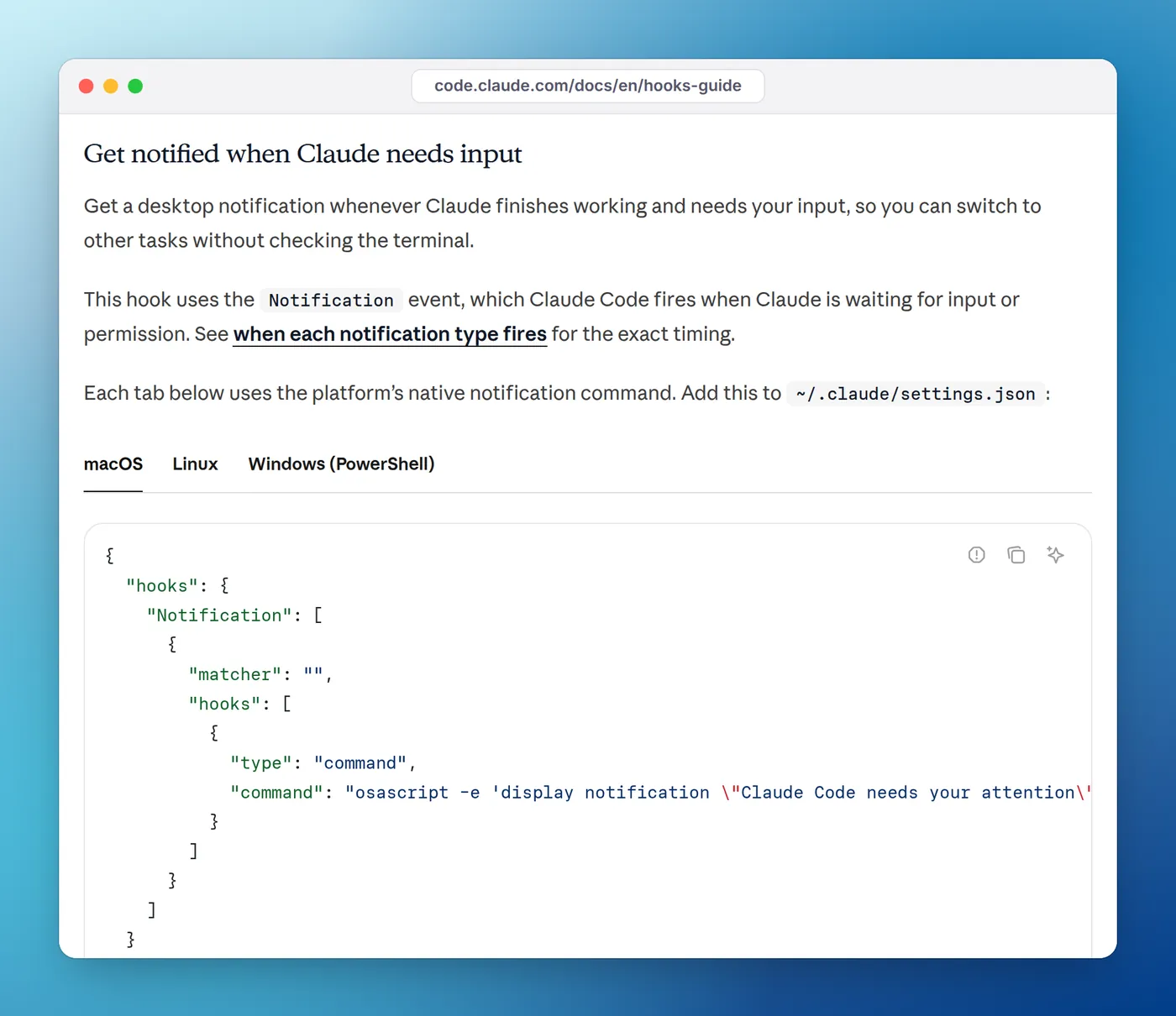
Notification hook, with one tab per OS.{
"hooks": {
"Stop": [
{
"hooks": [
{
"type": "command",
"command": "osascript -e 'display notification \"Claude finished and is waiting for you\" with title \"Claude Code\" sound name \"Glass\"'"
}
]
}
],
"Notification": [
{
"matcher": "permission_prompt",
"hooks": [
{
"type": "command",
"command": "osascript -e 'display notification \"Claude needs your permission\" with title \"Claude Code\" sound name \"Ping\"'"
}
]
}
]
}
}Glass and Ping are files in /System/Library/Sounds. Basso, Blow, Bottle, Frog, Funk, Hero, Morse, Pop, Purr, Sosumi, Submarine and Tink work the same way.
If you'd rather hear it than see it, swap the command for afplay /System/Library/Sounds/Glass.aiff, or make your Mac say it with say "Claude is done". A sound also works when Do Not Disturb or a Focus mode is hiding banners. For more sound options, see how to play a sound when Claude Code is done.
Put the project name in the message
When you run Claude Code in several projects, "Claude finished" doesn't tell you which one. Hooks run in Claude Code's working directory, so a small script can read the folder name. Save this as ~/.claude/hooks/notify.sh:
#!/bin/bash
# Usage: notify.sh "<message>"
project=$(basename "$PWD")
osascript -e "display notification \"$1\" with title \"Claude Code\" subtitle \"$project\" sound name \"Glass\""
Make it executable with chmod +x ~/.claude/hooks/notify.sh, then point both hooks at it:
{
  "hooks": {
    "Stop": [
      { "hooks": [{ "type": "command", "command": "\"$HOME/.claude/hooks/notify.sh\" 'Finished'" }] }
    ],
    "Notification": [
      { "matcher": "permission_prompt", "hooks": [{ "type": "command", "command": "\"$HOME/.claude/hooks/notify.sh\" 'Needs your permission'" }] }
    ]
  }
}
Linux: notify-send and a sound
On GNOME, KDE and most other desktops, notify-send from libnotify shows a standard desktop notification. If the command isn't found, install libnotify-bin on Debian and Ubuntu, or your distribution's equivalent.
{
  "hooks": {
    "Stop": [
      {
        "hooks": [
          { "type": "command", "command": "notify-send 'Claude Code' \"Finished in $(basename \"$PWD\")\"" }
        ]
      }
    ],
    "Notification": [
      {
        "matcher": "permission_prompt",
        "hooks": [
          { "type": "command", "command": "notify-send -u critical 'Claude Code' 'Claude needs your permission'" }
        ]
      }
    ]
  }
}
The -u critical flag asks the desktop to keep the permission alert on screen until you dismiss it. Desktops treat urgency differently, so it may also just look like a normal notification.
For a sound, add a second handler to the same hooks array that runs paplay /usr/share/sounds/freedesktop/stereo/complete.oga. On systems that run PipeWire without the PulseAudio compatibility layer, use pw-play with the same file. Test the commands in a terminal first: notify-send needs a running notification daemon, which SSH sessions, headless servers and most containers don't have. Our Linux notification guide covers GNOME, KDE and Wayland quirks in more detail.
Windows: a toast or a sound with PowerShell
Claude Code on Windows runs hook commands through Git Bash if it's installed, otherwise PowerShell. Setting "shell": "powershell" on a hook makes it run in PowerShell either way, which is what you want for Windows notifications.
For a real toast in the corner of the screen, install the BurntToast module once from PowerShell:
Install-Module -Name BurntToast -Scope CurrentUserBurntToast's repository is archived and no longer maintained. It still installs and works, but if you'd rather not depend on it, the Windows notification guide covers options that need no module.
Then add the hooks to %USERPROFILE%\.claude\settings.json:
{
  "hooks": {
    "Stop": [
      {
        "hooks": [
          {
            "type": "command",
            "shell": "powershell",
            "command": "New-BurntToastNotification -Text 'Claude Code', 'Claude finished and is waiting for you'",
            "async": true
          }
        ]
      }
    ],
    "Notification": [
      {
        "matcher": "permission_prompt",
        "hooks": [
          {
            "type": "command",
            "shell": "powershell",
            "command": "New-BurntToastNotification -Text 'Claude Code', 'Claude needs your permission'",
            "async": true
          }
        ]
      }
    ]
  }
}
"async": true lets Claude Code carry on while PowerShell starts up, which can take a second. If you don't want to install a module, a sound needs nothing extra. Use this as the command instead: (New-Object Media.SoundPlayer 'C:\Windows\Media\tada.wav').PlaySync(). In the JSON file, write each backslash twice (C:\\Windows\\Media\\tada.wav).
The official guide's Windows example opens a MessageBox dialog. It works without installing anything, but it can open behind your terminal, and it waits until you click it. The Windows notification guide compares all three approaches. If you run Claude Code inside WSL, powershell.exe has to be reachable on your PATH through Windows interop.
Over SSH, tmux and in any terminal: terminalSequence
Hook commands run on the machine where Claude Code runs. If that's a server you reached over SSH, osascript and notify-send fire on the server, not on your laptop. The fix is to let your terminal show the notification. A hook can return a terminalSequence field, and Claude Code writes that escape sequence to your terminal for you:
{
  "hooks": {
    "Stop": [
      {
        "hooks": [
          {
            "type": "command",
            "command": "printf '%s' '{\"terminalSequence\": \"\\u001b]9;Claude Code finished\\u0007\"}'"
          }
        ]
      }
    ]
  }
}
That's OSC 9, which iTerm2, WezTerm and ConEmu turn into a notification. Ghostty, urxvt and Warp use OSC 777 instead, and Kitty uses OSC 99. Windows Terminal reads OSC 9 as progress and other ConEmu commands, not as a notification; its OSC 777 support is new, opt-in and Preview-only, so the Windows guide covers it separately. The terminal notifications section of the reference lists the allowed sequences. Claude Code only writes them in an interactive session.
Inside tmux, notifications never reach the outer terminal unless you add set -g allow-passthrough on to ~/.tmux.conf, as the terminal configuration docs explain.
Test your hook
- Run
/hooksin Claude Code. It's a read-only list of every hook that loaded, with the file it came from. Your hook should appear underStoporNotification. - For
Stop, ask Claude something quick and switch to another app. The notification should arrive as soon as it answers. - For
permission_prompt, press Shift+Tab until the mode indicator shows manual mode, ask for something that needs permission, such as running your tests, and switch away. Expect the alert after about six seconds.
If nothing happens, run the command on its own in a terminal first. Most failures are the command itself, not the hook. Then start Claude Code with claude --debug-file /tmp/claude.log and read the log, which records every hook that matched and its exit code. Our list of fixes for a notification hook that isn't working goes through the usual causes, from Script Editor permissions to invalid JSON and the workspace trust prompt.
When one notification isn't enough
A notification is a one-off event. That's fine with one session. With three or four Claude Code sessions in different projects, the banners start to blur: they stack up in Notification Center, they don't tell you which session is still blocked, and they don't clear themselves when you answer.
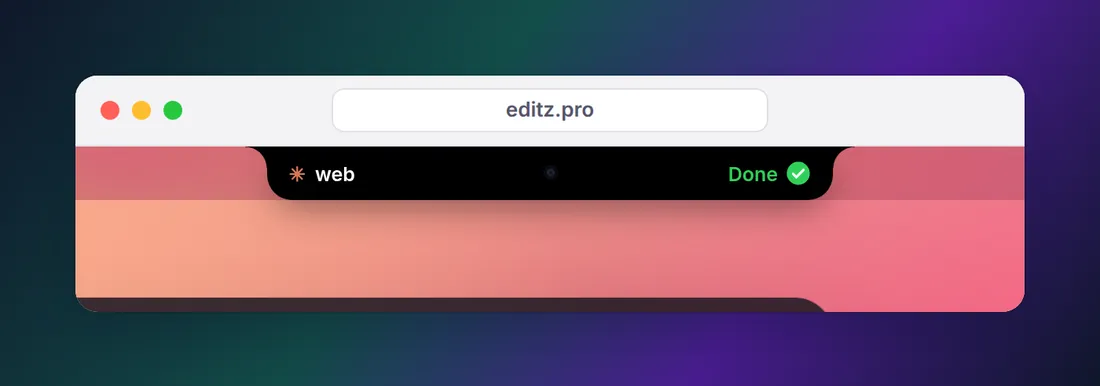
If that's your day, it helps to see status rather than events. On a Mac or a Windows PC, Eddie uses the same hooks shown here to show every session as working, needs you or done, in the MacBook notch or at the edge of your Windows desktop. It taps you when one needs permission and goes quiet again once you answer. There's no Linux version, so on Linux the hooks above remain the best answer. Watch your AI agents from the MacBook notch compares the options, and running several Claude Code sessions in parallel covers the workflow side.
What about Codex, Cursor and Gemini CLI?
The same idea works for other agents, with their own config files:
- Codex reads hooks from
~/.codex/hooks.jsonand supportsStopandPermissionRequest. It skips new or changed hooks until you review and trust them with/hooksin the Codex CLI, as its hooks docs explain. Our Codex notification guide has the configs. - Cursor's agent can run hooks when it starts and stops work, but it doesn't report when it's waiting for approval.
- Gemini CLI reads hooks from
settings.json(~/.gemini/settings.jsonfor your user), and its hooks docs include aNotificationevent meant for forwarding alerts to your desktop.
More on Claude Code notifications
- Notification when Claude Code is waiting for input:
permission_prompt,idle_promptand when each one fires. - Play a sound when Claude Code is done: sound files and commands for every OS.
- Notification hook not working? 9 fixes.
- Claude Code notifications on Windows: toast, sound and dialog, compared.
- Claude Code notifications on Linux: notify-send, GNOME, KDE.
- Get Claude Code notifications on your phone: push alerts through ntfy and similar services.
- Codex CLI notifications: the same for OpenAI's agent.
- Claude Code hooks explained: every hook event, with examples.
FAQ
Does Claude Code have notifications built in?
Yes, partly. With the default preferredNotifChannel of auto, Claude Code sends a desktop notification in iTerm2, Ghostty and Kitty when a task completes or a permission prompt is waiting and you seem to be away. Other terminals get nothing unless you set it to terminal_bell or add a Stop or Notification hook.
How do I get a sound when Claude Code is done?
Add a Stop hook that plays a sound file: afplay /System/Library/Sounds/Glass.aiff on macOS, paplay /usr/share/sounds/freedesktop/stereo/complete.oga on most Linux desktops, or a PowerShell Media.SoundPlayer call on Windows. The configs are in the sections above.
Why does the Notification hook fire a minute after Claude finishes?
That's the idle_prompt notification type. Claude Code sends it about 60 seconds after Claude finishes responding, and only if you haven't typed since. For an immediate signal when Claude is done, use the Stop event instead.
Can I get the notification only when Claude needs permission?
Yes. Give the Notification hook the matcher permission_prompt. It fires after the prompt has waited about six seconds without you typing. If you want it the instant Claude asks, hook PermissionRequest instead.
Do Claude Code notification hooks work in VS Code?
Hooks run wherever Claude Code itself runs, including the VS Code extension and the integrated terminal, because they're shell commands. The built-in desktop notification doesn't reach the VS Code integrated terminal, so a hook or terminal_bell is the way to get alerted there.
Do I need to restart Claude Code after adding a hook?
Usually not. Claude Code watches its settings files and reloads hooks when they change. If /hooks doesn't list your new hook after a few seconds, restart the session.