
Running agents day to day
How to Run Multiple Claude Code Sessions in Parallel (and Keep Track)
Run several Claude Code sessions at once with git worktrees, background sessions and agent view, then name them and get alerted when one needs you.
On this page
- Every way to run Claude Code in parallel
- Option 1: one terminal and one worktree per session
- Option 2: background sessions and agent view
- Option 3: parallel sessions in the desktop app
- When Claude splits the work itself
- Keep track of which session is which
- Know when a session needs you
- Watch usage and ports when you scale up
- How many sessions should you run?
- FAQ
To run multiple Claude Code sessions in parallel, open a terminal per task and start each one in its own git worktree with claude --worktree <name>, so the sessions never edit the same files. If you'd rather hand tasks off and check back later, claude --bg "task" starts a background session and claude agents shows every session on one screen, with the ones that need you at the top. Name each session, and turn on notifications so a waiting session doesn't sit idle for half an hour.
Everything here was checked against the official Run agents in parallel, worktrees and agent view docs on October 3, 2026. Agent view is a research preview, so its keys and commands may still change.
Every way to run Claude Code in parallel
Claude Code has more than one answer to "do several things at once", and they differ in who drives each session and how the work is kept apart.
| Approach | How you start it | Who steers each task | File isolation | Best for |
|---|---|---|---|---|
| Separate terminals | claude --worktree <name> per tab | You, in each tab | One git worktree per session | Two to four tasks you want to steer closely |
| Background sessions (agent view) | claude --bg "task" or claude agents | You, when a row needs you | Claude moves each session into its own worktree before editing | Many independent tasks you check on occasionally |
| Desktop app | + New session or ⌘N in the Code tab | You, in the sidebar | Optional worktree per session | People who prefer a GUI with diffs |
| Subagents | Claude spawns them inside one session | Claude | Optional, with isolation: worktree | Side tasks that would flood your main context |
| Agent teams | Experimental, off by default | A lead session | None; you partition files | Large projects Claude splits up itself |
| Scripted fan-out | A loop over claude -p | Your script | Whatever you give each run | Mechanical changes across many files |
The rest of this guide covers the first three in detail, because they're the ones where you are the coordinator and keeping track is your problem. The parallel agents overview also lists projects (parallel cloud sessions driven from one conversation) and dynamic workflows, which are built for larger orchestrated jobs.
Option 1: one terminal and one worktree per session
The simplest setup is also the most common: one terminal tab per task. The catch is that two sessions in the same checkout will edit the same files, run the same tests and trip over each other's half-finished changes. A git worktree fixes that. It's a second working directory with its own branch, sharing the same repository history.
Claude Code creates and enters one for you:
# Tab 1: a feature
claude --worktree feature-auth

# Tab 2: a bug fix, in a separate checkout
claude -w fix-upload-timeout
Each worktree is created under .claude/worktrees/<name>/ at the repository root, on a new branch called worktree-<name>. Leave the name off and Claude generates one. A few things to know before you rely on it:
- Trust the folder first. An interactive
--worktreerun needs workspace trust. If you've never runclaudein this repository, run it once there and accept the dialog. - Ignore the folder. Add
.claude/worktrees/to.gitignoreso the worktrees don't show up as untracked files in your main checkout. - Set up each worktree. A worktree is a fresh checkout, so it has no
node_modules, virtualenv or build output. Ask Claude to install dependencies, or run your setup in the worktree yourself. - Copy your secrets in. Gitignored files such as
.envaren't there either. List them in a.worktreeincludefile at the project root (it uses.gitignoresyntax) and Claude Code copies them into every worktree it creates.
.env
.env.local
config/secrets.json
When you exit, Claude checks the worktree. If it's clean, an unnamed session's worktree and branch are removed automatically. If it has changes or new commits, Claude asks whether to keep it, and prints the claude --worktree <name> --resume command to come back later.
If you live in tmux, claude -w feature-auth --tmux creates a tmux session for the worktree (with native iTerm2 panes when it can). Add the tmux settings from the terminal docs, especially set -g allow-passthrough on, or Claude's notifications never reach the outer terminal.
Option 2: background sessions and agent view
Terminal tabs work until you have more tasks than you can keep in your head. Agent view is Claude Code's own answer: background sessions that keep running without a terminal attached, plus one screen that lists them all.
Start a session straight into the background from your shell:
claude --bg --name "flaky-test" "investigate the flaky SettingsChangeDetector test"
claude --bg --name "upload-limit" "add rate limiting to the upload endpoint"
Each command prints a short ID and the commands for that session, then returns your prompt. Open the dashboard with claude agents. Each row shows the session's name, its latest status or question, and a state:
| State | What it means |
|---|---|
| Working | Claude is running tools or writing a reply |
| Needs input | Waiting on you: a question, a permission decision or a sandbox prompt |
| Idle | Nothing to do, ready for your next prompt |
| Completed | The task finished |
| Failed | The task ended with an error |
| Stopped | You stopped it, or its process ended from outside Claude Code |
Inside agent view, type a prompt and press Enter to dispatch another session. Select a row and press Space to peek at its latest output or question and reply without leaving the list. Press Enter or → to attach to the full conversation, and ← on an empty prompt to go back. A session you already have open can join the list with /background (or /bg), and /fork sends a copy there while you keep working.
The same sessions can be managed from the shell, which is handy in scripts:
| Command | What it does |
|---|---|
claude agents | Opens agent view |
claude agents --json | Prints sessions and their state as JSON |
claude attach <id> | Opens a session in this terminal |
claude logs <id> | Prints its recent output |
claude stop <id> | Stops it |
claude rm <id> | Removes it from the list, along with its worktree when that's safe |
Two details make background sessions safe to run side by side. First, before a background session edits files, Claude moves it into its own worktree under .claude/worktrees/, so parallel sessions can read the same checkout but each writes to its own. Second, a separate supervisor process hosts them, so closing agent view or your terminal doesn't stop the work. Shutting the machine down does, and deleting a session from agent view deletes the worktree Claude created for it, so commit first.
For a deeper look at backgrounding, including Ctrl+B for long-running shell commands, see how to run Claude Code in the background.
Option 3: parallel sessions in the desktop app
If you use the Claude desktop app's Code tab, parallel sessions live in its sidebar. Click + New session or press ⌘N, and for a Git repository select the worktree option next to the branch name so the session gets its own copy of the project. Ctrl+Tab cycles through sessions, and ⌘-clicking a second session opens it in a split pane next to the first. The desktop docs cover worktree location, branch prefixes and auto-archiving sessions once their pull request merges.
When Claude splits the work itself
Sometimes you don't want to coordinate at all. Three features let Claude do the fan-out:
- Subagents are helpers inside one session. They do a side task in their own context and return a summary. Add
isolation: worktreeto a custom subagent's frontmatter and each run gets its own worktree. /batch <instruction>has Claude split one large change across 5 to 30 subagents, each in its own worktree.- Agent teams run several coordinated sessions with a shared task list and a lead. They're experimental and off by default, and teammates don't get worktrees, so give each one different files.
For a mechanical change you can describe per file, a shell loop over claude -p also works. This version runs up to four headless jobs at a time, each in its own worktree, so they can't collide:
#!/usr/bin/env bash
# Usage: ./fan-out.sh files.txt
# Runs up to 4 headless Claude Code jobs at once, one per file listed in files.txt.
set -euo pipefail

xargs -P 4 -I {} sh -c '
  name=$(printf "%s" "$1" | tr "/." "--")
  claude -p --worktree "migrate-$name" \
    "Migrate $1 from Python 2 to Python 3. Return OK or FAIL." \
    --allowedTools "Edit,Bash(git commit *)"
' _ {} < "${1:?pass a file list}"
Headless runs have no exit prompt, so Claude doesn't clean up their worktrees. Review the branches, then remove each worktree with git worktree remove (run git worktree unlock first if git says it's locked). The best practices guide recommends trying the prompt on two or three files before running the whole list.
Keep track of which session is which
Four sessions called "claude" in four tabs is how things get lost. Name them:
| When | How |
|---|---|
| At startup | claude -n auth-refactor (also sets the terminal title) |
| During a session | /rename auth-refactor |
| In the session picker | Highlight a session and press Ctrl+R |
| For a background session | claude --bg --name "auth-refactor" "..." |
A named session can be resumed directly with claude --resume auth-refactor or /resume auth-refactor, and the sessions docs explain how duplicate names are handled. Matching the session name to the worktree name keeps everything lined up: the branch, the folder and the conversation all say auth-refactor.
If the parallel sessions belong to different Claude accounts, say work and personal, give each account its own configuration directory. The environment variable reference suggests an alias:
alias claude-work='CLAUDE_CONFIG_DIR=~/.claude-work claude'Know when a session needs you
This is where parallel work usually breaks down. One session asks for permission to run a command and waits, quietly, while you're reading another session's diff. Nothing is lost except time, but it adds up across four sessions.
You have three ways to hear about it:
- Built-in notifications. In iTerm2, Ghostty and Kitty, Claude Code sends a desktop notification when it needs you. In other terminals set
preferredNotifChannelto"terminal_bell"in~/.claude/settings.json. While agent view is open, it also notifies you when a background session needs input, finishes or fails. - Hooks. A
NotificationorPermissionRequesthook can show a banner or play a sound in any terminal on any OS. The notification guide has copy-paste configs for macOS, Linux and Windows, and the waiting-for-input guide covers permission prompts specifically. - A status view that stays put. Banners arrive one at a time and stack up; what you want with several sessions is one place that shows every session's state until you've dealt with it.
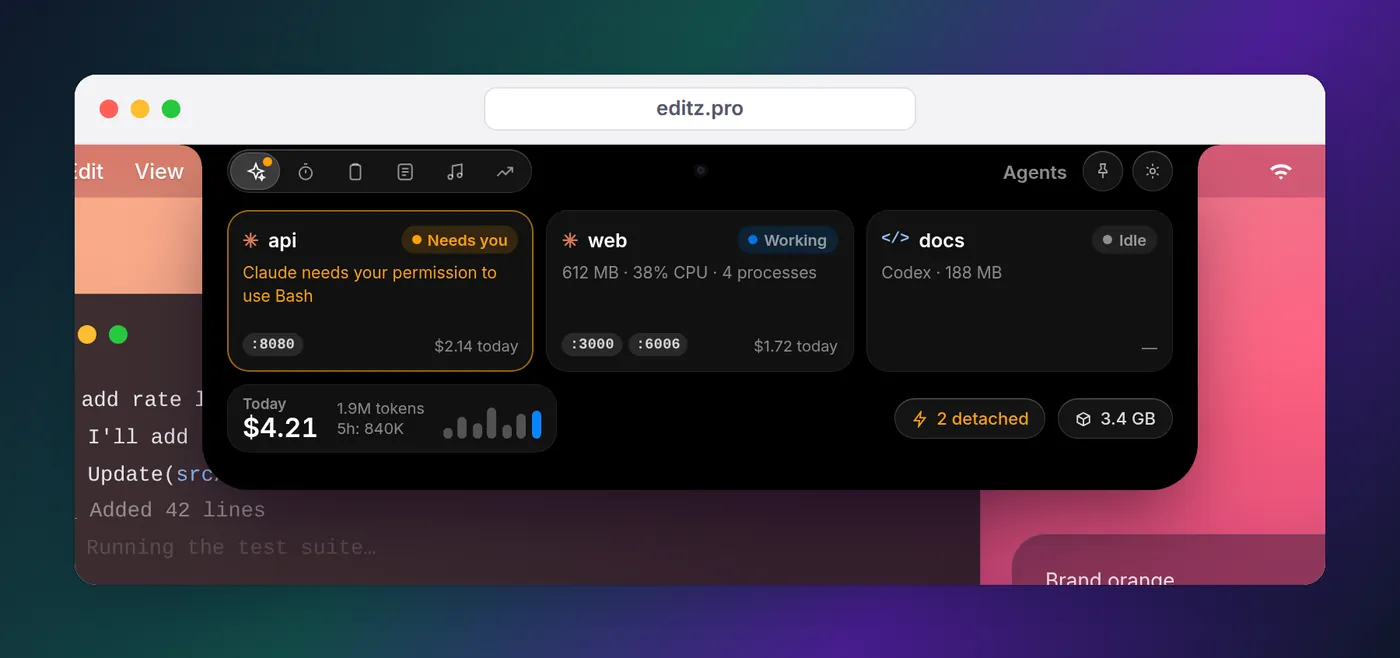
Watch usage and ports when you scale up
Two costs grow with every session you add.
Usage. All sessions draw from the same plan. The agent view docs put it plainly: ten agents in parallel use your subscription quota roughly ten times as fast as one, and subagents count too. If you're on Pro or Max, keep an eye on the 5-hour window; our guide to Claude Code's 5-hour limit explains how it resets, and the status line guide shows how to put the percentage in every terminal.
Ports and processes. Parallel sessions start parallel dev servers. Two worktrees of the same web app both want port 3000, so the second one either fails or quietly picks another port that you then hunt for. Tell each session which port to use in its first prompt, and check what's still running when you're done. Servers started as Claude Code background tasks are cleaned up when Claude Code exits normally, but ones that outlive their terminal keep holding ports. Finding and killing leftover dev servers shows the lsof and kill commands.
How many sessions should you run?
The docs set no fixed limit. The practical limits are your plan's usage, your machine's memory once every worktree runs its own build and dev server, and your own attention. Every session eventually needs a review, and a pile of finished branches nobody has read isn't progress.
A pattern from Anthropic's best practices is worth stealing even with only two sessions: have one session write the code and a second, fresh session review it. The reviewer hasn't seen the reasoning behind the code, so it isn't biased toward it. Start small, two or three sessions with clear and separate tasks, and add more once you can see at a glance which one needs you.
FAQ
Can you run multiple Claude Code sessions at the same time?
Yes. Each claude process is an independent session, so you can open as many terminals as you like. Give each one its own git worktree with claude --worktree <name> so they don't edit the same files, or dispatch background sessions with claude --bg "task" and watch them all in claude agents.
How do I use Claude Code across multiple repos?
Start one session per repository, each in its own terminal. If one task really spans two repos, start Claude in the main one and pass --add-dir ../other-repo (or run /add-dir mid-session) to grant it read and edit access to the second. Most .claude/ configuration in an added directory isn't loaded, so the session follows the first repo's settings.
Can I run Claude Code with two accounts side by side?
Yes. Each account needs its own configuration directory, which you set with the CLAUDE_CONFIG_DIR environment variable. The docs suggest an alias such as alias claude-work='CLAUDE_CONFIG_DIR=~/.claude-work claude', so claude and claude-work keep separate logins, settings and session history.
Do parallel sessions use up my Claude limits faster?
Yes. Every session draws from the same plan allowance, so the agent view docs warn that ten agents in parallel use quota roughly ten times as fast as one. Subagents and agent teams count too, because each worker is its own Claude session.
Can I use Claude Code on multiple machines?
Yes, install it and sign in on each one. Local sessions and their transcripts stay on the machine that ran them. To move work between machines, run the task as a cloud session and pull it into a terminal with claude --teleport, which needs a claude.ai subscription.
What's the difference between /agents and claude agents?
claude agents, typed in your shell, opens agent view: one screen listing every background session and its state. /agents, typed inside a session, is about subagents, the helper workers one session spawns. The names are similar but they are separate features.