Hooks and permissions
Claude Code Permission Modes Explained (and When Skipping Is Safe)
All six Claude Code permission modes compared: Manual, acceptEdits, plan, auto, dontAsk and bypassPermissions, how to switch, and when skipping is safe.
On this page
- The six permission modes compared
- How to switch permission modes
- Which mode a session starts in
- Manual mode: approve everything
- acceptEdits: let edits through
- Plan mode: look before editing
- Auto mode: a classifier instead of you
- dontAsk: for CI and scripts
- bypassPermissions: when skipping is safe
- Layer permission rules on top
- Protected paths
- Which mode should you use?
- FAQ
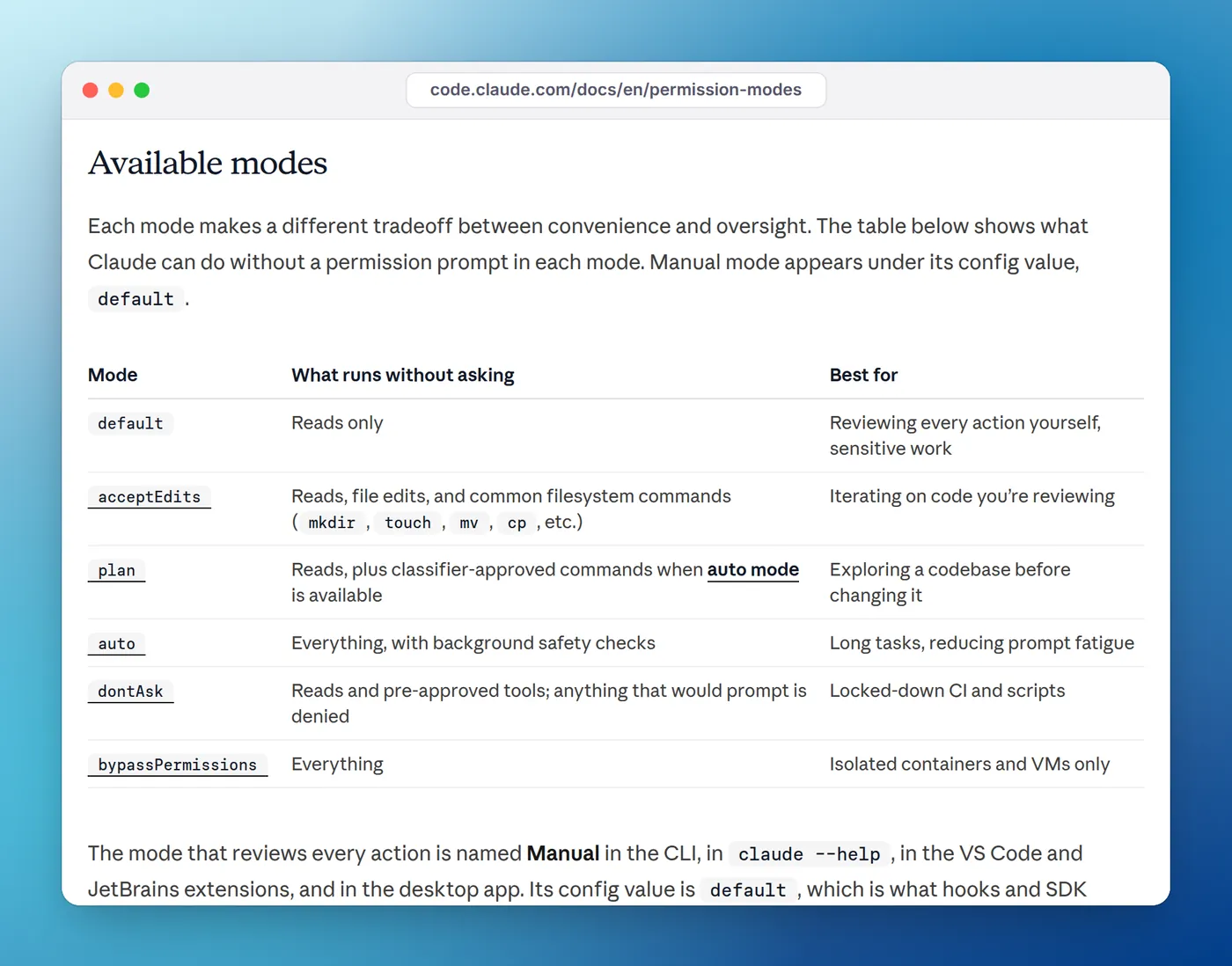
Claude Code permission modes decide which actions Claude can take without asking you first. There are six: Manual (config value default), acceptEdits, plan, auto, dontAsk and bypassPermissions. Press Shift+Tab to cycle through them in a session, pass --permission-mode at launch, or set permissions.defaultMode in your settings. Skipping permissions entirely with --dangerously-skip-permissions is only safe inside a container or VM.
Everything here comes from the official permission modes and permissions docs, checked on October 3, 2026. Permission behavior changes often between versions, and several details below name the version they need.
The six permission modes compared
| Mode | Status bar | Runs without asking | Best for |
|---|---|---|---|
default (Manual) | ⏸ manual mode on | Reads only | Sensitive work, unfamiliar code |
acceptEdits | ⏵⏵ accept edits on | Reads, file edits and common file commands (mkdir, touch, mv, cp, rm, sed) in your working directory | Iterating on code you review in git diff |
plan | ⏸ plan mode on | Reads, plus commands the classifier approves when auto mode is available | Exploring before changing anything |
auto | ⏵⏵ auto mode on | Everything, with a classifier checking each action | Long tasks, fewer prompts |
dontAsk | ⏵⏵ don't ask on | Reads and pre-approved tools; everything else is denied | CI and scripts |
bypassPermissions | ⏵⏵ bypass permissions on | Everything | Isolated containers and VMs only |
Two things hold in every mode. Deny rules in your settings always block, even in bypassPermissions. And a few actions are never approved automatically by any mode: tools matched by an explicit ask rule, questions Claude asks you with AskUserQuestion, and rm or rmdir aimed at a critical path such as /, your home folder or your working directory.
How to switch permission modes
In the terminal, Shift+Tab cycles modes during a session. From auto mode, the first press goes to Manual, then acceptEdits, then plan. Auto and bypassPermissions join the cycle only when they're available, and dontAsk never appears in it. The status bar under the prompt always shows the current mode.
To start in a mode, pass it as a flag:
claude --permission-mode planTo make a mode your default, set permissions.defaultMode. This file makes every terminal session on your machine start in Manual mode:
{
  "permissions": {
    "defaultMode": "default"
  }
}
Recent versions also accept manual as an alias for default. In the VS Code extension, click the mode indicator under the prompt box, or set claudeCode.initialPermissionMode in your VS Code settings (it doesn't accept auto). In the desktop app, use the mode selector next to the send button.
Which mode a session starts in
A new terminal session takes the first of these that applies:
- The
--permission-modeflag, or--dangerously-skip-permissions. permissions.defaultModefrom a settings file. A project's.claude/settings.jsonor.claude/settings.local.jsoncan't setautoorbypassPermissionsthis way; put those in~/.claude/settings.json.- The built-in default.
The built-in default changed recently. With Claude Code v2.1.283 or later, interactive terminal and VS Code sessions start in auto mode when it's available to you; on older versions that applied only on Pro, Max and Team plans, and everyone else started in Manual. Runs with -p usually start in default; the exceptions, such as sessions on a third-party provider or with telemetry off, are in the docs. If a session starts in auto mode and you didn't expect it, that's why, and the starting-mode rules list every exception.
Manual mode: approve everything
Manual mode asks before most edits, shell commands and network requests. It's the slowest mode and the one to use for sensitive work, unfamiliar repositories, or when you want to learn what Claude does. Many prompts offer Yes, and don't ask again: for a shell command, that saves an allow rule to .claude/settings.local.json at the root of the repository, so later sessions there skip the prompt. File-edit approvals of that kind last only until the session ends.
acceptEdits: let edits through
acceptEdits approves file edits and common filesystem commands (mkdir, touch, rm, rmdir, mv, cp, sed) for paths inside your working directory. Other shell commands still prompt, and so do writes to protected paths like .git, .claude and your shell profile. It suits work you'll review afterwards in your editor or with git diff. Press Shift+Tab once from Manual to enter it.
Plan mode: look before editing
In plan mode, Claude reads files, runs commands to explore and writes a plan, but doesn't edit your source. When the plan is ready you choose how to continue: approve and switch to auto mode, approve and review each edit yourself, or keep planning. Ctrl+G opens the plan in your editor so you can change it first.
Enter it with Shift+Tab, by starting a prompt with /plan, or with claude --permission-mode plan. When auto mode is available, its classifier also reviews shell commands during planning (the useAutoModeDuringPlan setting, on by default); otherwise commands outside the read-only set prompt you.
Auto mode: a classifier instead of you
Auto mode runs without routine prompts. Before an action runs, a separate classifier model checks it against your request and a set of rules, and blocks anything that goes beyond what you asked for, targets infrastructure it doesn't recognize, or looks driven by hostile content Claude read. It trusts your working directory and the git remotes configured when the session started.
Some of what it blocks by default:
- Downloading and running code, like
curl | bash - Sending sensitive data to outside endpoints
- Production deploys and migrations
- Force pushes,
git reset --hardand other commands that discard uncommitted work terraform destroyand similar teardown commands- Printing a live credential or token into the transcript or a file
It allows local file work, installing dependencies already in your lock files, read-only HTTP requests and pushes to branches of the repository you're in. You can tighten it in conversation: if you say "don't push", the classifier treats that as a block until you lift it, though the docs warn that compaction can drop the message, so use a deny rule for anything that must hold.
When it blocks an action, you get a notification and the action appears under Recently denied in /permissions, where r retries it with a manual approval. After 3 blocks in a row or 20 in a session, auto mode pauses and Claude Code goes back to asking you.
Auto mode needs a supported model (on the Anthropic API, Opus 4.6 or later, Sonnet 4.6 or later, or a Fable model) and can be turned off by your organization. The docs say it plainly: auto mode reduces prompts but doesn't guarantee safety.
Some prompts still get through in auto mode: ask rules, a critical-path rm (which waits two minutes for you in the terminal, then is denied), and questions Claude asks. If you leave a long auto-mode task running, a notification hook or Eddie, our notch app for Mac and Windows, can tell you when one appears. Eddie shows every session as working, needs you or done and taps you on permission prompts.
dontAsk: for CI and scripts
dontAsk turns every would-be prompt into a denial. Reads inside your working directories, read-only commands, permissions.allow rules and anything a PreToolUse hook approves still run; nothing waits for an answer. It never appears in the Shift+Tab cycle. The docs' CI example:
claude -p "run the test suite" --permission-mode dontAsk --allowedTools "Bash(npm test)" "Read"Cloud sessions ignore dontAsk set in a repository's settings file.
bypassPermissions: when skipping is safe
bypassPermissions, which --dangerously-skip-permissions turns on, skips permission prompts and safety checks, including writes to protected paths like .git and .claude. Deny rules still block, explicit ask rules still prompt, and critical-path rm commands still ask. Everything else runs immediately, and nothing protects you against prompt injection.
The docs' answer to "when is it safe?" is narrow: only in an isolated environment, such as a container, VM or dev container without internet access, where Claude can't damage your host. In practice that means:
- Isolated: a container or VM, not your laptop's home folder.
- Not root: on macOS and Linux Claude Code refuses to start in this mode as root or under
sudo, except inside a recognized sandbox. The official dev container runs Claude Code as a non-root user. - Nothing to steal: no production credentials, SSH keys or cloud tokens mounted in.
The first interactive run with the mode shows a warning you must accept, which is saved as skipDangerousModePermissionPrompt in ~/.claude/settings.json. You can't switch into bypassPermissions from a session that started without it; --allow-dangerously-skip-permissions adds it to the Shift+Tab cycle without turning it on. For hands-off work on your own machine, the docs recommend auto mode instead. Administrators can remove the mode with permissions.disableBypassPermissionsMode: "disable" in managed settings.
Layer permission rules on top
Modes set the baseline; rules fine-tune it. Rules are checked deny first, then ask, then allow, and the first match wins, so a narrow allow can't override a broad deny. A typical project setup:
{
  "$schema": "https://json.schemastore.org/claude-code-settings.json",
  "permissions": {
    "defaultMode": "acceptEdits",
    "allow": [
      "Bash(npm run *)",
      "Bash(git commit *)"
    ],
    "ask": [
      "Bash(git push *)"
    ],
    "deny": [
      "Read(./.env)",
      "Read(./.env.*)",
      "Read(./secrets/**)"
    ]
  }
}
Put the * after the subcommand: Bash(git log *) allows only git log, while Bash(git *) allows every git command. A Read deny rule also blocks edits and writes to the same path. Rules are enforced by Claude Code, not the model, which is why they're stronger than a line in CLAUDE.md. For decisions that need logic, such as asking only when a push targets main, a PreToolUse hook can return ask or deny; 12 useful Claude Code hooks has one, and the hooks guide explains how hooks and permissions interact.
Run /permissions to see every rule and the file it came from, and to add or remove rules mid-session.
Protected paths
A short list of paths is never auto-approved for writing, except in bypassPermissions: folders like .git, .vscode, .idea, .husky and .claude (apart from .claude/worktrees), and files like .gitconfig, .bashrc, .zshrc, .npmrc and .mcp.json. In Manual and acceptEdits they prompt, in auto mode the classifier decides, and in dontAsk they're denied. An allow rule such as Edit(.claude/**) doesn't change that.
Which mode should you use?
| Situation | Mode |
|---|---|
| Reviewing an unfamiliar repo, or anything sensitive | Manual |
Iterating on code you'll review in git diff | acceptEdits |
| Big change you want to see a plan for first | plan |
| Long task on your own machine, few interruptions | auto |
| CI job or script with a known set of commands | dontAsk plus --allowedTools |
| Fully unattended run in a throwaway container | bypassPermissions |
Whatever you pick, unattended sessions still stop for the prompts no mode skips. Run Claude Code in the background covers sessions you leave running, and Claude Code stuck? explains how to tell a session waiting on a prompt from one that's actually frozen.
FAQ
How do I use --dangerously-skip-permissions in Claude Code?
Start Claude Code with claude --dangerously-skip-permissions, or the equivalent claude --permission-mode bypassPermissions, and accept the one-time warning. Do it only inside a container, VM or dev container, as a non-root user: Claude Code refuses to start in this mode as root or under sudo on macOS and Linux.
How do I give Claude Code permission to do everything?
For hands-off work on your own machine, use auto mode (claude --permission-mode auto): a classifier reviews each action and blocks risky ones instead of asking you. bypassPermissions skips nearly every check, so keep it for isolated environments. Either way, deny rules still apply.
How do I change the default permission mode in Claude Code?
Set permissions.defaultMode in ~/.claude/settings.json to default, acceptEdits, plan, auto, dontAsk or bypassPermissions. A project's .claude/settings.json can set it too, but terminal sessions ignore auto and bypassPermissions from project files.
What is auto mode in Claude Code?
A permission mode where a separate classifier model reviews actions such as shell commands and network requests before they run, instead of prompting you. It blocks things like curl | bash, force pushes and production deploys by default. In Claude Code v2.1.283 and later it's the starting mode for interactive terminal and VS Code sessions.
How do I stop Claude Code asking permission for one command?
Add an allow rule such as Bash(npm run *) to permissions.allow in your settings, or pick the "don't ask again" option when the prompt appears. Rules are checked deny first, then ask, then allow, so a matching deny or ask rule still wins.
Which permission mode should I use for CI?
dontAsk with an explicit allowlist, for example claude -p "run the tests" --permission-mode dontAsk --allowedTools "Bash(npm test)" "Read". Anything not pre-approved is denied instead of waiting for an answer that never comes.