
Claude Code notifications
Claude Code Notifications on Windows: Toast, Sound and Terminal Bell
Get Claude Code notifications on Windows: a toast, a sound or a taskbar flash when Claude finishes or needs permission. Copy-paste hooks for PowerShell and WSL.
On this page
- Your options on Windows at a glance
- Where the settings file is on Windows
- Option 1: the terminal bell (no install)
- Option 2: Windows Terminal Preview notifications
- Option 3: a toast with BurntToast
- Option 4: play a sound with SoundPlayer
- Option 5: the official MessageBox example
- Claude Code in WSL
- When the Windows hook stays silent
- Several sessions at once: Eddie for Windows
- Which option to pick
- FAQ
Claude Code doesn't send desktop notifications on Windows out of the box, so you have to turn them on. The quickest way is to set preferredNotifChannel to terminal_bell, which makes Windows Terminal play its bell sound when Claude finishes or needs you. For a real toast in the corner of the screen, add a Stop hook that runs PowerShell with "shell": "powershell", plus a Notification hook with the permission_prompt matcher for approvals.
The Claude Code facts below come from the official hooks reference, hooks guide and terminal configuration docs, and the Windows Terminal settings from Microsoft's profile docs, all checked on October 3, 2026. Every JSON block is valid JSON in the format Claude Code reads. The PowerShell commands were checked against the docs, not run on a Windows machine, so try each one in a PowerShell window before you rely on it.
Your options on Windows at a glance
There are five ways to get alerted. They differ in what you have to install and what you actually see.
| Option | What you get | Install anything? | Best for |
|---|---|---|---|
terminal_bell + Windows Terminal | The bell sound, plus a taskbar flash if you set bellStyle | No | The fastest working setup |
| Windows Terminal Preview notifications | A desktop notification from the terminal | Windows Terminal Preview 1.26 or later | Trying the newest option, also from WSL and SSH |
| BurntToast hook | A real Windows toast with your own text | One PowerShell module | Most people who want a toast |
SoundPlayer hook | Any .wav file | No | A distinct sound per event |
MessageBox hook (the official example) | A dialog you have to click | No | Alerts you can't miss |
All of them work for both moments that matter: Claude finishing (the Stop event) and Claude waiting for your permission (the Notification event with the permission_prompt matcher). The notification pillar guide explains the timing of each event in detail.
Where the settings file is on Windows
Hooks and the preferredNotifChannel setting go in your user settings file, %USERPROFILE%\.claude\settings.json, which applies to every project. A project's .claude\settings.json works too if you only want alerts in one repository. The file is strict JSON: no comments and no trailing commas, and every Windows backslash inside a string is written \\.
If the file already exists, merge the keys below into it rather than replacing it. Claude Code watches the file and normally picks up changes without a restart; run /hooks to confirm your hook loaded.
Option 1: the terminal bell (no install)
Claude Code's built-in notification channel defaults to auto, which according to the settings reference sends desktop notifications in iTerm2, Ghostty and Kitty and does nothing elsewhere. Windows Terminal, PowerShell and the VS Code terminal fall into "elsewhere". Switch the channel to the bell:
{
  "preferredNotifChannel": "terminal_bell"
}
Windows Terminal's default bellStyle is audible, so the bell now plays a sound. To also flash the taskbar button, open Windows Terminal's settings, choose Open JSON file, and set bellStyle in your profile defaults:
{
  "profiles": {
    "defaults": {
      "bellStyle": "all"
    }
  }
}
With all, Microsoft's docs say the terminal plays a sound and flashes the taskbar icon, and when the window isn't in focus, only the taskbar icon flashes. The other values are audible, window, taskbar and none, as listed under bell notification style. You can pick your own sound file with bellSound.
The built-in channel uses the same timing as the Notification hook: it fires when a task completes or a permission prompt waits, and only when you seem to be away from the terminal. If you type in the window, it stays quiet, which is usually what you want.
Option 2: Windows Terminal Preview notifications
Windows Terminal Preview 1.26, released on October 2, 2026, added two opt-in features, according to its release notes: a desktop notification whenever the bell rings, and support for the OSC 777 escape sequence that programs use to post a notification. Both are off by default.
The first one pairs with Option 1. Keep "preferredNotifChannel": "terminal_bell" in Claude Code and set your profile's bellStyle to notification in Windows Terminal Preview. The bell then becomes a desktop notification.
The second lets a hook choose the text. A hook can return a terminalSequence field and Claude Code writes that escape sequence to the terminal for you, as the terminal notifications section of the reference describes. OSC 777 is on its allowlist. First turn on "compatibility.allowOSC777": true in your Windows Terminal Preview profile, then add:
{
  "hooks": {
    "Stop": [
      {
        "hooks": [
          {
            "type": "command",
            "shell": "powershell",
            "command": "@{ terminalSequence = [string][char]27 + ']777;notify;Claude Code;Claude finished' + [char]7 } | ConvertTo-Json -Compress"
          }
        ]
      }
    ],
    "Notification": [
      {
        "matcher": "permission_prompt",
        "hooks": [
          {
            "type": "command",
            "shell": "powershell",
            "command": "@{ terminalSequence = [string][char]27 + ']777;notify;Claude Code;Claude needs your permission' + [char]7 } | ConvertTo-Json -Compress"
          }
        ]
      }
    ]
  }
}
[char]27 and [char]7 are the escape and bell characters that open and close the sequence, and ConvertTo-Json escapes them properly, so the command needs no double quotes that could get mangled on the way to PowerShell. Claude Code only writes terminal sequences in an interactive session. Because the sequence travels through the terminal rather than through Windows, the same sequence also works for Claude Code running in WSL or on a server you reached over SSH, as long as the window is Windows Terminal Preview. There the hook runs in Linux, so print the JSON with printf instead of PowerShell, as shown in the WSL section below. It's a Preview feature, so expect it to change before it reaches the stable release.
Option 3: a toast with BurntToast
For a standard Windows toast with your own text and no Preview build, the BurntToast PowerShell module is the usual choice. Install it once:
Install-Module -Name BurntToast -Scope CurrentUserClaude Code runs PowerShell hooks with pwsh.exe (PowerShell 7) when it's installed and falls back to powershell.exe (Windows PowerShell 5.1), according to the PowerShell section of the reference. Install the module from the same one, because the two editions keep user modules in different folders. Then add the hooks:
{
  "hooks": {
    "Stop": [
      {
        "hooks": [
          {
            "type": "command",
            "shell": "powershell",
            "command": "New-BurntToastNotification -Text 'Claude Code', ('Finished in ' + (Split-Path -Leaf (Get-Location).Path))",
            "async": true
          }
        ]
      }
    ],
    "Notification": [
      {
        "matcher": "permission_prompt",
        "hooks": [
          {
            "type": "command",
            "shell": "powershell",
            "command": "New-BurntToastNotification -Text 'Claude Code', 'Claude needs your permission' -Urgent",
            "async": true
          }
        ]
      }
    ]
  }
}
Hooks run in Claude Code's working directory, so Split-Path -Leaf (Get-Location).Path puts the project folder name in the toast. That helps once you run Claude Code in more than one repository. "async": true lets Claude carry on while PowerShell starts, which can take a second.
The -Urgent switch, added in BurntToast 1.1, marks the permission toast as an important notification that can break through Focus Assist, according to the module's help page. Drop it if you'd rather Focus Assist hide that one too.
Two things to know before you depend on it:
- BurntToast is no longer maintained. Its repository was archived and the author says there will be no further updates. The existing releases still install from the PowerShell Gallery, but if a future Windows update breaks it, nobody will fix it. Options 1, 2, 4 and 5 don't depend on a third-party module.
- Execution policy. On Windows clients, the effective default policy for Windows PowerShell is
Restricted, which blocks module script files (.psm1), according to Microsoft's execution policy docs. If the hook fails with an error about running scripts being disabled, runSet-ExecutionPolicy -Scope CurrentUser RemoteSignedand try again.
Option 4: play a sound with SoundPlayer
If you want to hear it without installing anything, .NET's SoundPlayer class plays a .wav file. Windows keeps its system sounds in C:\Windows\Media; run Get-ChildItem C:\Windows\Media\*.wav to see what your version has.
{
  "hooks": {
    "Stop": [
      {
        "hooks": [
          {
            "type": "command",
            "shell": "powershell",
            "command": "(New-Object Media.SoundPlayer 'C:\\Windows\\Media\\tada.wav').PlaySync()",
            "async": true
          }
        ]
      }
    ],
    "Notification": [
      {
        "matcher": "permission_prompt",
        "hooks": [
          {
            "type": "command",
            "shell": "powershell",
            "command": "(New-Object Media.SoundPlayer 'C:\\Windows\\Media\\chimes.wav').PlaySync()",
            "async": true
          }
        ]
      }
    ]
  }
}
PlaySync() waits until the sound ends, so the PowerShell process doesn't exit halfway through the clip. SoundPlayer only plays .wav; convert an .mp3 first if you want a custom sound. Two different sounds let you tell "done" from "blocked" without looking. Playing a sound when Claude Code is done has the equivalents for macOS and Linux.
Option 5: the official MessageBox example
The hooks guide uses a Windows Forms dialog. It needs nothing installed and calls powershell.exe directly, so it works whichever shell Claude Code uses:
{
  "hooks": {
    "Notification": [
      {
        "matcher": "",
        "hooks": [
          {
            "type": "command",
            "command": "powershell.exe -Command \"[System.Reflection.Assembly]::LoadWithPartialName('System.Windows.Forms'); [System.Windows.Forms.MessageBox]::Show('Claude Code needs your attention', 'Claude Code')\""
          }
        ]
      }
    ]
  }
}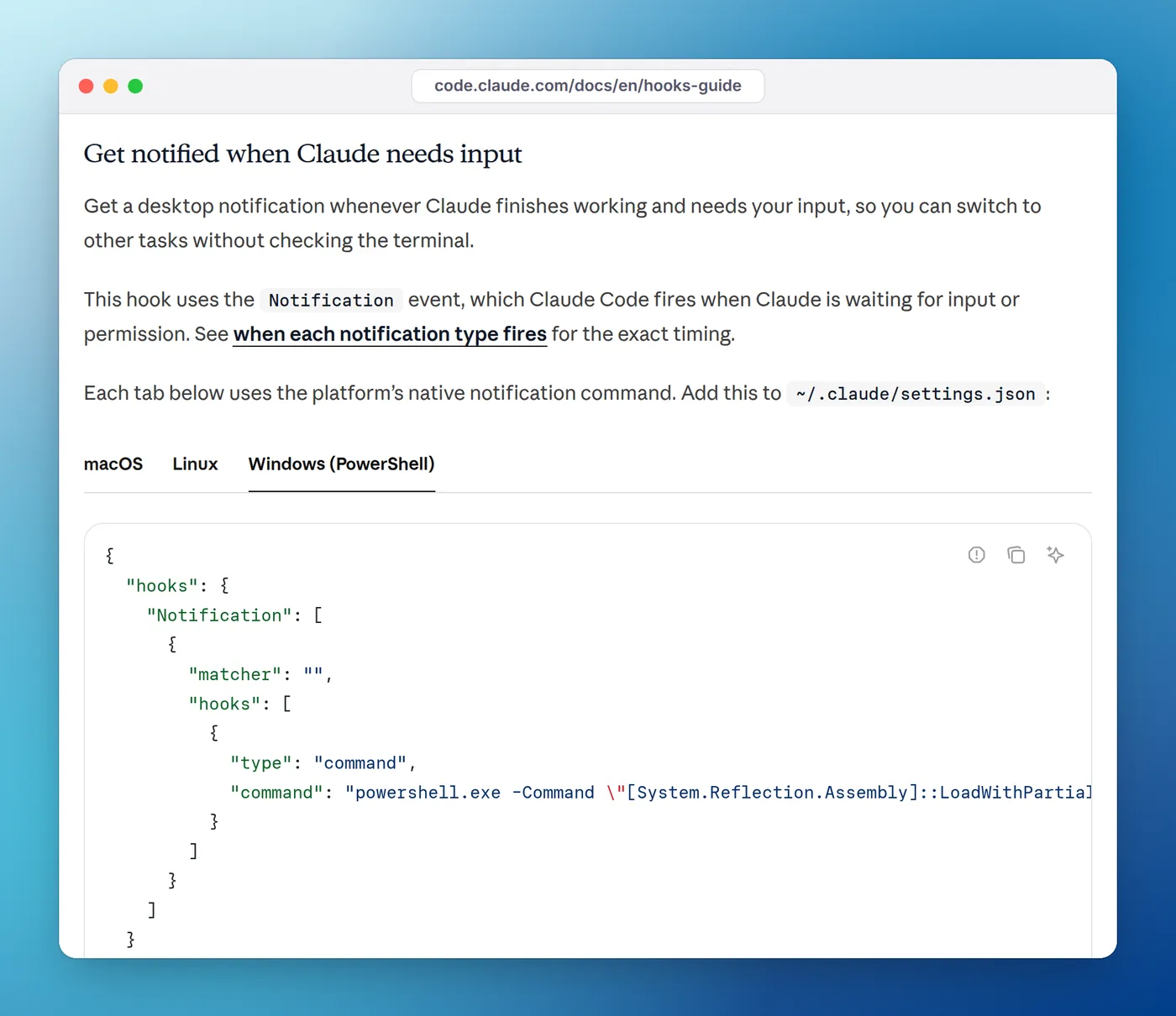
The guide warns that this opens a dialog, not a toast, and it can open behind your terminal. The hook also waits until you click OK. The empty matcher means every notification type, including idle_prompt, which arrives about a minute after Claude finishes if you haven't typed. Change it to permission_prompt if you only want the dialog for approvals.
Claude Code in WSL
When you run Claude Code inside WSL, hooks run in Linux with sh -c, not in Windows. notify-send usually has nothing to talk to there, because it needs a desktop notification daemon. You have two good choices.
The first is a terminalSequence, as in Option 2. It reaches Windows Terminal Preview without crossing into Windows at all. In WSL the hook runs in sh, so print the JSON with printf: the command is printf '%s' '{"terminalSequence": "\u001b]777;notify;Claude Code;Finished\u0007"}', and the Linux guide has it as a complete settings file. The second is to call powershell.exe through WSL's Windows interop, which the hooks guide notes must be on your PATH:
{
  "hooks": {
    "Stop": [
      {
        "hooks": [
          {
            "type": "command",
            "command": "powershell.exe -NoProfile -Command \"New-BurntToastNotification -Text 'Claude Code', 'Finished in WSL'\"",
            "async": true
          }
        ]
      }
    ]
  }
}
This uses the Linux path because Claude Code in WSL reads the settings file in your Linux home folder, not %USERPROFILE%. -NoProfile skips your PowerShell profile, which makes startup a little faster. Swap the BurntToast call for the SoundPlayer line from Option 4 if you don't want the module. If you're on a Linux desktop rather than WSL, the Linux notification guide covers notify-send properly.
When the Windows hook stays silent
Most failures on Windows come down to one of these:
- The command ran in Git Bash. Claude Code runs shell-form hooks through Git Bash when Git for Windows is installed, and through PowerShell only when it isn't. A PowerShell command without
"shell": "powershell"fails in Bash. The hooks in Options 2, 3 and 4 set it explicitly for this reason. - Single backslashes in JSON.
C:\Windowsis invalid JSON; writeC:\\Windows. One bad escape stops the whole settings file from loading, and/hooksthen shows nothing from it. - The command fails on its own. Paste the PowerShell part into a PowerShell window first. If it errors there, it errors in the hook too.
- Focus Assist or Do Not Disturb is on. Toasts land silently in the notification center. A sound or a taskbar flash still gets through.
- You're typing. The
permission_prompttimer resets with each keystroke, so the alert only arrives once you've been idle for about six seconds.
To see what really happened, start Claude Code with claude --debug-file "$env:TEMP\claude.log" from PowerShell and read the log. It records each hook that matched, its exit code and its error output. Notification hook not working? 9 fixes goes through the rest, from the workspace trust dialog to invalid JSON.
Several sessions at once: Eddie for Windows
A toast works well for one session. With three or four running in different terminals, a stack of banners doesn't tell you which session is still working and which one has been waiting on you for ten minutes. Eddie for Windows, our notch app, turns the same hooks into a status you can glance at. It sits at the edge of your desktop (top center, a top corner, a side or the bottom, whichever you pick in Settings → Island) and shows each Claude Code, Codex, Cursor and Gemini CLI session as working, needs you or done, tapping you when one needs permission. Ctrl+Alt+A opens the list from any app.
Setup is a few clicks. Install it free from the Microsoft Store, activate it with an Eddie license key, then connect each agent in Settings. Eddie adds its hooks to %USERPROFILE%\.claude\settings.json (or .codex\hooks.json, .cursor\hooks.json, .gemini\settings.json) and takes them out again when you disconnect. Hooks load when a session starts, so restart sessions that were already open.
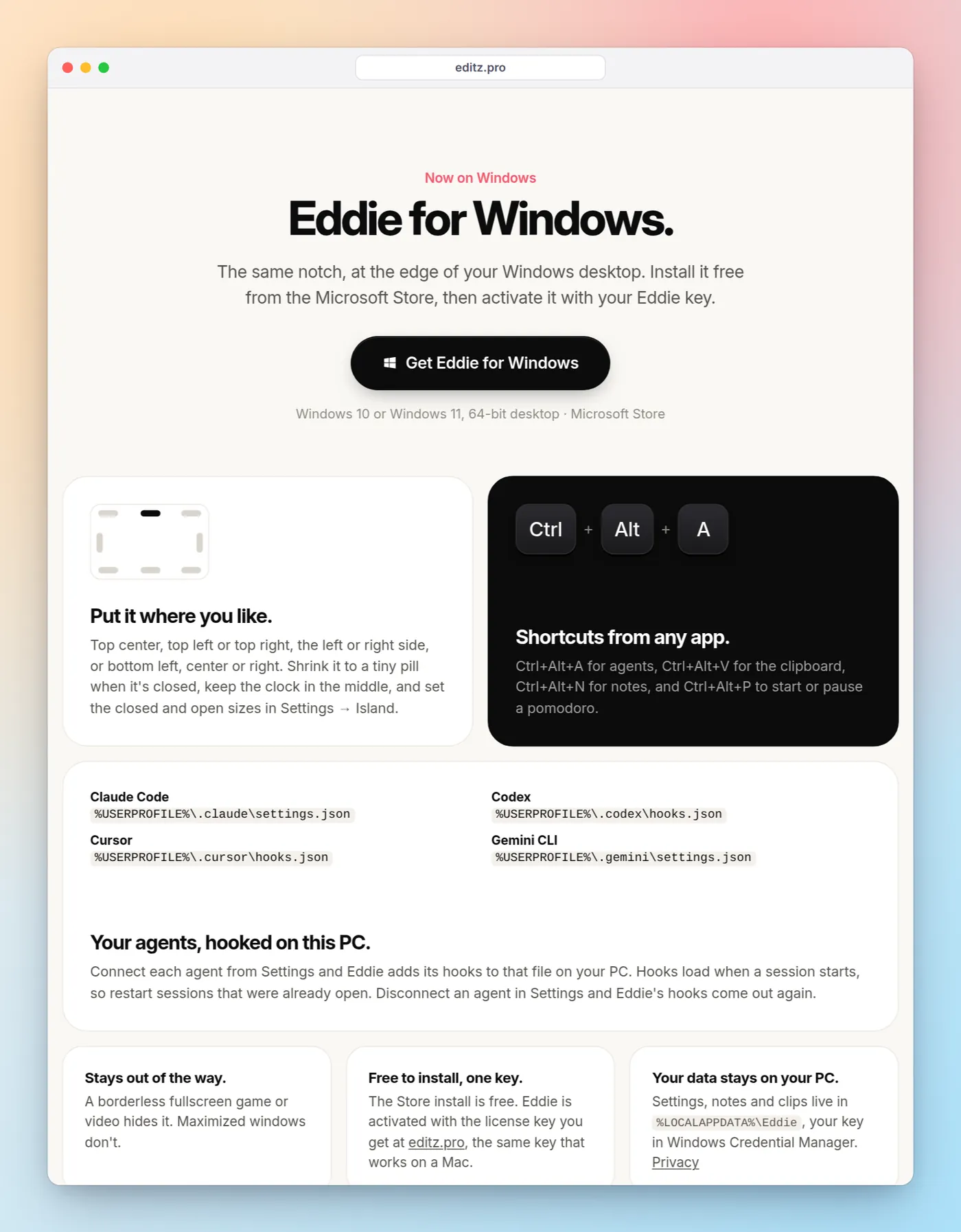
The limits, honestly: the Store install is free but Eddie needs a paid key (the same key works on a Mac). It runs on Windows 10 or 11, 64-bit. A borderless fullscreen game or video hides it, though maximized windows don't. Cursor's agent doesn't report approvals, so a waiting Cursor session can't show as needing you. If you'd rather install nothing, the hooks above do the job on their own.
Which option to pick
For most Windows setups, start with Option 1: one line in settings.json, nothing to install, and a taskbar flash you'll notice. Add BurntToast or a SoundPlayer hook when you want text or a distinct sound for permission prompts. If you're on Windows Terminal Preview, Option 2 is the cleanest, and it's the one that also works over WSL and SSH.
If you run several sessions at once, Eddie for Windows gives you a status you can glance at instead of one-off alerts. The same alert ideas apply to OpenAI's agent too; see Codex CLI notifications.
FAQ
Does Claude Code show notifications on Windows by default?
No. With the default preferredNotifChannel of auto, Claude Code only sends desktop notifications in iTerm2, Ghostty and Kitty, and does nothing in Windows Terminal or PowerShell. Set preferredNotifChannel to terminal_bell for a sound, or add a Stop hook for a toast.
How do I get a sound when Claude Code is done on Windows?
Add a Stop hook with "shell": "powershell" that runs (New-Object Media.SoundPlayer 'C:\Windows\Media\tada.wav').PlaySync(). SoundPlayer plays .wav files only, and in the settings JSON every backslash is written twice.
Why does my PowerShell notification hook do nothing on Windows?
Usually because it ran in Git Bash. Claude Code runs hook commands through Git Bash when Git for Windows is installed, so PowerShell commands fail there. Add "shell": "powershell" to the hook, then run claude --debug-file and read the log to see the exact error.
Do Claude Code notification hooks work in WSL?
Yes, but the hook runs inside Linux, where notify-send usually has no notification daemon to talk to. Call powershell.exe through Windows interop instead, or return a terminalSequence so Windows Terminal handles the alert.
Can I get a Windows notification when Claude Code needs permission?
Yes. Add a Notification hook with the matcher permission_prompt. It fires once a permission prompt has waited about six seconds without you typing. For an alert the instant Claude asks, use a PermissionRequest hook that prints nothing, which leaves the normal prompt in place.
Is there a Windows app that shows Claude Code status?
Yes. Eddie for Windows installs free from the Microsoft Store, activates with an Eddie license key, and shows each Claude Code, Codex, Cursor and Gemini CLI session as working, needs you or done at the edge of your desktop. It adds and removes its own hooks from Settings.