
Claude Code notifications
Codex CLI Notifications: How to Know When Codex Is Done
Get a Codex CLI notification when Codex is done or needs approval: the built-in tui.notifications, the notify script, and Stop hooks for macOS, Linux and Windows.
On this page
Codex CLI already notifies you when it's done, as long as your terminal is in the background: tui.notifications is on by default and sends a desktop notification in terminals that understand OSC 9, or rings the bell elsewhere. For a real desktop notification in any terminal, point the notify setting in ~/.codex/config.toml at a script, or add a Stop hook to ~/.codex/hooks.json. Add a PermissionRequest hook as well if you want an alert the moment Codex is waiting for your approval.
Everything here comes from OpenAI's advanced configuration docs, sample config and hooks docs, checked on October 3, 2026. Each JSON block is valid JSON and each shell script passes bash -n; the commands were checked against the docs, not run against every terminal and OS.
Three ways to get notified, compared
Codex has three separate mechanisms. They overlap, so pick the one that matches what you want to see.
| Mechanism | Where it's set | Fires on | What you get |
|---|---|---|---|
tui.notifications | [tui] in ~/.codex/config.toml | agent-turn-complete and approval-requested | An OSC 9 notification or a bell, from the terminal |
notify | Top level of your user ~/.codex/config.toml | agent-turn-complete only | Any program you choose, with details as JSON |
| Hooks | ~/.codex/hooks.json or [hooks] in config.toml | Stop, PermissionRequest and other events | Any command, with the event JSON on stdin |
For most setups, start with the built-in option. Move to notify when you want a real desktop notification with the project name and Codex's last message, and to hooks when you also want approval alerts from a script or a sound per event.
The built-in option: tui.notifications
Codex's sample config documents three keys under [tui], with these defaults:
| Key | Values | Default |
|---|---|---|
notifications | true, false, or a list of event types | true |
notification_method | auto, osc9, bel | auto |
notification_condition | unfocused, always | unfocused |
In auto mode, Codex prefers OSC 9, an escape sequence that some terminals turn into a desktop notification, when the terminal appears to support it, and rings the bell (\x07) otherwise. With unfocused, nothing fires while you're looking at the Codex window, which is usually what you want.
To be explicit about which events notify you, list them:
[tui]
notifications = ["agent-turn-complete", "approval-requested"]
notification_method = "auto"
notification_condition = "unfocused"
agent-turn-complete is "Codex is done" and approval-requested is "Codex needs you". If your terminal shows nothing, it probably doesn't turn OSC 9 into a notification. Set notification_method = "bel" and configure what your terminal does with a bell: a sound, a bouncing Dock icon or a flashing taskbar button, depending on the terminal. Inside tmux, escape sequences only reach the outer terminal if you set set -g allow-passthrough on in ~/.tmux.conf, the same fix the Claude Code terminal docs give for its notifications.
To turn the built-in notifications off completely, set notifications = false under [tui].
The notify script: a desktop notification with details
The notify setting runs an external program whenever Codex emits a supported event. Today that's only agent-turn-complete, so it covers "done" but not approvals. Codex passes a single JSON argument with these fields:
| Field | Meaning |
|---|---|
type | The event, currently agent-turn-complete |
thread-id | The session identifier |
turn-id | The turn identifier |
cwd | The working directory |
input-messages | The user messages that led to the turn |
last-assistant-message | The text of Codex's last reply |
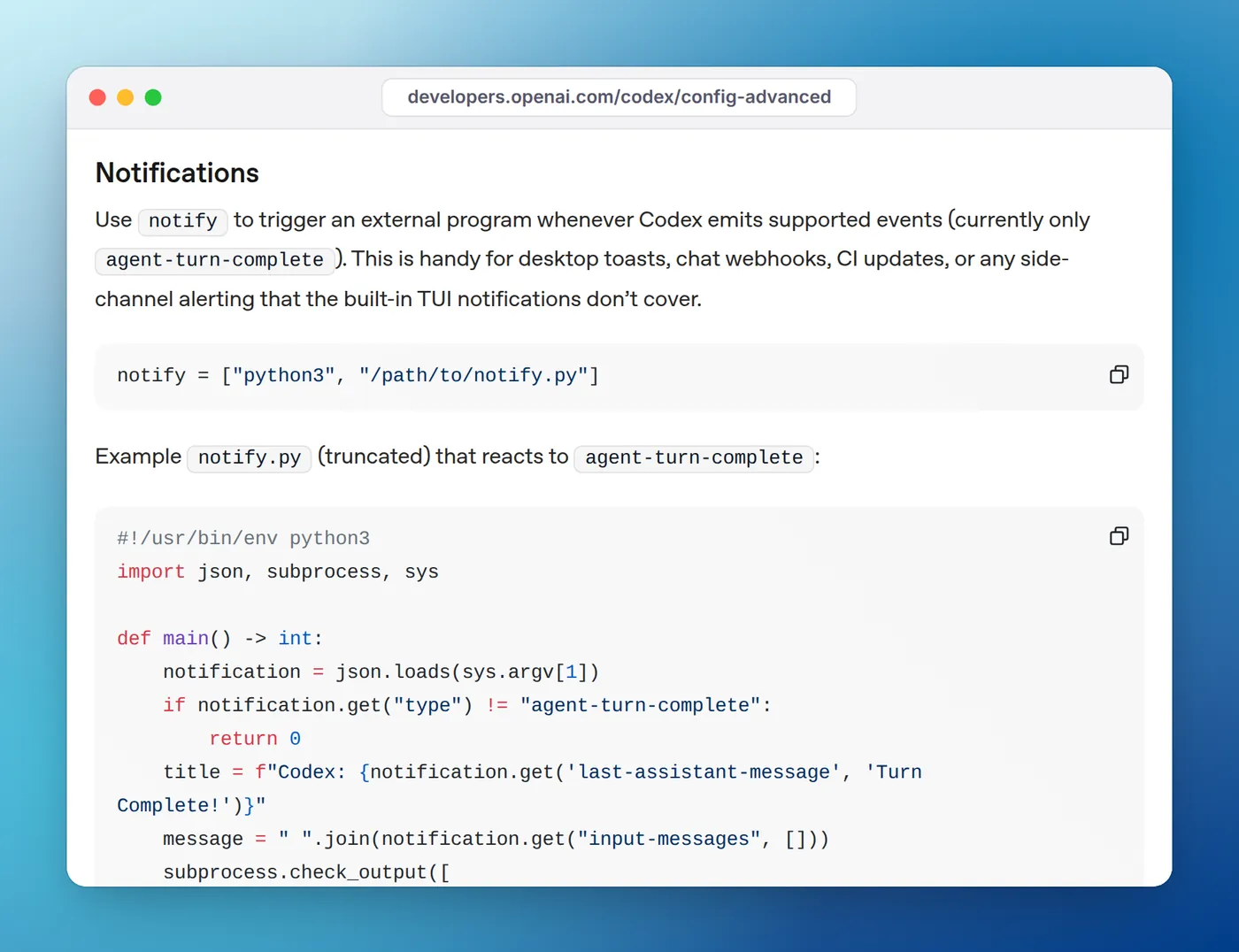
notify runs your program on agent-turn-complete.This script shows the project name and the start of Codex's reply on macOS and Linux. It needs jq.
#!/bin/bash
# Codex passes the event as one JSON argument.
payload="$1"
type=$(printf '%s' "$payload" | jq -r '.type')
[ "$type" = "agent-turn-complete" ] || exit 0

project=$(basename "$(printf '%s' "$payload" | jq -r '.cwd // "."')")
message=$(printf '%s' "$payload" | jq -r '.["last-assistant-message"] // "Turn complete"')
message=${message:0:140}

if command -v osascript >/dev/null 2>&1; then
  osascript -e 'on run argv' \
    -e 'display notification (item 2 of argv) with title (item 1 of argv) sound name "Glass"' \
    -e 'end run' "Codex: $project" "$message"
elif command -v notify-send >/dev/null 2>&1; then
  notify-send -a Codex "Codex: $project" "$message"
fi
exit 0
Passing the title and message to AppleScript as arguments, rather than pasting them into the script text, means quotes in Codex's reply can't break the command. Make the script executable with chmod +x ~/.codex/notify.sh, then add this line near the top of ~/.codex/config.toml, above any [table] header:
notify = ["/bin/bash", "/Users/you/.codex/notify.sh"]Replace /Users/you with your home folder (/home/you on Linux). The value is an argument list, not a shell command, so write the full path rather than ~.
Three rules trip people up. First, notify only works in your user config: Codex ignores it in a project's .codex/config.toml and prints a startup warning. Second, the JSON arrives as an argument, so a script that reads standard input gets nothing. Third, on macOS, osascript notifications are posted as Script Editor, so allow Script Editor in System Settings > Notifications if nothing appears.
Hooks: done and approval alerts from a script
Codex hooks use the same three-level shape as Claude Code's: an event, a matcher group and handlers. The two that matter for notifications are Stop, which runs when a turn ends, and PermissionRequest, which runs when Codex is about to ask for approval. According to the hooks docs, a PermissionRequest hook that doesn't return a decision leaves the normal approval prompt in place, so a notification hook won't approve anything by accident.
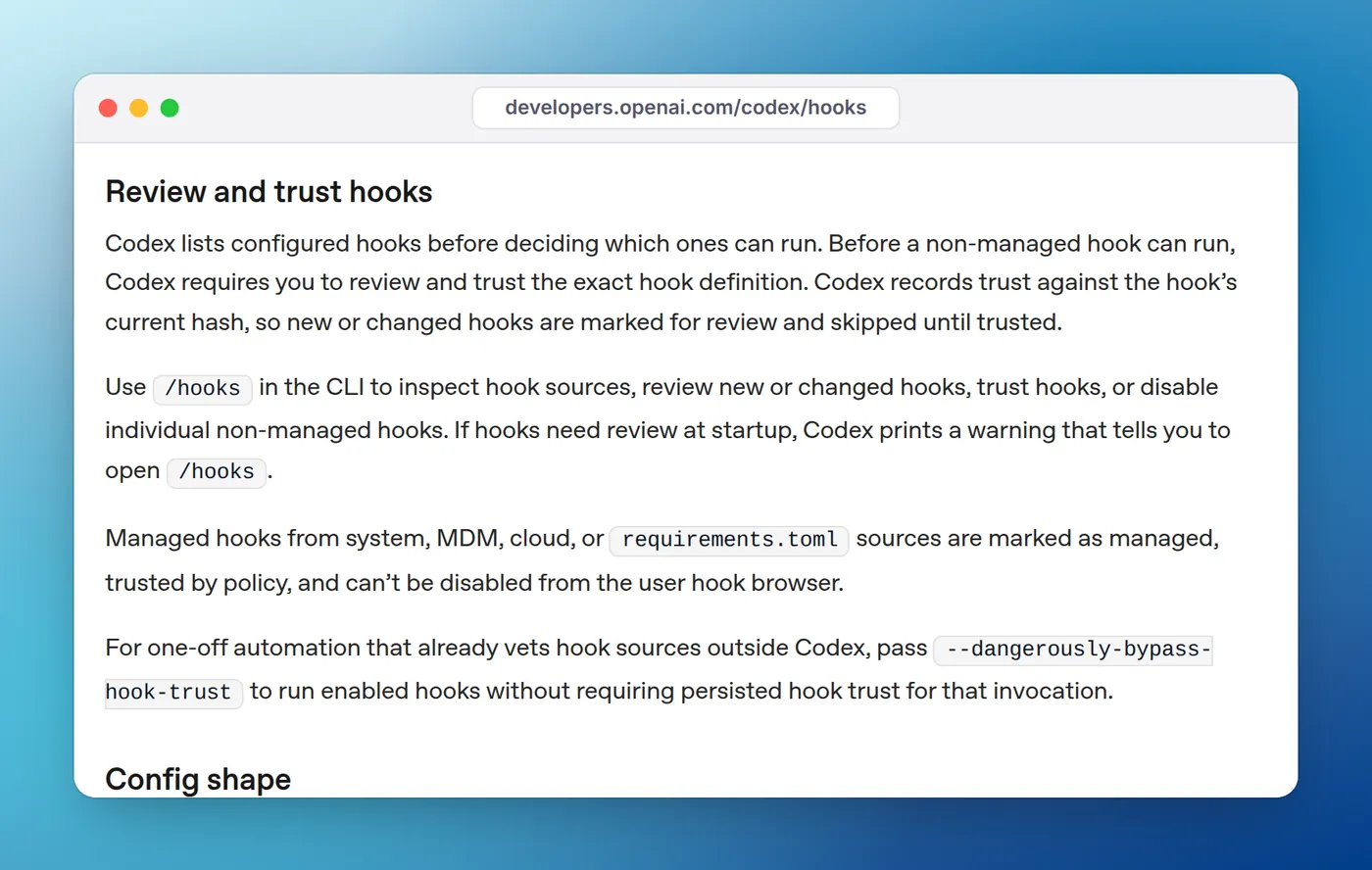
/hooks.macOS
{
  "hooks": {
    "Stop": [
      {
        "hooks": [
          {
            "type": "command",
            "command": "osascript -e 'display notification \"Codex finished\" with title \"Codex\" sound name \"Glass\"' >/dev/null 2>&1",
            "timeout": 10
          }
        ]
      }
    ],
    "PermissionRequest": [
      {
        "hooks": [
          {
            "type": "command",
            "command": "osascript -e 'display notification \"Codex needs your approval\" with title \"Codex\" sound name \"Ping\"' >/dev/null 2>&1",
            "timeout": 10
          }
        ]
      }
    ]
  }
}
The >/dev/null 2>&1 matters. Codex expects a Stop hook that exits 0 to print either nothing or JSON, and plain text on stdout is invalid for that event. A notification command should stay silent. For a sound without a banner, swap the command for afplay /System/Library/Sounds/Glass.aiff.
Linux and Windows in one file
commandWindows is a Windows-only override of command, so one file can serve both systems:
{
  "hooks": {
    "Stop": [
      {
        "hooks": [
          {
            "type": "command",
            "command": "notify-send -a Codex 'Codex' \"Finished in $(basename \"$PWD\")\" >/dev/null 2>&1",
            "commandWindows": "powershell -NoProfile -Command \"(New-Object Media.SoundPlayer 'C:\\Windows\\Media\\tada.wav').PlaySync()\"",
            "timeout": 10
          }
        ]
      }
    ],
    "PermissionRequest": [
      {
        "hooks": [
          {
            "type": "command",
            "command": "notify-send -a Codex -u critical 'Codex' 'Codex needs your approval' >/dev/null 2>&1",
            "commandWindows": "powershell -NoProfile -Command \"(New-Object Media.SoundPlayer 'C:\\Windows\\Media\\chimes.wav').PlaySync()\"",
            "timeout": 10
          }
        ]
      }
    ]
  }
}
Hook commands run with the session's working directory, so $PWD is the project. The Windows commands play a sound because that needs nothing installed; for a toast instead, the Claude Code on Windows guide covers the BurntToast module, and the same PowerShell lines work here. Our Linux guide covers notify-send problems such as a missing D-Bus address.
Trust the hooks before they run
This is the step most people miss. Codex skips any new or changed non-managed hook until you review and trust it. Start Codex, type /hooks, review the two hooks and trust them. If hooks need review, Codex prints a warning at startup telling you to open /hooks. Trust is recorded against the hook's hash, so after any edit you trust it again.
The hooks docs also list --dangerously-bypass-hook-trust for one-off automation that vets hooks elsewhere. Don't use it to skip the review for hooks you edit by hand. Hooks are on by default; [features] hooks = false in config.toml turns them all off.
Test each piece on its own
When a notification doesn't arrive, test the parts separately. It's faster than restarting Codex over and over.
The built-in notification. Ask Codex something that takes a few seconds, then switch to another app before it answers. With the default unfocused condition, nothing fires while the Codex window has focus, so testing while you watch it proves nothing.
The notify script. Run it by hand with a sample payload, exactly as Codex would call it:
~/.codex/notify.sh '{"type":"agent-turn-complete","cwd":"/tmp/demo","last-assistant-message":"All tests pass"}'A notification titled "Codex: demo" should appear. If it doesn't, the problem is the script or your OS notification settings, not Codex.
A hook command. Paste the command part into a terminal and run it. If notify-send or osascript fails there, it fails in the hook too.
Hook trust. Open /hooks in Codex and check both hooks are listed as trusted. An untrusted hook is skipped without running.
The order matters: there's no point checking trust for a hook whose command doesn't work in a terminal. On Windows, a notify program works the same way. Point it at powershell.exe with -NoProfile and -File, followed by the full path to a .ps1 script that reads the JSON from its first argument ($args[0]) and converts it with ConvertFrom-Json. If your execution policy blocks scripts, add -ExecutionPolicy Bypass before -File.
Hooks vs notify: which to use
| You want | Use |
|---|---|
| A notification only when the terminal is in the background, no setup | tui.notifications (already on) |
| A desktop notification with the project and Codex's reply | notify with the script above |
| An alert when Codex needs approval, from a script | A PermissionRequest hook |
| Different sounds for "done" and "needs you" | Stop and PermissionRequest hooks |
| The same file on macOS, Linux and Windows | Hooks with commandWindows |
Stop runs at the end of every turn, so a one-line question gets an alert too. PermissionRequest runs as soon as Codex asks, even while you're watching. If that's too eager, the built-in approval-requested notification with notification_condition = "unfocused" only fires when you've switched away.
When you run Codex next to other agents
Notifications are one-off events. With one Codex session they're enough. With Codex in one terminal and Claude Code in two more, a stack of identical banners doesn't tell you which session is still blocked, and nothing clears once you've answered.
On a Mac or a Windows PC, Eddie shows each session as working, needs you or done, in the MacBook notch or at the edge of your Windows desktop, and taps you when one needs approval. For Codex it adds its hooks to ~/.codex/hooks.json (%USERPROFILE%\.codex\hooks.json on Windows), with "needs you" alerts after a one-time trust in Codex's /hooks; cost tracking is Claude Code only for now. There's no Linux version, so on Linux the setups above are the answer.
For Claude Code itself, the notification guide has the equivalent hooks, and Claude Code vs Codex vs Gemini CLI compares the agents more broadly. If you juggle several at once, running multiple sessions in parallel covers the workflow side.
FAQ
Does Codex CLI have notifications built in?
Yes. tui.notifications is on by default and fires when the terminal isn't focused. Codex sends an OSC 9 escape sequence, which terminals such as iTerm2 and WezTerm show as a desktop notification, and falls back to the terminal bell elsewhere.
How do I get a sound when Codex is done?
Set notification_method = "bel" under [tui] in ~/.codex/config.toml to ring the terminal bell, or add a Stop hook in ~/.codex/hooks.json that plays a file, such as afplay /System/Library/Sounds/Glass.aiff on macOS or paplay on Linux. Trust the hook with /hooks before it runs.
How do I disable Codex CLI notifications?
Set notifications = false under [tui] in ~/.codex/config.toml. That turns off the built-in terminal notifications. If you also set a notify program or notification hooks, remove those separately.
Why doesn't my Codex notify script run?
Check three things: notify is in your user ~/.codex/config.toml (Codex ignores it in a project's .codex/config.toml), the path is absolute, and the script reads the JSON from its first argument, not from standard input. It only fires on agent-turn-complete.
Why doesn't my Codex Stop hook fire?
New and changed hooks are skipped until you review and trust them. Run /hooks in the Codex CLI, review the hook and trust it. Codex records trust against the hook's hash, so you need to trust it again after every edit.
How do I get Codex CLI notifications on Windows?
The built-in notifications fall back to the terminal bell in Windows Terminal, so set notification_method = "bel" and give Windows Terminal a bellStyle that flashes the taskbar. For a toast, add a hook with a commandWindows field that runs PowerShell.