
Claude Code notifications
Play a Sound When Claude Code Is Done (macOS, Linux, Windows)
Make Claude Code play a notification sound when it's done or needs permission. Copy-paste Stop hooks with afplay, paplay and PowerShell, plus a terminal bell.
On this page
To make Claude Code play a sound when it's done, add a Stop hook to ~/.claude/settings.json that plays an audio file: afplay /System/Library/Sounds/Glass.aiff on macOS, paplay or pw-play with a system sound on Linux, or PowerShell's Media.SoundPlayer on Windows. Add a second, different sound on the Notification event with the permission_prompt matcher, so you can tell "finished" from "needs your permission" without looking. If you'd rather not write a hook, setting preferredNotifChannel to terminal_bell rings the terminal bell instead.
The events and settings here come from the official hooks reference, hooks guide and terminal configuration docs, checked on October 3, 2026. Every JSON block is valid JSON, and every shell command passes a syntax check. The commands were checked against the docs rather than run on each system. For desktop banners as well as sounds, start with the main guide to getting notified when Claude Code is done.
The quick answer for each OS
| OS | Command for the Stop hook | Where the sounds live |
|---|---|---|
| macOS | afplay /System/Library/Sounds/Glass.aiff | /System/Library/Sounds |
| Linux (PulseAudio or PipeWire) | paplay /usr/share/sounds/freedesktop/stereo/complete.oga or pw-play with the same file | /usr/share/sounds/freedesktop/stereo |
| Windows | (New-Object Media.SoundPlayer 'C:\Windows\Media\tada.wav').PlaySync() in PowerShell | C:\Windows\Media |
| Any terminal, including over SSH | return a BEL character as terminalSequence | Your terminal's bell setting |
Stop fires when Claude finishes responding. That's every response, not only the end of a long task, which matters if you find the sound gets old fast; there's a fix for that further down. It doesn't fire when you interrupt with Esc, and a turn that ends on an API error fires StopFailure instead, as the hooks guide's limitations note.
macOS: afplay and the built-in system sounds
afplay ships with macOS and plays an audio file from the command line. This config plays Glass when Claude finishes and Ping when a permission prompt is waiting:
{
  "hooks": {
    "Stop": [
      {
        "hooks": [
          { "type": "command", "command": "afplay /System/Library/Sounds/Glass.aiff", "async": true }
        ]
      }
    ],
    "Notification": [
      {
        "matcher": "permission_prompt",
        "hooks": [
          { "type": "command", "command": "afplay /System/Library/Sounds/Ping.aiff", "async": true }
        ]
      }
    ]
  }
}
"async": true runs the sound in the background, so Claude Code doesn't wait for it to finish playing. The async hooks section of the reference describes it. Merge the hooks object into your existing settings file instead of replacing the whole file.
The system sounds in /System/Library/Sounds are Basso, Blow, Bottle, Frog, Funk, Glass, Hero, Morse, Ping, Pop, Purr, Sosumi, Submarine and Tink. Short, distinct ones work best for this. A pairing that's easy to tell apart:
| Moment | Suggested sound | Why |
|---|---|---|
Finished (Stop) | Glass | Soft, reads as "done" |
Needs permission (permission_prompt) | Ping or Sosumi | Sharper, hard to ignore |
Failed on an API error (StopFailure) | Basso | Low, sounds like a problem |
Idle for a minute (idle_prompt) | Tink | Quiet reminder |
One sound per moment: done, needs you, failed, idle
Here is that table as a complete config. Each event gets its own sound, so after a day or two you'll know what happened from the other side of the room. StopFailure fires when a turn ends because of an API error, such as a rate limit or an overloaded server, which is worth hearing about because Claude has stopped without finishing. idle_prompt is a Notification type that arrives about 60 seconds after Claude finished, if you haven't typed since, so it works as a second reminder rather than a duplicate of Stop.
{
  "hooks": {
    "Stop": [
      { "hooks": [{ "type": "command", "command": "afplay /System/Library/Sounds/Glass.aiff", "async": true }] }
    ],
    "StopFailure": [
      { "hooks": [{ "type": "command", "command": "afplay /System/Library/Sounds/Basso.aiff", "async": true }] }
    ],
    "Notification": [
      { "matcher": "permission_prompt", "hooks": [{ "type": "command", "command": "afplay /System/Library/Sounds/Sosumi.aiff", "async": true }] },
      { "matcher": "idle_prompt", "hooks": [{ "type": "command", "command": "afplay /System/Library/Sounds/Tink.aiff", "async": true }] }
    ]
  }
}
If the idle reminder feels like too much, delete its matcher group; the rest keep working. The StopFailure reference lists the error types it can match on, should you want the failure sound only for, say, rate_limit.
Use your own sound, or a voice
Any audio file works: afplay "$HOME/Sounds/done.mp3". Use an absolute path or $HOME, since hooks run in the project folder, not your home directory.
If you'd rather hear words, macOS has say. It's handy when several projects are running, because it can name the folder:
{
  "hooks": {
    "Stop": [
      {
        "hooks": [
          { "type": "command", "command": "say \"Done in $(basename \"$PWD\")\"", "async": true }
        ]
      }
    ]
  }
}
A sound has one advantage over a banner on macOS: it still reaches you when a Focus mode or Do Not Disturb is hiding notifications, because afplay and say play audio directly rather than posting a notification. If you want both a banner and a sound, the osascript notification in the pillar guide accepts a sound name too.
Linux: paplay, pw-play or canberra-gtk-play
Most Linux desktops include the freedesktop sound theme (the sound-theme-freedesktop package on Debian and Ubuntu), with files such as complete.oga, bell.oga, message.oga, dialog-warning.oga and window-attention.oga in /usr/share/sounds/freedesktop/stereo. Play one with paplay, which comes with PulseAudio's utilities. Systems that run PipeWire without the PulseAudio tools have pw-play instead, which takes the same file.
This config tries paplay first and falls back to pw-play, so it works on either:
{
  "hooks": {
    "Stop": [
      {
        "hooks": [
          {
            "type": "command",
            "command": "paplay /usr/share/sounds/freedesktop/stereo/complete.oga 2>/dev/null || pw-play /usr/share/sounds/freedesktop/stereo/complete.oga",
            "async": true
          }
        ]
      }
    ],
    "Notification": [
      {
        "matcher": "permission_prompt",
        "hooks": [
          {
            "type": "command",
            "command": "paplay /usr/share/sounds/freedesktop/stereo/dialog-warning.oga 2>/dev/null || pw-play /usr/share/sounds/freedesktop/stereo/dialog-warning.oga",
            "async": true
          }
        ]
      }
    ]
  }
}
On GTK desktops, canberra-gtk-play -i complete plays the "complete" event from your current sound theme instead of a fixed file, so it follows the theme you picked in your desktop settings. Run ls /usr/share/sounds/freedesktop/stereo to see which files your system has. Sounds won't play on a headless server or inside most containers, because there's no audio device; the Linux notification guide covers that case and desktop-specific quirks.
Windows: PowerShell SoundPlayer
Claude Code on Windows runs hook commands through Git Bash when it's installed, otherwise PowerShell. Setting "shell": "powershell" makes a hook run in PowerShell either way, as the hooks guide explains. .NET's SoundPlayer class plays .wav files, and PlaySync() waits until the sound has played, so PowerShell doesn't exit halfway through it.
{
  "hooks": {
    "Stop": [
      {
        "hooks": [
          {
            "type": "command",
            "shell": "powershell",
            "command": "(New-Object Media.SoundPlayer 'C:\\Windows\\Media\\tada.wav').PlaySync()",
            "async": true
          }
        ]
      }
    ],
    "Notification": [
      {
        "matcher": "permission_prompt",
        "hooks": [
          {
            "type": "command",
            "shell": "powershell",
            "command": "(New-Object Media.SoundPlayer 'C:\\Windows\\Media\\chimes.wav').PlaySync()",
            "async": true
          }
        ]
      }
    ]
  }
}
In JSON, every Windows backslash is written twice, which is why the path reads C:\\Windows\\Media. The files in that folder vary between Windows versions; run Get-ChildItem C:\Windows\Media\*.wav in PowerShell to see what yours has, and swap in any of them. If you run Claude Code inside WSL, call powershell.exe -c "..." from a normal hook instead, which needs Windows interop on your PATH. The Windows notification guide adds toast notifications on top.
The zero-install option: the terminal bell
Claude Code can ring the terminal bell itself, with no hook at all:
{
  "preferredNotifChannel": "terminal_bell"
}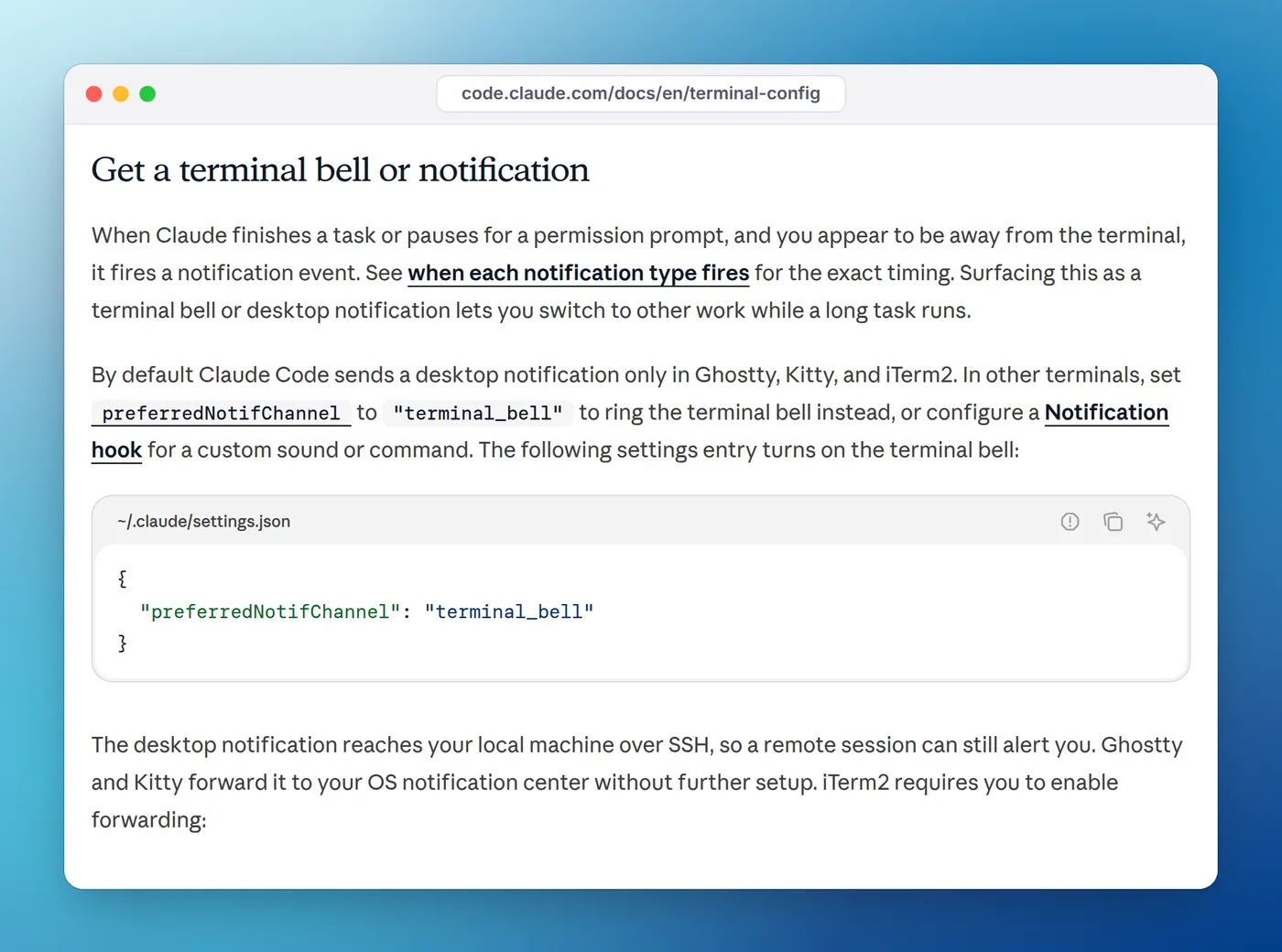
preferredNotifChannel set to terminal_bell is the no-script option.What you hear depends on your terminal: a beep, a system alert sound, or nothing if the bell is muted. The settings reference lists the other values. Two things to know before you rely on it:
- The built-in channel follows the same timing as the
Notificationevent, so it fires when Claude finishes or waits on a prompt and you appear to be away. It's not an every-turn sound. - In Apple's Terminal, Claude Code's first-run setup turns off the audible bell. Turn it back on under Settings > Profiles > Advanced > Audible bell, as the terminal docs describe.
A bell from a hook, for SSH and tmux
When Claude Code runs on a remote machine, afplay and paplay would play on the server, where nobody hears them. A hook can instead return a bare BEL character in the terminalSequence field, and Claude Code writes it to your terminal, which then rings on your own machine:
{
  "hooks": {
    "Stop": [
      {
        "hooks": [
          {
            "type": "command",
            "command": "printf '%s' '{\"terminalSequence\": \"\\u0007\"}'"
          }
        ]
      }
    ]
  }
}
The terminal notifications section of the reference lists BEL among the allowed sequences, and notes that Claude Code only writes them in an interactive session. Inside tmux, add set -g allow-passthrough on to ~/.tmux.conf so the signal reaches the outer terminal.
Only play a sound after long tasks
Because Stop fires after every response, a sound on every quick question gets tiresome. A small script can time each turn: record the time when you submit a prompt, and play the sound at Stop only if the turn took longer than, say, 30 seconds. Save this as ~/.claude/hooks/long-task-sound.sh:
#!/bin/bash
# Usage: long-task-sound.sh start | stop
# Plays a sound at Stop only if the turn took at least MIN_SECONDS.
MIN_SECONDS=30
input=$(cat)
session=$(jq -r '.session_id // "default"' <<<"$input")
stamp="${TMPDIR:-/tmp}/claude-turn-$session"

if [ "$1" = "start" ]; then
  date +%s > "$stamp"
  exit 0
fi

start=$(cat "$stamp" 2>/dev/null || echo 0)
now=$(date +%s)
if [ $((now - start)) -ge "$MIN_SECONDS" ]; then
  afplay /System/Library/Sounds/Glass.aiff
fi
Run chmod +x ~/.claude/hooks/long-task-sound.sh, make sure jq is installed, and wire it to two events:
{
  "hooks": {
    "UserPromptSubmit": [
      {
        "hooks": [
          { "type": "command", "command": "\"$HOME/.claude/hooks/long-task-sound.sh\" start" }
        ]
      }
    ],
    "Stop": [
      {
        "hooks": [
          { "type": "command", "command": "\"$HOME/.claude/hooks/long-task-sound.sh\" stop", "async": true }
        ]
      }
    ]
  }
}
The start step must print nothing: on UserPromptSubmit, anything a hook prints to stdout is added to Claude's context. Every hook receives a session_id in its JSON input, which keeps several sessions from overwriting each other's start time. On Linux, swap the afplay line for the paplay command above.
No sound? Quick checks
- Run the sound command in a terminal on its own. If it's silent there, the problem is the command, the file path or your volume, not Claude Code.
- Run
/hooksin Claude Code and confirm your hook is listed underStoporNotification. If it isn't, the settings file probably has a JSON error, such as a trailing comma. - For
permission_prompt, remember the roughly six-second delay that resets while you type, explained in notifications when Claude Code is waiting for input.
The full checklist is in notification hook not working? 9 fixes.
Hearing which session finished
One sound works with one session. With several Claude Code sessions running in different projects, the same chime from all of them tells you something finished, but not what. You can give each project its own sound with a project-level .claude/settings.json, or use say with the folder name as shown above.
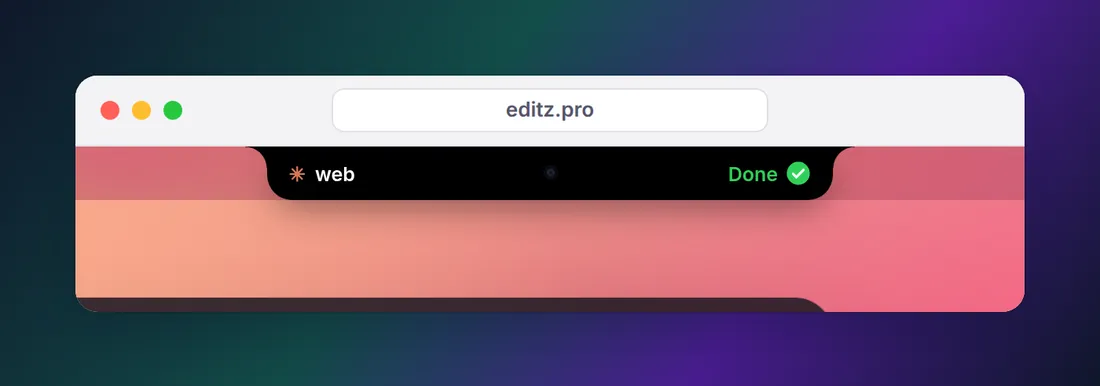
On a Mac, Eddie handles this differently: it plays a sound when an agent finishes and peeks out of the MacBook notch with a sound when one needs permission, and the notch shows which session it was, as working, needs you or done. It sets up the hooks for you with one click. Eddie for Windows shows the same states at the edge of your Windows desktop; there's no Linux version, so on Linux the hooks above are the way to go. Watch your AI agents from the MacBook notch has the details.
FAQ
Does Claude Code have a built-in sound when it's done?
Not a sound file, but it can ring the terminal bell. Set preferredNotifChannel to terminal_bell in ~/.claude/settings.json. By default it only sends a desktop notification in iTerm2, Ghostty and Kitty, and only when you seem to be away. For a sound every time Claude finishes, add a Stop hook that plays a file.
Why is there no sound when Claude Code finishes?
Usually one of three things: the sound command fails on its own (try it in a terminal), the hook didn't load (check /hooks), or you're relying on the terminal bell and the terminal has its audible bell turned off. Claude Code's first-run setup turns off the audible bell in Apple's Terminal, so check Settings > Profiles > Advanced there.
Can I use my own sound file?
Yes. The hook just runs a command, so point afplay, paplay or PowerShell's SoundPlayer at any file the player supports. SoundPlayer only plays .wav files. Use an absolute path, because hooks run in the project folder, not your home folder.
How do I get a sound notification for Claude Code in VS Code?
Use a hook. Hooks run in the VS Code extension and in the integrated terminal, and a command like afplay plays through your system speakers no matter which window is in front. The built-in desktop notification doesn't reach the VS Code integrated terminal, according to Claude Code's terminal docs.
How do I play a sound on Windows when Claude Code is done?
Add a Stop hook with "shell": "powershell" that runs (New-Object Media.SoundPlayer 'C:\Windows\Media\tada.wav').PlaySync(). In the JSON settings file every backslash is written twice. The full config is in the Windows section above.
Can Claude Code say something out loud when it's done?
On a Mac, yes: use say "Claude is done" as the hook command, or include the folder name with say "Done in $(basename "$PWD")", which tells you which project finished. On Linux and Windows, any text-to-speech command you can run in a terminal works the same way as a hook command.