
Claude Code notifications
Claude Code Notification When Waiting for Input: Never Miss a Permission Prompt
Get alerted when Claude Code is waiting for your input or permission. How permission_prompt, idle_prompt and PermissionRequest differ, with copy-paste hooks.
On this page
- What "waiting for input" means in Claude Code
- permission_prompt vs idle_prompt vs PermissionRequest
- The recommended setup: one alert for permission, one for idle
- Show the real message and the project name
- Get the alert the instant Claude asks: PermissionRequest
- Get notified when Claude asks you a question
- Prefer a sound, or your phone?
- Test each notification on purpose
- When the notification never arrives
- When several sessions are waiting at once
- FAQ
To get a notification when Claude Code is waiting for input, add a Notification hook with the matcher permission_prompt to ~/.claude/settings.json. It fires when a permission prompt has waited about six seconds without you typing. Add idle_prompt too if you want a reminder when Claude finished a minute ago and is still waiting for your next message, or hook PermissionRequest if you want the alert the instant Claude asks.
Every event name, matcher and timing on this page comes from the official hooks guide and hooks reference, checked on October 3, 2026. Each JSON block below is valid JSON in the format Claude Code reads. For the "it's finished" side of the problem, see the main guide to getting notified when Claude Code is done.
What "waiting for input" means in Claude Code
Claude Code can be stuck on you in three different ways, and each one has its own hook. Most setups that "miss" a prompt are listening to the wrong one.
| Claude is waiting because... | What you see in the terminal | Hook that catches it |
|---|---|---|
| It wants permission to run a tool or command | A permission prompt with Yes / No options | Notification with permission_prompt, or PermissionRequest |
| It asked you a question | A multiple-choice question | PreToolUse with matcher AskUserQuestion |
| An MCP server needs input | A form or a link to open | Notification with elicitation_dialog or elicitation_url_dialog |
| It finished and wants your next message | The empty prompt | Stop right away, or Notification with idle_prompt a minute later |
The first row is the one that costs the most time. A permission prompt blocks the whole session: Claude does nothing until you answer, and nothing on screen changes to tell you.
permission_prompt vs idle_prompt vs PermissionRequest
These three are easy to mix up because they all sound like "Claude needs me". They fire at different times and for different reasons.
| Hook | Fires | Waits for you to look away? | Best for |
|---|---|---|---|
Notification, matcher permission_prompt | After a permission prompt has waited about six seconds | Yes, in a terminal each keystroke resets the timer | A desktop alert when you've wandered off |
Notification, matcher idle_prompt | About 60 seconds after Claude finished responding, if you haven't typed since | Yes | A second nudge for a finished task you missed |
PermissionRequest | The moment Claude asks for permission | No | An instant alert, a log of every request, or auto-approving safe tools |
The timings come from the matcher table in the hooks guide. Two details matter in practice:
- The six-second delay is deliberate. Claude Code assumes that if you're typing, you can see the prompt. In Claude Desktop, the VS Code extension and other hosts that answer permissions through the Agent SDK,
permission_promptarrives about six seconds after the request without that typing check, as the Notification reference describes. PermissionRequestonly fires in modes that prompt. That means the default mode (labeled Manual) and plan mode. Inauto,dontAskandbypassPermissionsthere's no prompt, so there's nothing to hook. The permission modes table explains what each mode asks about.
A Notification hook can't block or answer anything. It's purely a side effect, so it's safe to point at any command you like.
The recommended setup: one alert for permission, one for idle
This config shows a macOS notification with a sound when a permission prompt is waiting, and a quieter one when Claude has been idle for a minute. Merge the hooks object into your existing ~/.claude/settings.json, keeping any keys already there.
{
  "hooks": {
    "Notification": [
      {
        "matcher": "permission_prompt",
        "hooks": [
          {
            "type": "command",
            "command": "osascript -e 'display notification \"Claude needs your permission\" with title \"Claude Code\" sound name \"Ping\"'"
          }
        ]
      },
      {
        "matcher": "idle_prompt",
        "hooks": [
          {
            "type": "command",
            "command": "osascript -e 'display notification \"Claude is waiting for your next message\" with title \"Claude Code\"'"
          }
        ]
      }
    ]
  }
}
Two matcher groups under the same event are fine: Claude Code checks each group's matcher on its own. Matchers are exact and case-sensitive, so permission_prompt works and Permission_Prompt never fires.
If you leave the matcher empty, the hook receives every notification type, including authentication messages and the quota auto-resume notices. That's noisy, and it's why the configs here name the types they want.
Show the real message and the project name
Every Notification hook receives JSON on stdin with a message, a title and the notification_type, plus common fields such as cwd. The Notification input reference shows an example where the message reads "Permission required: Bash tool". Passing that text through tells you which tool is asking, and adding the folder name tells you which session.
Save this script as ~/.claude/hooks/waiting.sh. It uses jq to read the JSON; install it with your package manager if jq --version fails.
#!/bin/bash
# Notification hook: say what Claude is waiting for, and in which project.
input=$(cat)
type=$(jq -r '.notification_type // empty' <<<"$input")
msg=$(jq -r '.message // "Claude Code needs your attention"' <<<"$input")
project=$(basename "$PWD")

case "$type" in
  permission_prompt) sound="Ping" ;;
  idle_prompt) sound="Glass" ;;
  *) sound="Pop" ;;
esac

# Pass text as arguments so quotes in the message can't break the AppleScript.
osascript \
  -e 'on run argv' \
  -e 'display notification (item 1 of argv) with title "Claude Code" subtitle (item 2 of argv) sound name (item 3 of argv)' \
  -e 'end run' \
  "$msg" "$project" "$sound"
Make it executable with chmod +x ~/.claude/hooks/waiting.sh, then point one matcher group at it. The matcher lists three types separated by |, which Claude Code treats as a list of exact names:
{
  "hooks": {
    "Notification": [
      {
        "matcher": "permission_prompt|idle_prompt|elicitation_dialog",
        "hooks": [
          { "type": "command", "command": "\"$HOME/.claude/hooks/waiting.sh\"" }
        ]
      }
    ]
  }
}
Hooks run in Claude Code's working directory, which is why $PWD holds the project folder. On Linux, replace the osascript lines with notify-send "Claude Code: $project" "$msg", and see the Linux notification guide for desktop-specific details. On Windows, the Windows guide has the PowerShell equivalents.
Get the alert the instant Claude asks: PermissionRequest
If six seconds is too long, for example because you keep a second monitor open and want a sound the moment anything is blocked, hook PermissionRequest. It fires as soon as Claude asks, whether or not you're typing.
{
  "hooks": {
    "PermissionRequest": [
      {
        "hooks": [
          {
            "type": "command",
            "command": "osascript -e 'display notification \"Claude is asking for permission\" with title \"Claude Code\" sound name \"Ping\"'",
            "async": true
          }
        ]
      }
    ]
  }
}
This hook prints nothing, so Claude Code shows its normal permission prompt and you answer it as usual. "async": true runs the command in the background so the prompt doesn't wait for it.
Be careful about what a PermissionRequest hook prints. If it writes a JSON decision with "behavior": "allow" to stdout, Claude Code approves the request for you without asking. That's a real feature, documented under auto-approve specific permission prompts, but an alert hook should never do it by accident. Also note that exit code 2 isn't honored on this event; only the decision object counts.
You can add a matcher to limit the alert to certain tools. PermissionRequest matches on the tool name, so "matcher": "Bash" alerts only for shell commands.
Get notified when Claude asks you a question
When Claude needs a decision rather than a permission, it uses the AskUserQuestion tool, which shows you a set of choices. That's not a permission prompt, so permission_prompt doesn't cover it. Claude Code's permissions docs say PreToolUse hooks run for every tool call, so a PreToolUse hook with the matcher AskUserQuestion fires just before the question appears:
{
  "hooks": {
    "PreToolUse": [
      {
        "matcher": "AskUserQuestion",
        "hooks": [
          {
            "type": "command",
            "command": "osascript -e 'display notification \"Claude has a question for you\" with title \"Claude Code\" sound name \"Purr\"'",
            "async": true
          }
        ]
      }
    ]
  }
}
Keep this hook silent too. A PreToolUse hook that exits with code 2 or returns a deny decision would block the question instead of announcing it.
Prefer a sound, or your phone?
A banner is easy to miss if Focus mode is on or you're looking at another screen. A sound cuts through both. Swap the osascript command for afplay /System/Library/Sounds/Ping.aiff on macOS, or give permission prompts and finished tasks different sounds so you can tell them apart without looking. Play a sound when Claude Code is done has the commands for every OS.
If you step away from the desk entirely, a desktop alert does nothing for you. Claude Code notifications on your phone covers the built-in mobile push that comes with Remote Control, and hooks that send pushes through services such as ntfy.
Test each notification on purpose
Don't wait for a real prompt to find out whether the hook works. Trigger each case yourself:
permission_prompt: press Shift+Tab until the status bar shows manual mode, which is how the hooks guide tests it. Ask Claude to run something that needs approval, such as your test suite, then switch to another app without touching the keyboard. The alert should arrive after about six seconds.idle_prompt: ask a quick question, let Claude answer, and leave the terminal alone for a little over a minute.PermissionRequest: same as the first test, but the alert should arrive at once, even while the terminal has focus.AskUserQuestion: ask Claude to use its AskUserQuestion tool to ask you which of two options you prefer, switch away, and watch for the alert as the choices appear.
If a test fails, start Claude Code with claude --debug-file /tmp/claude.log and search the log for hook. The debug section of the reference lists what it records: which hooks matched, their exit codes, and their output.
When the notification never arrives
If your hook never fires, these are the usual causes, roughly in order of how often they bite:
- You're still typing. In a terminal session, every keystroke defers
permission_prompt. Switch to another app and wait. - Your permission mode doesn't prompt. In auto mode or with
--dangerously-skip-permissions, there's no prompt to notify you about. - The command fails on its own. Run it in a terminal first. On macOS, that usually means the Script Editor permission above.
- The hook didn't load. Run
/hooks; it lists every hook Claude Code loaded and the file it came from. If yours is missing, the JSON is probably invalid (no comments or trailing commas allowed).
For everything else, from workspace trust to PATH problems, read our fixes for a notification hook that isn't working. The hooks pillar explains how matchers and handlers fit together if you want to go further.
When several sessions are waiting at once
Notifications are events. That works for one session. With three or four Claude Code sessions in different projects, the banners pile up in Notification Center, they don't say which session is still blocked once you've answered one, and they don't clear themselves.
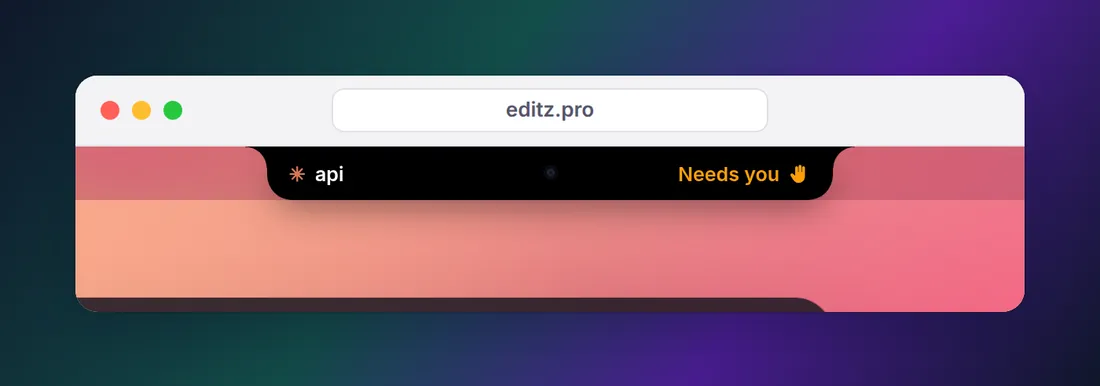
On a Mac or a Windows PC, Eddie turns those same hooks into a status you can glance at: each session sits in the MacBook notch, or at the edge of your Windows desktop, as working, needs you or done, it taps you when one needs permission, and it settles back once you answer. Two limits are worth knowing: Cursor's agent doesn't report approvals at all, and pending approvals in the Claude desktop app's Code tab can't be shown. Watch your AI agents from the MacBook notch compares it with the other ways to keep an eye on sessions.
FAQ
What is idle_prompt in Claude Code?
idle_prompt is a notification type Claude Code sends about 60 seconds after Claude finished responding, if you haven't typed anything since. It means the session is sitting idle, waiting for your next message. Match it in a Notification hook to get a reminder; use the Stop event if you want to know the moment Claude finishes.
Why does the permission notification take a few seconds to arrive?
On purpose. In a terminal session, Claude Code sends permission_prompt only after the prompt has waited about six seconds, and each keystroke pushes that back, so you aren't alerted about a prompt you're already looking at. For an instant alert, hook the PermissionRequest event instead.
Does the waiting-for-input notification work in VS Code?
Yes. Hooks run in the VS Code extension too. Hosts that answer permission requests through the Agent SDK, which include the VS Code extension and Claude Desktop, send permission_prompt about six seconds after the request without deferring for typing. The built-in desktop notification doesn't reach the VS Code integrated terminal, so use a hook there.
Can I get notified when Claude asks me a question, not just for permission?
Yes. Claude asks multiple-choice questions with the AskUserQuestion tool, and PreToolUse hooks run before every tool call, so a PreToolUse hook with the matcher AskUserQuestion fires the moment a question appears. MCP servers that ask for input trigger the elicitation_dialog notification type instead.
How do I turn off Claude Code's waiting notifications?
Set preferredNotifChannel to notifications_disabled in ~/.claude/settings.json to stop the built-in notification. Hooks are separate: delete the Notification entry from your settings file, or set disableAllHooks to true to pause every hook at once.